8
English
Note: You may need to purchase additional software.
4 Ensure you have the correct DLP-compatible 3D glasses.
Setting up a 3D environment
Once you have installed the drivers, you will need to set up the environment.
1 Set the refresh rate to 100/120 Hz on your graphics card for frame/field
sequential 3D formats. Others, please set refresh rate which the 3D content
requires.
If you are viewing Blu-ray 3D content over an HDMI 1.4a or later
connection, this will be set automatically.
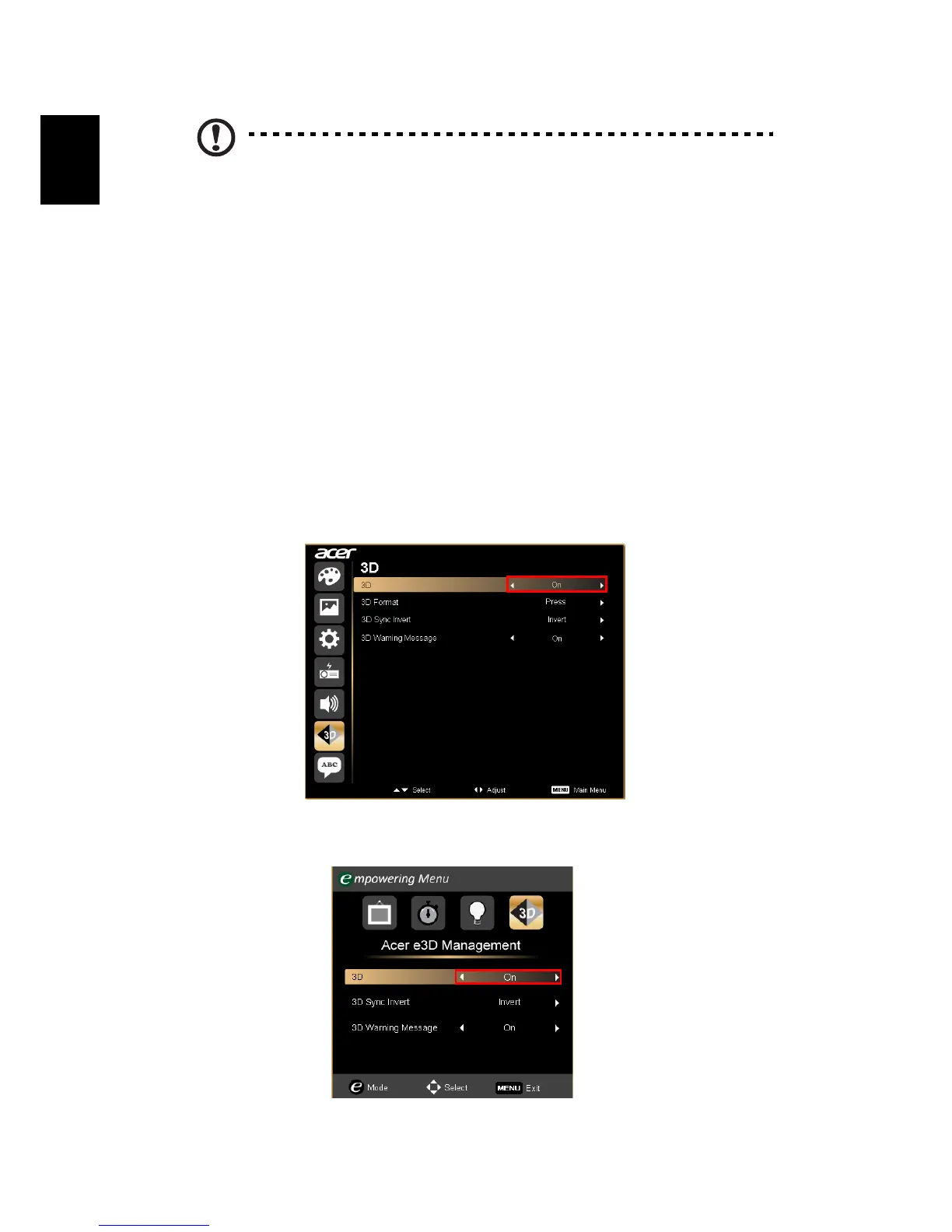
2 Press the menu button on the projector remote control to open the OSD.
Select the 3D section (the sixth menu option) on the left-hand side of the
window.
3 Set 3D to On.
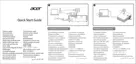
4 Alternatively, press the Empowering Key on your projector’s remote control
to open Acer e3D Management. From the 3D options, select
On
.


 To Next Page