EasyManua.ls Logo

Acer P1500 Series - User Manual

Acer P1500 Series
70 pages
Print Icon
To Next Page IconTo Next Page
Loading...
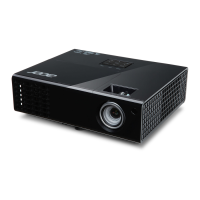
Acer Projector
X111/X1140/X1140A/X111P/X1240/
X1340W/P1340W/X1340WH/
P1340WG/H6510BD/P1500
Series User's Guide

Questions and Answers

  • B
    Bailey SextonAug 18, 2025
    How to fix Acer Projector when no image appears on screen?
    • E
      emilyturnerAug 18, 2025
      First, ensure all cables are correctly connected. Check that connector pins are not bent or broken. Verify the projection lamp is securely installed. Finally, make sure the Acer Projector is switched on.
  • B
    Brian LozanoAug 21, 2025
    Why is my Acer Projector image too small or too large?
    • D
      danielle54Aug 21, 2025
      You can adjust the zoom lever on the top of the Acer Projector. Alternatively, move the projector closer to or further from the screen. You can also press "MENU" on the control panel or remote, go to "Image" > "Aspect Ratio", and try different settings.
  • M
    Mikayla BenderAug 23, 2025
    What to do if Acer P1500 Projector is not displaying presentation from notebook?
    • P
      Patricia AlexanderAug 23, 2025
      If you are using a Microsoft® Windows® based notebook: Some notebook PCs may deactivate their own screens when a second display device is in use. Each has a different way to be reactivated. If you are using an Apple® Mac® OS based notebook: In System Preferences, open Display and select Video Mirroring "On."
  • R
    Rachel MasonAug 26, 2025
    What to do if Acer P1500 image is out of focus?
    • R
      Rose MccormickAug 26, 2025
      First, adjust the focus ring on the projector lens. Also, ensure the projection screen is within the required distance of 4.9 to 19.7 feet (1.5 to 6 meters).
  • S
    Susan SchroederAug 27, 2025
    What to do if Acer P1500 image is unstable or flickering?
    • M
      medinamariahAug 28, 2025
      Try using the "Tracking" feature to correct the unstable or flickering image. You might also want to change the display color setting on your computer.
  • L
    Laura LewisSep 1, 2025
    Why is my Acer Projector image stretched when displaying a 'widescreen' DVD title?
    • M
      Michael GardnerSep 1, 2025
      When you play a DVD encoded in anamorphic or 16:9 aspect ratio you may need to adjust the following settings: * If you play a 4:3 format DVD title, please change the format to 4:3 with the projector OSD. * If the image is still stretched, you will also need to adjust the aspect ratio. Set up the display format to 16:9 (wide) aspect ratio on your DVD player.
  • L
    Lisa StoneSep 3, 2025
    What to do if Acer P1500 stops responding to all controls?
    • C
      chad74Sep 4, 2025
      If possible, turn off the Acer Projector, then unplug the power cord and wait at least 30 seconds before reconnecting power.
  • T
    Terry CampbellSep 6, 2025
    How to fix slanted sides on Acer P1500 image?
    • M
      Michael LynchSep 6, 2025
      If possible, reposition the Acer Projector so that it is centered on the screen and below the bottom of the screen. You can also press the Keystone correction keys on the control panel or remote until the image becomes square. Alternatively, press "MENU" to open the OSD menu and go to "Image" > "Auto Keystone (X1140A/X1240/X1340W/P1340W/ X1340WH/P1340WG)" or "Image" > "Keystone (X111/X1140/X111P/H6510BD/P1500)" to make adjustments.
  • W
    Wendy BakerSep 8, 2025
    How to correct reversed image on Acer P1500?
    • C
      Charles PageSep 8, 2025
      Select "Image" > "Projection Mode (X1140A/X1240/ X1340W/P1340W/X1340WH/P1340WG)", "Image" > "Projection Location (X1140A/X1240/X1340W/ P1340W/X1340WH/P1340WG)" on the OSD and adjust the projection direction.
  • G
    guzmanhenrySep 12, 2025
    How to resolve partial or incorrectly displayed image on Acer P1500 Projector (notebooks)?
    • M
      Mary AdamsSep 12, 2025
      First, press "RESYNC" on the control panel or remote control. For an incorrectly displayed image, adjust the resolution of your computer. Press the toggle output settings, for example: [Fn]+[F4], Compaq [Fn]+[F4], Dell [Fn]+[F8], Gateway [Fn]+[F4], IBM [Fn]+[F7], HP [Fn]+[F4], NEC [Fn]+[F3], Toshiba [Fn]+[F5]. If you experience difficulty changing resolutions or your monitor freezes, restart all equipment including the projector.

Summary

Information for Your Safety and Comfort

Safe Operation and Accessibility

Guidelines for safe operation, disconnection, and accessibility.

Electrical Power Safety

Product Servicing and Safety

Listening, Disposal, and Mercury Advisory

Usage Notes and Precautions

Introduction

Product Features

Overview of the projector's key features and technologies.

Package Contents Overview

Projector Overview

Projector Outlook and Ports

Visual identification of projector parts and rear panel connections.

Control Panel Functions

Remote Control Layout

Getting Started: Connecting the Projector

VGA and Analog Connections

Diagram and list of connections for VGA, component video, and composite signals.

Turning the Projector On;Off

Turning the Projector On

Steps to power on the projector and connect sources.

Turning the Projector Off

Projected Image Adjustment

Adjusting Image Height

How to use the projector's elevator feet to adjust image height and angle.

Optimizing Image Size and Distance

Achieving Preferred Image Size

User Controls and Installation

Installation Menu Guide

How to access and use the OSD installation menu for setup.

Acer Empowering Technology

Empowering Key Functions

Overview of unique Acer functions accessed via the Empowering Key.

Acer eView Management

Utilizing eView for display mode selection and optimization.

Acer eTimer Management

Acer ePower Management

Acer e3 D Management

Onscreen Display (OSD) Menus

Color Settings

Image Settings

System Settings

Security Features

Management Settings

Audio Settings

3 D Functionality

Language Settings

Troubleshooting Guide

Image Problem Solutions

Solutions for common image display issues like no image, scrolling, or incorrect display.

Replacing the Lamp

Ceiling Mount Installation

Specifications

Compatibility Modes: VGA Signals

Regulations and Safety Notices

FCC Compliance and Operational Guidelines

Notices regarding FCC rules, interference, peripheral devices, cautions, and operation.

Canadian and EU Compliance Information

List of Applicable Countries

Declaration of Conformity

Acer P1500 Series Specifications

General IconGeneral
BrandAcer
ModelP1500 Series
CategoryProjector
LanguageEnglish

Related product manuals