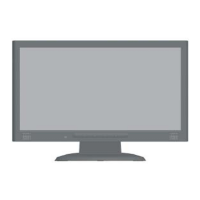
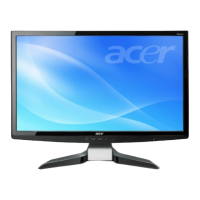
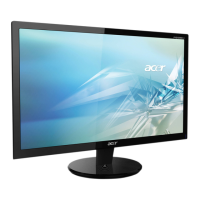
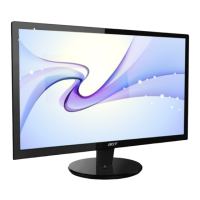
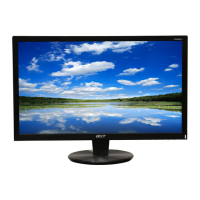
This document describes the Acer X223W LCD Monitor, providing comprehensive information on its features, usage, and maintenance.
Function Description
The Acer X223W is a 22-inch widescreen LCD monitor designed for general computer use. It serves as a visual output device, displaying images and text from a connected host system. The monitor supports both analog (15-pin D-Sub) and digital (24-pin DVI) input signals, making it compatible with a wide range of computers. Its primary function is to provide a clear and stable visual interface for users, with various features aimed at optimizing viewing comfort and energy efficiency.
The monitor incorporates a universal power supply, allowing it to operate in both 100/120V AC and 220/240V AC voltage areas without requiring user adjustment. It is designed to be a "Plug and Play" device, automatically communicating its capabilities, supported resolutions, and timing to the host system via the DDC (Display Data Channel) protocol (DDC2B standard). This simplifies installation and ensures optimal display settings are applied automatically.
For power management, the monitor features a "Power Saving" mode, indicated by an amber-colored power LED. This mode is activated by a control signal from the display controller, reducing energy consumption when the monitor is not actively in use. The monitor remains in this state until a control signal is detected or the keyboard/mouse is activated, with a recovery time of approximately 5 seconds to return to the active "ON" state (blue LED).
Usage Features
The Acer X223W offers several features to enhance user experience and comfort.
Installation and Setup:
The installation process is straightforward. Users need to connect either the VGA video cable or the DVI cable (for dual-input models) to both the monitor and the computer, ensuring both devices are powered off beforehand. After connecting the power cord to a grounded AC outlet, the monitor should be powered on first, followed by the computer. This sequence is crucial for proper initialization.
Physical Adjustments:
The monitor's base allows for tilt adjustment to optimize the viewing position. Users can hold the edges of the monitor with both hands to tilt it up to 15 degrees or down to 5 degrees, helping to achieve maximum comfort and reduce neck strain. For alternative mounting options, the monitor supports wall mounting with a UL Listed Wall Mount Bracket, utilizing 100 mm x 100 mm screw holes.
On-Screen Display (OSD) Controls:
The front panel controls provide access to the OSD menu, allowing users to adjust various display settings.
- Power Switch (1): Turns the monitor ON or OFF.
- Power LED (2): Indicates the power status (ON/OFF).
- Empowering / Exit (3): In the OSD menu, this acts as an EXIT-KEY. When the OSD is off, pressing it selects scenario modes.
- Auto Adjust button / Exit (4): In the OSD menu, this acts as an EXIT-KEY. When the OSD is off, pressing it for 2 seconds activates the Auto Adjustment function, which sets HPos, VPos, Clock, and Focus.
- < / > (5): Used to select desired functions and change settings within the OSD menu.
- MENU / ENTER (6): Activates the OSD menu when off, or activates/deactivates adjustment functions when on.
Acer eColor Management:
This feature provides predefined display modes to suit different viewing scenarios:
- User mode: Allows for fine-tuned, user-defined settings.
- Text mode: Optimizes brightness and contrast to prevent eyestrain, ideal for reading on-screen text.
- Standard mode: Default setting, reflecting native display capability.
- Graphic mode: Enhances colors and emphasizes fine detail for graphic content.
- Movie mode: Displays scenes in clearest detail, making pictures and photographs appear vibrant with sharp detail, and presenting great visuals even in unsuitably-lit environments.
Standard OSD Controls (USER mode):
When "USER" mode is selected in Acer eColor Management, a standard OSD menu appears, offering detailed adjustments:
- Contrast: Adjusts the contrast between foreground and background.
- Brightness: Adjusts the background brightness.
- ACM (Adaptive Contrast Management): An ON/OFF switch for adaptive contrast, default is "OFF".
- Focus: Adjusts picture focus (analog mode only).
- Clock: Adjusts picture clock (analog mode only).
- H. Position: Adjusts horizontal position (analog mode only).
- V. Position: Adjusts vertical position (analog mode only).
- OSD Timeout: Adjusts how long the OSD remains on screen.
- Analog: Selects analog input signal (D-Sub).
- Digital: Selects digital input signal (DVI) (dual-input models only).
- DDC/CI: Turns ON/OFF DDC/CI support.
- Information: Displays current resolution, H/V frequency, and input port.
- Reset: Clears old auto-configuration status and sets color temperature to Cool.
- Exit: Saves user adjustments and closes the OSD.
Comfort and Safety Guidelines:
The manual emphasizes user safety and comfort, providing instructions to prevent physical injury and eyestrain during prolonged computer use. It recommends:
- Ergonomics: Adjusting the monitor's viewing angle, using a footrest, and maintaining proper sitting height.
- Posture: Avoiding fixed postures, slouching, and tensing muscles; taking short rests and standing up regularly.
- Display Placement: Placing the display at the center of the desk to minimize neck strain, especially if viewing the monitor more than documents.
- Glare Reduction: Positioning the display to avoid direct light sources, using drapes/shades, task lights, glare-reduction filters, or display visors.
- Eye Care: Resting eyes frequently, taking breaks to look away, blinking often, and keeping the display clean.
Maintenance Features
The Acer X223W is designed for easy maintenance, with clear guidelines to ensure its longevity and optimal performance.
Cleaning the Monitor:
- Always unplug the monitor before cleaning to prevent electrical hazards.
- Use a soft cloth to gently wipe the screen and the front and sides of the cabinet. This helps remove dust and smudges without scratching the surfaces.
Troubleshooting:
The manual includes a troubleshooting section for both VGA and DVI modes, allowing users to self-diagnose common problems before seeking professional service. This empowers users to resolve minor issues quickly.
- No Picture (LED ON): Adjust brightness and contrast via OSD, or reset to default settings.
- No Picture (LED OFF): Check power switch, AC power cord connection, video signal cable connection, and ensure the computer system is ON.
- No Picture (LED displays amber color): Check video signal cable connection and ensure the computer system is ON.
- Unstable Picture: Check if graphics adapter and monitor specifications are compliant to avoid input signal frequency mismatch.
- Abnormal Picture (missing, center shift, too small/large): Adjust RESOLUTION, CLOCK, CLOCK-PHASE, H-POSITION, and VPOSITION via OSD for non-standard signals. For missing full-screen images, select other resolutions or vertical refresh timings. It's also advised to wait a few seconds after adjusting image size before changing/disconnecting cables or powering off the monitor.
Product Servicing:
Users are advised not to attempt servicing the product themselves, as opening covers can expose dangerous voltage points. All servicing should be referred to qualified service personnel. The manual specifies conditions under which professional servicing is required, such as damaged power cords, liquid spills, exposure to rain/water, physical damage (dropped), distinct changes in performance, or abnormal operation despite following instructions.
LCD Pixel Statement:
The manual clarifies that the LCD unit is manufactured with high precision, but some pixels may occasionally misfire (appearing as black or red dots). These are considered normal and do not constitute a malfunction, as the effective pixel rate is 99.99% or more. It also notes that afterimages may remain after displaying the same image for hours, but the screen recovers slowly by changing the image or turning off the power.
Environmental Responsibility:
The Acer X223W is an ENERGY STAR qualified product, meaning it meets strict energy efficiency guidelines set by the US Environmental Protection Agency (EPA) and the US Department of Energy (DOE). This helps prevent greenhouse gas emissions. The product is shipped with power management enabled:
- Display Sleep mode activates within 15 minutes of user inactivity.
- Computer Sleep mode activates within 30 minutes of user inactivity.
- The computer can be woken from Sleep mode by pushing the power button.
The monitor also complies with RoHS Directive 2002/95/EC, restricting the use of certain hazardous substances in electrical and electronic equipment, demonstrating Acer's commitment to environmental sustainability. Recycling information is provided via Acer's global sustainability website.


 To Next Page


 General