EasyManua.ls Logo

Acer P235H - User Manual

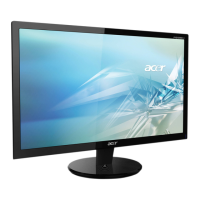
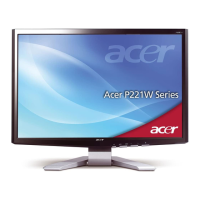
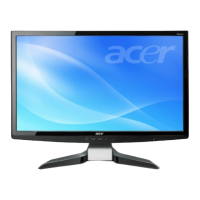
Acer P235H
24 pages
Print Icon
To Next Page IconTo Next Page
Loading...
TABLE OF CONTENTS
Special notes on LCD monitors..................................................1
Information for your safety and comfort..................................2
Unpacking...................................................................................5
Attaching/Removing the base....................................................6
Screen position adjustment........................................................6
Connecting the power cord.......................................................7
Safety precaution.......................................................................7
Cleaning your monitor...............................................................7
Power saving...............................................................................8
DDC..............................................................................................8
Connector Pin Assignment.........................................................9
Standard Timing Table..................................................................11
Installation.....................................................................................12
User controls..................................................................................13
Troubleshooting............................................................................19

Questions and Answers

  • E
    Erin GonzalezJul 31, 2025
    What to do if my Acer P235H has no picture?
    • K
      Kelly MejiaJul 31, 2025
      If the Acer Monitor's LED is off, ensure the power switch is turned on. If the LED displays an amber color, verify that the video signal cable is properly connected at the back of the monitor. Also, make sure the AC power cord is correctly connected to the monitor and that the computer system is powered on. If the LED is on, use the OSD to adjust the brightness and contrast to the maximum level, or restore them to their default settings.
  • B
    Brianna AdamsAug 13, 2025
    Why is my Acer P235H picture abnormal?
    • L
      Lauren BrownAug 13, 2025
      If you observe an unstable picture on your Acer Monitor, verify that the specifications of the graphics adapter and the monitor are compatible. A mismatch might cause the input signal frequency to be incorrect. If the display is missing, shifted, or the image size is incorrect, use the OSD to adjust the RESOLUTION, CLOCK, CLOCK-PHASE, H-POSITION, and V-POSITION settings, especially when using non-standard signals. If the full-screen image is missing, use the OSD to select a different resolution or vertical refresh timing. After adjusting the image size, wait a few seconds before changing the signal cable or turning off the monitor.

Summary

LCD Monitor Special Notes

Safety and Comfort Guidelines

Product Safety Instructions

Essential safety instructions, cautions, and warnings for safe product use and handling.

Servicing and Maintenance Precautions

Guidance on when to seek professional servicing and precautions for product maintenance.

Ergonomics and Comfortable Use

Vision Care and Work Habits

Reducing Eyestrain and Eye Fatigue

Offers suggestions to reduce eyestrain and eye fatigue during prolonged computer use.

Unpacking and Package Contents

Monitor Installation and Adjustment

Connection, Safety, and Cleaning

General Safety Precautions

Important safety precautions to prevent damage and ensure user safety.

Power Saving and DDC Features

Connector Pin Assignments

Monitor Installation Steps

User Controls and OSD Navigation

OSD Settings Adjustment Guide

Troubleshooting Common Problems

VGA Mode Troubleshooting

Provides solutions for common problems encountered in VGA mode, including picture and sound issues.

Acer P235H Specifications

General IconGeneral
Pixel pitch0.265 x 0.265 mm
Aspect ratio16:9
Display diagonal23 \
Contrast ratio (dynamic)50000:1
Contrast ratio (typical)250:1
Viewing angle, horizontal160 °
Display brightness (typical)300 cd/m²
Power managementENERGY STAR
Display viewable area (HxV)509.8 x 286.7 mm
Mean time between failures (MTBF)50000 h
HDCPYes
CertificationCE, TÜV GS, MPRII, ISO 13406-2
Product colorBlack
Market positioning-
LED indicatorsStand-by
Tilt angle range-5 - 15 °
Panel mounting interface100 x 100 mm
Power consumption (off)0.72 W
Power consumption (standby)0.76 W
Power consumption (typical)31.7 W
Weight and Dimensions IconWeight and Dimensions
Depth (without stand)200 mm
Width (without stand)547.6 mm
Height (without stand)406.4 mm
Weight (without stand)5100 g

Related product manuals