EasyManua.ls Logo

Acer V226HQL - User Manual

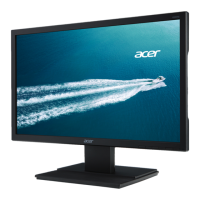
Acer V226HQL
22 pages
Print Icon
To Next Page IconTo Next Page
Loading...
V226HQL
Acer LCD Monitor
User's Guide

Other manuals for Acer V226HQL

Questions and Answers

  • J
    jill73Aug 18, 2025
    What to do if Acer Monitor screen shows 'Signal cable is not connected'?
    • J
      jessica43Aug 18, 2025
      If your Acer Monitor displays 'Signal cable is not connected', ensure the signal cable is properly connected and, if the connector is loose, tighten the screw on the connector. Also, check the pins of the signal cable connector for damage.
  • J
    Joseph MunozAug 20, 2025
    Why my Acer V226HQL power indicator is on, but there is no image?
    • H
      hparkAug 20, 2025
      If the power indicator is on but the Acer monitor has no image display, verify that the computer is powered on and the graphics card is properly installed. Ensure the monitor signal cable is correctly connected to the computer and that the pins are not bent. To verify that the computer is operating, press the Caps Lock key on the PC keyboard and observe the indicator.
  • M
    Melissa Gomez PhDAug 22, 2025
    How to turn on Acer Monitor if the power indicator is off?
    • M
      Mrs. Sarah Miller MDAug 23, 2025
      If the power indicator on your Acer Monitor is not on, check whether the power is on and whether the power cord is properly connected.
  • B
    Brandon DavenportAug 26, 2025
    What to do if my Acer V226HQL Monitor has no picture?
    • K
      Kyle MckenzieAug 26, 2025
      If your Acer monitor isn't displaying a picture, here are a few things to check: * First, use the OSD to make sure the brightness and contrast are at their maximum levels, or try resetting them to the default settings. * Ensure the power switch is turned on. * Verify that the AC power cord is properly connected to the monitor. * Make sure the video signal cable is securely connected to the back of the monitor. * Confirm that your computer system is powered on.
  • T
    Thomas PierceAug 28, 2025
    Why does my Acer V226HQL display an abnormal picture?
    • R
      Richard MorrisAug 28, 2025
      An abnormal picture on your Acer monitor can be due to a few reasons. One potential cause is an input signal frequency mismatch between your graphics adapter and the monitor. Check that the specifications of both are in compliance. If you are using non-standard signals, use the OSD to adjust the RESOLUTION, CLOCK, CLOCK-PHASE, H-POSITION, and V-POSITION. Also, if the full-screen image is missing, use the OSD to select another resolution or vertical refresh timing, and wait a few seconds after adjusting the image size before changing the signal cable or powering off the monitor.
  • K
    kjacobsAug 30, 2025
    How to fix missing colors (red, green, blue) on Acer Monitor?
    • J
      Jasmine ConnerAug 30, 2025
      To fix missing colors (red, green, blue) on your Acer Monitor, check whether the signal line is loosely connected to the monitor and PC interface. Also, inspect the signal cable pins for any bends.
  • S
    sara24Sep 1, 2025
    Why is my Acer V226HQL image jumping or rippling?
    • W
      Walter WilliamsSep 1, 2025
      Image jumping or rippling on your Acer Monitor can be caused by peripheral electrical equipment causing electronic interference or a loose contact between the signal cable interface.
  • M
    Matthew MathewsSep 4, 2025
    How to adjust Acer V226HQL screen if it is not in the middle?
    • C
      Courtney WebsterSep 4, 2025
      To adjust your Acer Monitor screen if it is not centered or the size is inappropriate, adjust the clock (CLOCK) and phase (PHASE) or press the hotkey (AUTO).
  • W
    William BanksSep 6, 2025
    How to fix a dull image on Acer V226HQL?
    • S
      Scott RyanSep 6, 2025
      To fix a dull image on your Acer Monitor, adjust the brightness and contrast settings.
  • D
    david77Sep 9, 2025
    How to fix abnormal sound on Acer Monitor?
    • B
      brittanyharveySep 9, 2025
      If you're experiencing abnormal sound on your Acer monitor (only applicable to audio-input models), check that the audio cable is properly connected to the host PC. Also, make sure the volume on the host PC isn't set to the minimum; try increasing the volume level.

Summary

Information for your safety and comfort

Safety instructions

Read these instructions carefully and keep for future reference.

Safe listening

Warnings

Using electrical power

Product servicing

Potentially explosive environments

Tips and information for comfortable use

Unpacking

Installing monitor

Connector pin assignment

Standard timing table

Installation

User controls

Adjusting the OSD settings

Adjusting the Picture quality

How to adjust brightness, contrast, black boost, low blue light, and sharpness.

Adjusting the Color setting

Adjust the Performance setting

Adjusting the OSD settings

Adjusting the System setting

Adjusting the Information setting

Troubleshooting

Acer V226HQL Specifications

General IconGeneral
StyleFlat
ColorBlack
Screen Type-
Stand TypeSimple
Wall MountVESA 100 x 100 mm
Tilt-5° to 25°
Sound-
FeaturesPicture-In-Picture
OS CompatibilityMac
Interface ConnectorsRF In
Operation Conditionshumidity 10% to 80% (non-condensing)
Tiltableyes
Touch Screenno
Screen Size54.6 cm (21.5"")
Panel TypeTN LCD
Aspect Ratio16:9
Resolution1920 x 1080
Refresh Rate60 Hz
Viewing Angle-
Response Time5 ms
Brightness450 cd/m²
Contrast Ratio3000:1
Pixel Pitch-
Type-
Power Supply100-240V
Power Consumption26 W (typ)
Depth with Stand8.1 in
Height with Stand15.4 in
Width with Stand20.0 in
Net Weight with Stand8.07 lb
Depth without Stand2.0 in
Height without Stand12.0 in
Width without Stand20.0 in
Net Weight without Stand7.14 lb
Built-In Speakersno

Related product manuals