EasyManua.ls Logo

Acer V275HL - User Manual

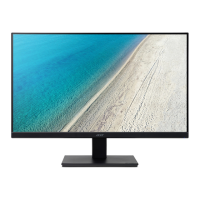
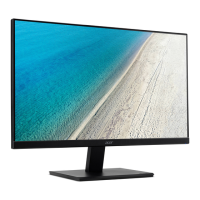
Acer V275HL
29 pages
Print Icon
To Next Page IconTo Next Page
Loading...
User Guide
Acer LCD Monitor

Questions and Answers

  • D
    David NelsonJul 31, 2025
    What to do if there is no picture on my Acer V275HL?
    • P
      Philip WagnerJul 31, 2025
      If the LED on your Acer Monitor is off, ensure the power switch is turned on and that the AC power cord is properly connected to the monitor. If the LED displays an amber color, verify that the video signal cable is correctly connected at the back of the monitor and that the computer system is powered on. If the LED is on, use the OSD to adjust the brightness and contrast to the maximum or reset them to their default settings.
  • C
    Carla HowardAug 9, 2025
    Why does my Acer V275HL have an abnormal picture?
    • S
      Susan JamesAug 9, 2025
      If the display on your Acer Monitor is missing, shifted from the center, or appears too small or too large, use the OSD to adjust the RESOLUTION, CLOCK, CLOCK-PHASE, H-POSITION, and V-POSITION settings, especially when using non-standard signals. If a full-screen image is missing, try selecting a different resolution or vertical refresh timing.
  • J
    Jessica WardAug 19, 2025
    How to fix an unstable picture on my Acer V275HL Monitor?
    • M
      michaeljenkinsAug 19, 2025
      If you are experiencing an unstable picture on your Acer Monitor, check that the specifications of your graphics adapter and the monitor are compatible, as a mismatch could cause the input signal frequency to be incorrect.

Summary

Safety and Comfort Information

Safety Instructions

Read instructions carefully, follow warnings.

LCD Monitor Specifics

Notes on flickering, brightness, pixels, and afterimages.

Cleaning Your Monitor Safely

Guidelines for carefully cleaning the monitor.

Accessibility and Safe Listening

Accessibility Features

Information on power outlet accessibility.

Safe Listening Practices

Instructions to protect hearing while using audio.

General Product Warnings

Product Usage Warnings

Warnings about water, placement, ventilation, and liquids.

Electrical Power Safety

Guidance on operating the monitor using electrical power.

Product Servicing and Maintenance

When to Seek Professional Service

Refer servicing to qualified personnel for damage or malfunction.

Environmental and Safety Precautions

Potentially Explosive Environments

Precautions for using the device in potentially explosive atmospheres.

Child Safety and Recycling

Keep small parts away from children; information on IT equipment recycling.

Disposal Instructions

Instructions for responsible disposal of electronic devices.

LCD Display Information and Comfort

LCD Pixel Statement

Information about LCD pixel behavior and manufacturing.

Comfortable Computer Use Tips

Tips for adjusting viewing angle and posture for comfort.

Vision Care and Work Habits

Taking Care of Your Vision

Suggestions to reduce eyestrain during long viewing hours.

Developing Good Work Habits

Tips for relaxing and productive computer use.

Unpacking and Contents

Base Installation and Adjustment

Attaching;Removing the Base

Instructions for attaching and detaching the monitor base.

Screen Position Adjustment

How to adjust the monitor's tilt for optimal viewing.

Connection, Safety, and Cleaning

Connecting the Power Cord

How to connect the power cord and adapter correctly.

Safety Precautions

General safety advice for monitor placement and handling.

Monitor Cleaning Procedures

Guidelines for safely cleaning the monitor.

Power Saving and DDC

Power Saving Modes

Information on the monitor's power saving modes and LED indicators.

DDC Protocol Explained

Explanation of DDC protocol for Plug and Play functionality.

Connector Pin Assignments

Display Signal Cable Pinouts

24-Pin Cable Pin Assignments

Pin assignments for the 24-pin display signal cable.

19-Pin Cable Pin Assignments

Pin assignments for the 19-pin display signal cable.

Standard Timing Table

Monitor Installation Guide

User Controls and OSD Navigation

Base Controls Explained

Details on Power Switch, Minus/Plus, MENU, AUTO, and Empowering keys.

Acer eColor Management System

eColor Management Operation

Steps to open and navigate the Acer eColor Management OSD.

eColor Management Features

Description of different eColor management modes (User, ECO, Standard, etc.).

Adjusting On-Screen Display (OSD) Settings

Picture Quality Adjustment

Guide to adjusting brightness, contrast, color, and other picture settings.

OSD Position and Timeout Adjustment

General Setting Adjustments

Product Information Display

Troubleshooting Common Issues

VGA Mode Troubleshooting

Specific troubleshooting steps for VGA connection issues.

DVI;HDMI Mode Troubleshooting

EC Declaration of Conformity

FCC Declaration of Conformity

ENERGY STAR Program Information

TCO Certified Display Information

Congratulations on TCO Certification

Congratulatory message about the TCO Certified display.

TCO Certified Features Explained

Explanation of TCO Certified label and its usability/environmental features.

Acer V275HL Specifications

General IconGeneral
Screen Size27 inches
Brightness300 cd/m²
Contrast Ratio1000:1
Response Time5 ms
ConnectivityVGA, DVI, HDMI
Aspect Ratio16:9
Color Support16.7 million colors
Resolution1920 x 1080
Viewing Angle178° horizontal, 178° vertical
Power Consumption30 W

Related product manuals