16
Picture
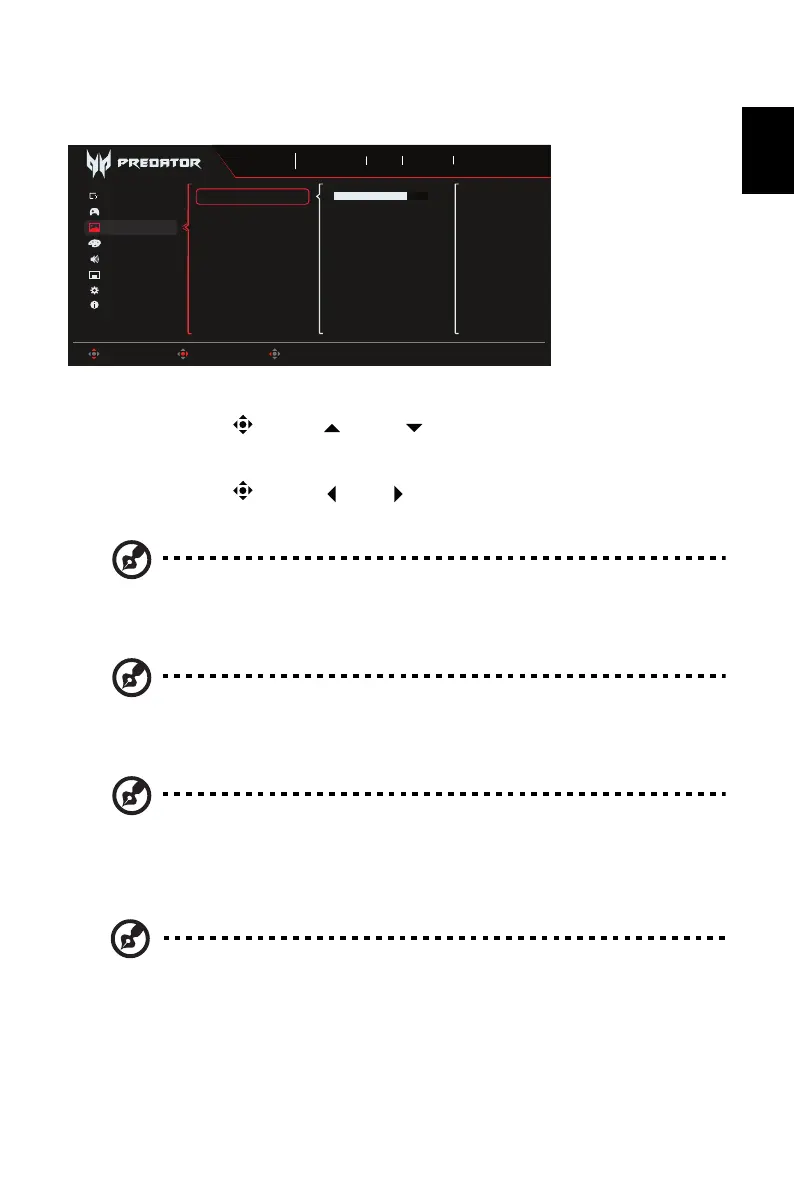
1. Press the MENU key to open the OSD.
2. Toggle the joystick to the up or down to select Picture from the OSD. Then
toggle to the right to navigate to the element you wish to adjust and press the joystick to
enter it.
3. Toggle the joystick to the left or right to adjust the sliding scales.
4. Brightness: Adjust the brightness from 0 to 100.
Note: Adjusts the balance between light and dark shades. Default Brightness
will vary depending on the sales area.
5. Contrast: Adjust the contrast from 0 to 100.
Note: Sets the degree of difference between light and dark areas.
6. Black Boost: Adjust the black level from 0 to 10. Enhances shadows by increasing the
brightness without changing lighter shades.
Note: If the image is very bright or has few shadow areas, adjusting this setting
may not result in any noticeable changes to the image.
7. HDR: Can control (Off / Auto / HDR400) the default is off, set to auto will automatically
detect and deal with HDR signal.
Note: 1. When HDR = Auto, HDR400 the Modes will also be automatically set
to "HDR".
2. When HDR = Auto, HDR400 some parameters: (ACM, Gamma,
Contrast, Black Boost…) functions is gray out and disable, and if you
change other adjustable parameters, the "Modes" will not jump to
"User" Mode.
3. Because Xbox currently does not support HDR at FHD resolution,
HDR function cannot be enabled while connected to Xbox.
Game Assistant
OSD
Information
Audio
Color
Gaming
System
Brightness
Contrast
Black Boost
Super Sharpness
HDR
Sports
Mode
3840X2160
Resolution
240
Hz
DP ALT
Input
On
FreeSync Premium
Move Enter Back
Picture
70
Max Brightness



 To Next Page