19
8. OSD Lock: OSD Lock function is used to prevent OSD button from being pressed
accidentally.
System
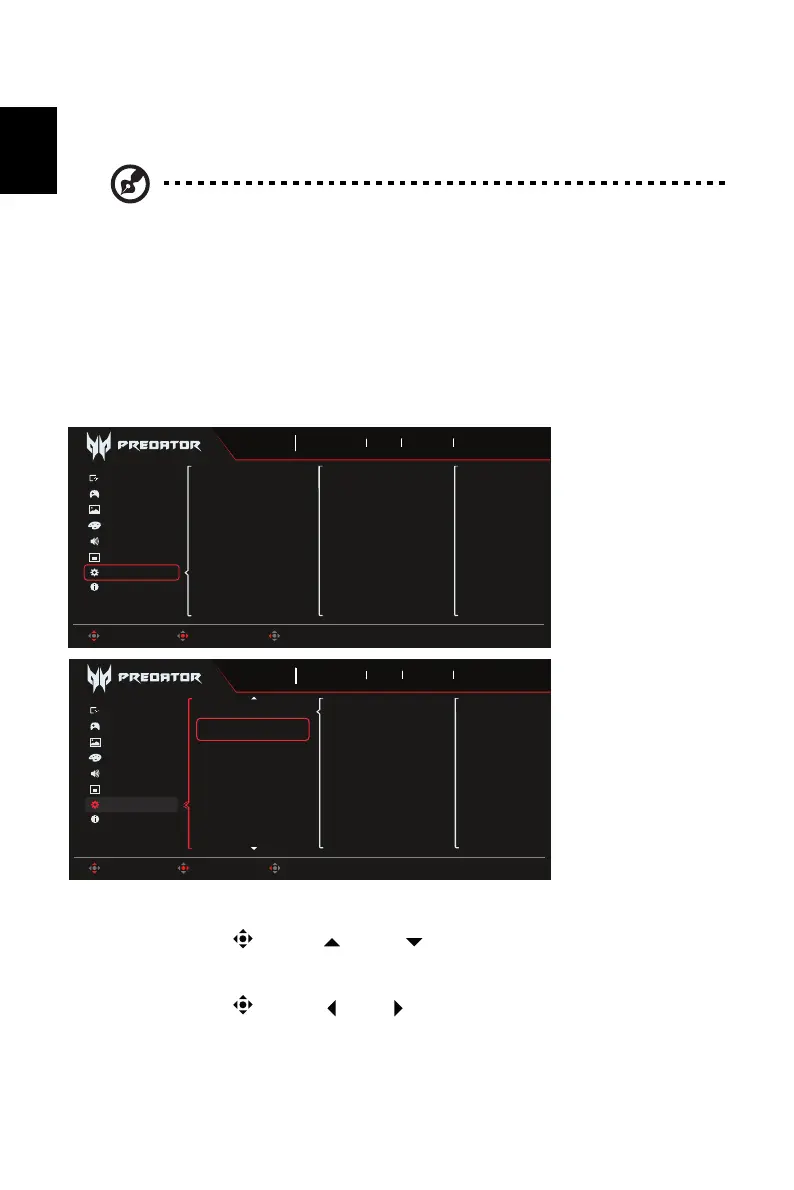
1. Press the MENU key to open the OSD.
2. Toggle the joystick to the up or down to select System from the OSD. Then
toggle to the right to navigate to the element you wish to adjust and press the joystick to
enter it.
3. Toggle the joystick to the left or right to adjust the sliding scales.
4. System menu can be used to select signal input sources and other important settings,
including input types.
5. Input: Select the source from HDMI1, HDMI2, DP1, DP2, DP ALT.
6. Auto Source: Automatically searches for available input sources.
Note: 1. OSD Locked:
Set the OSD Lock to "On" from the OSD and press "Enter".
The "OSD Locked" message will appear in the middle of the screen,
and LED lights will indicate as blinking blue.
When pressing any key, "OSD Locked" message will be prompted.
2. OSD Unlocked:
Press the second OSD key continuously for 3 seconds to unlock OSD.
The "OSD Unlocked" message will appear in the middle of the screen,
and LED lights will turn into blue.
Game Assistant
Information
Audio
Gaming
System
Input
Auto Source
Wide Mode
Hot Key Assignment
DDC/CI
HDMI Black Level
Quick Start Mode
DSC
Sports
Mode
3840X2160
Resolution
240
Hz
DP ALT
Input
On
FreeSync Premium
Move Enter Exit
Picture
Color
OSD
Game Assistant
OSD
Information
Audio
Color
Picture
Gaming
System
Off
On
Power-Off
USB Charge
Sports
Mode
3840X2160
Resolution
240
Hz
DP ALT
Input
On
FreeSync Premium
Move Enter Back
PIP/PBP
USB Port Select



 To Next Page