5
Charging
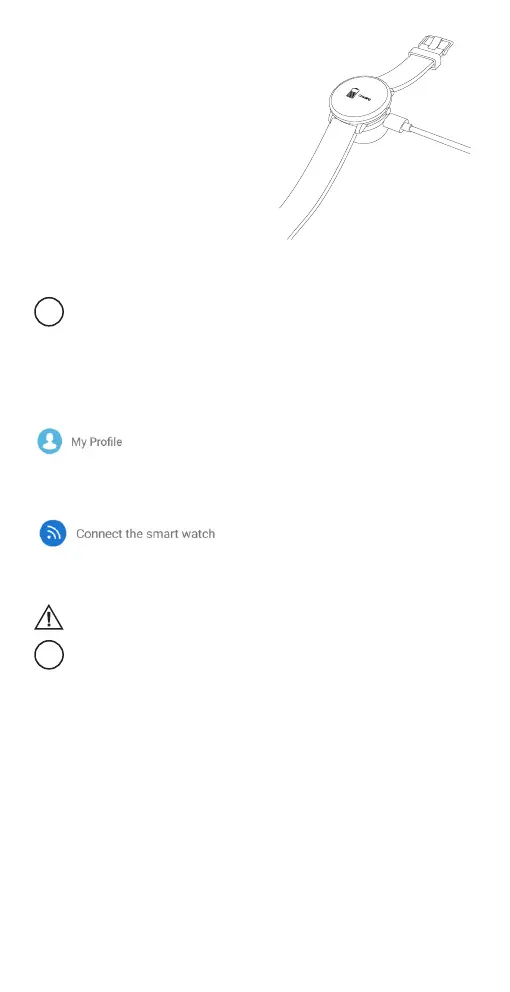
1. Put the charging adapter under the watch.
Make sure the charging pins of the adapter
are touching the charging contacts of the
smartwatch.
2. Use the micro-USB cable to connect the
charging adapter to a powered USB port
(a USB wall charger, computer USB port,
power bank, etc.).
3. It takes up to 2 hours to fully charge the
smartwatch.
Pairing with a smartphone
This device is designed to work with smartphones, supporting Bluetooth 4.0 or
higher versions. Be sure that your smartphone’s Bluetooth hardware and
software are working properly; otherwise it may not be able to pair with the
smartwatch or the connection may be unstable. Location/GPS function must be
enabled in your smartphone before pairing the devices.
1. Download OrunningSW application from App Store or Google Play to your
smartphone. (Accept all security requests of the application.)
2. Enable Bluetooth on your smartphone.
3. Open the application and allow all security requests of the application.
4. Go to the settings section of the application and create your personal prole.
5. Tap “Connect the smartwatch” in the settings section, follow on-screen instructions
and select the name of the smartwatch in the list of found devices. Now your data
and notications can be synced. In case the smartwatch is not found – restart the
application and the smartwatch by turning it o and on.
6. Unpair your smartwatch from the mobile phone:
Tap “Disconnect the smartwatch” in the settings section. Iphone users should go the
Bluetooth settings menu of the phone and select “Forget this device”.
Some functionality may not work properly or work dierently depending on the
smartphone model and software. Such issues not necessarily mean the
malfunctioning of the smartwatch.
The time on the smartwatch will be set automatically after synchronisation with a
smartphone.
Device controls
Turn on: Hold and press the side button for 3 seconds.
Turn o: go to “More” menu, choose the “Turn o” function and conrm by long press of
the side button or the touch zone.
Change smartwatch menu modes and functions: short press the side button or touch
zone.
Enter smartwatch modes or start the functions: long press the side button or touch
zone.
Change the type of the main watch interface: when on the main watch interface, long
press the side button or touch zone.
Screen activation: the screen can be activated manually by pressing the side button
and touch zone or automatically by a wrist movement or raising the hand (this function
must be enabled on the OrunningSW application).


 To Next Page