4
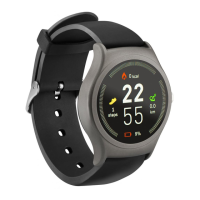
Smartwatch
1. Microphone
2. Barometer sensor
3. Touch screen
4. Sport mode button
5. Crown (knob)
6. Power button
7. Speaker
8. Heart rate sensor
9. Charging contact
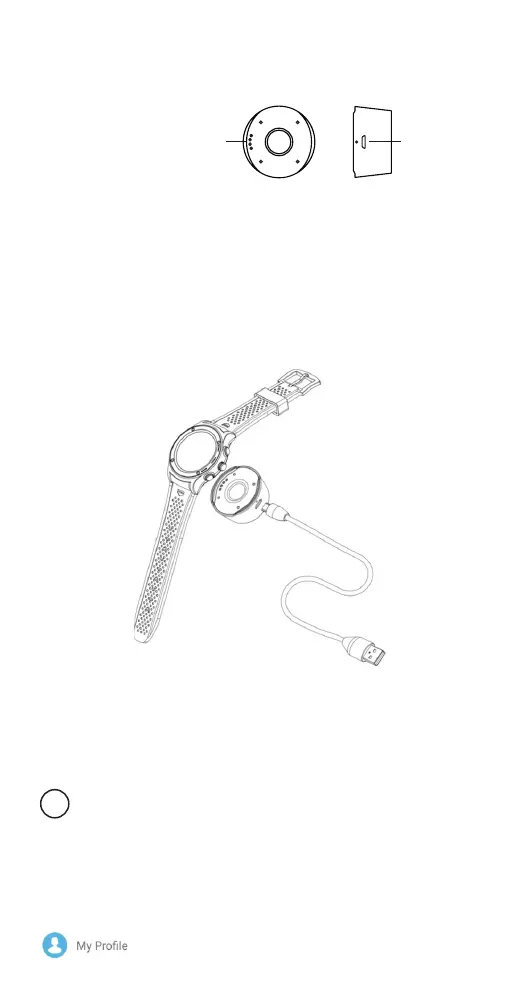
Charging adapter
10. Charging pins
11. Micro-USB port
10 11
Physical buttons overview
Sport mode button (4) – this button is for fast entering the sport mode of the
smartwatch.
Crown (knob) (5) – this button will perform select/tap functions when pressing it, or it
will perform swipe up/down or switching function when turning it to the corresponding
directions.
Power button (6) – when pressed longer, this button performs power on/o functions,
and when pressed shortly, it performs back/return functions.
Charging
1. Put the charging adapter under the watch. Make sure charging pins of the adapter
are touching the charging contacts of the smartwatch.
2. Use the micro-USB cable to connect the charging adapter to a powered USB port – it
can be a USB wall charger, computer USB port, power bank, etc.
3. It takes up to 2 hours to fully charge the smartwatch.
Pairing with a smartphone
This device is designed to work with smartphones, supporting Bluetooth 4.0 or
higher versions. Be sure that your smartphone’s Bluetooth hardware and
software are working properly; otherwise it may not be able to pair with the
smartwatch or the connection may be unstable.
1. Download OrunningSW application from App Store or Google Play to your
smartphone. (Accept all security requests of the application.)
2. Enable Bluetooth on your smartphone. (Be sure that Bluetooth is also enabled on the
smartwatch.)
3. Open the application and allow all security requests of the application.
4. Gotothesettingssectionoftheapplicationandcreateyourpersonalprole.



 To Next Page