Hardware Manual
2
Table of Contents
Precautions 4
Safety Instructions ........................................................................... 6
Introduction 7
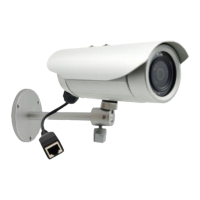
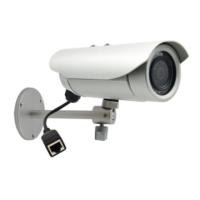
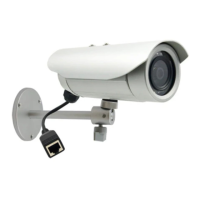
List of Models .................................................................................... 7
Package Contents ............................................................................. 8
Physical Description ........................................................................ 9
Installation Procedures 10
Mount the Camera .......................................................................... 10
Using the Bundled Bracket ........................................................... 10
Other Mounting Options ............................................................... 13
Waterproof Cable Installation ........................................................ 14
Step 1: Remove the Pre-installed Network Cable (“Pigtail”) ......... 15
Step 2: Prepare the Conduit Gland and Flex Conduit .................. 16
Step 3: Install the Ethernet Cable ................................................ 17
Step 4: Connect the Ethernet Cable ............................................ 18
Replace the Pre-Installed Network Cable ..................................... 19
Step 1: Remove the Pre-installed Network Cable (“Pigtail”) ......... 20
Step 2: Install the New Ethernet Cable ........................................ 21
Basic Connections ......................................................................... 23
Connecting a Single Camera ....................................................... 23
Connecting Multiple Cameras ...................................................... 24
Accessing the Camera 25
Configure the IP Addresses ........................................................... 25
Using DHCP Server to Assign IP Addresses ................................ 25
Using the Default Camera IP Address .......................................... 27
Access the Camera ......................................................................... 29


 To Next Page