Hardware Manual
12
Settings Menu
In the top-right corner, there is a drop-down configuration menu. This contains all the stuff that
you rarely access:
My User Profile: Settings that have to do with you, as a User of your Account (your
own timezone, your name and email, etc)
Account Settings
Users
Logout
Upload Progress & Help Icons
Right next to the Settings Menu, you will see a dropdown icon. This icon provides you with a
progress indicator for Media uploads (an encoding, if applicable).
Pushing Changes to Monitors
It is very important that every time you make changes to any items within your account,
you have to click on the red flashing button "Push to Players" on the left side on top of
the Main Menu in order for these changes to take place in the affected players.
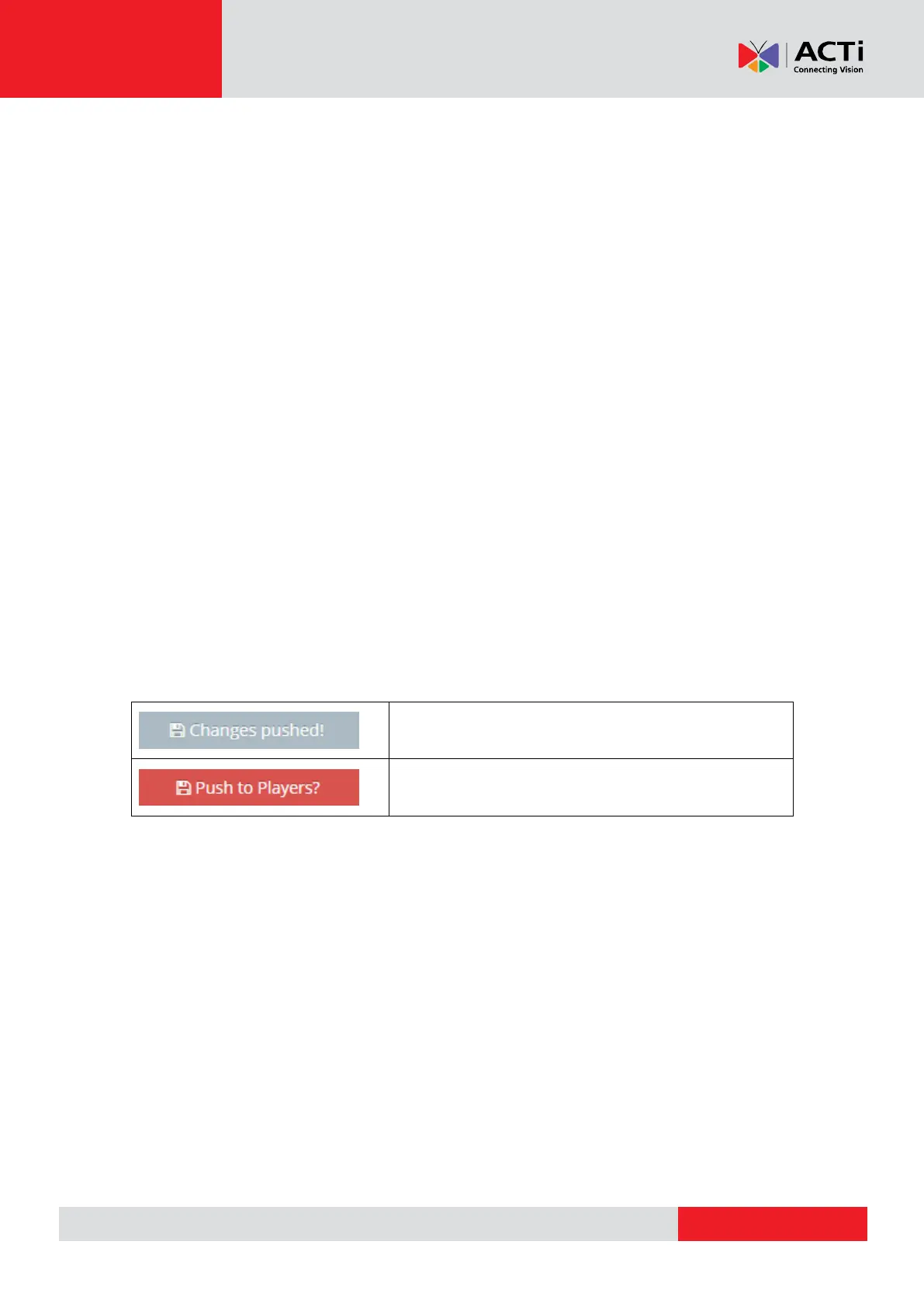
Above the Main Menu, you will find a button that will be either:
Grey button, saying "Changes pushed!"
Flashing red button, saying "Push to Players?"
Whenever you make any changes within your account, the button will turn red and flash,
saying "Push to Players?". After you conclude all changes in your account, you need to
push the button to deliver the changes to the affected players. All Players affected by
your changes will download the required content and restart playback. Players not
affected by your changes will not be notified on the update.
Force Pushing
Even if the button is grey and saying "Changes pushed!", you might need to force a
"push" to all Players in your account. This might be needed as a troubleshooting tool, to
make sure everything works as expected.
By clicking the button when grey, you will notify all Players that they need to update
content, and all Players will re-check and restart Playback.



 To Next Page