Hardware Manual
15
Search for specific image using the search tool.
Adding an Image
To add a single image, you click on the "+ Add a New Image" button found at the bottom
of the Images listing.
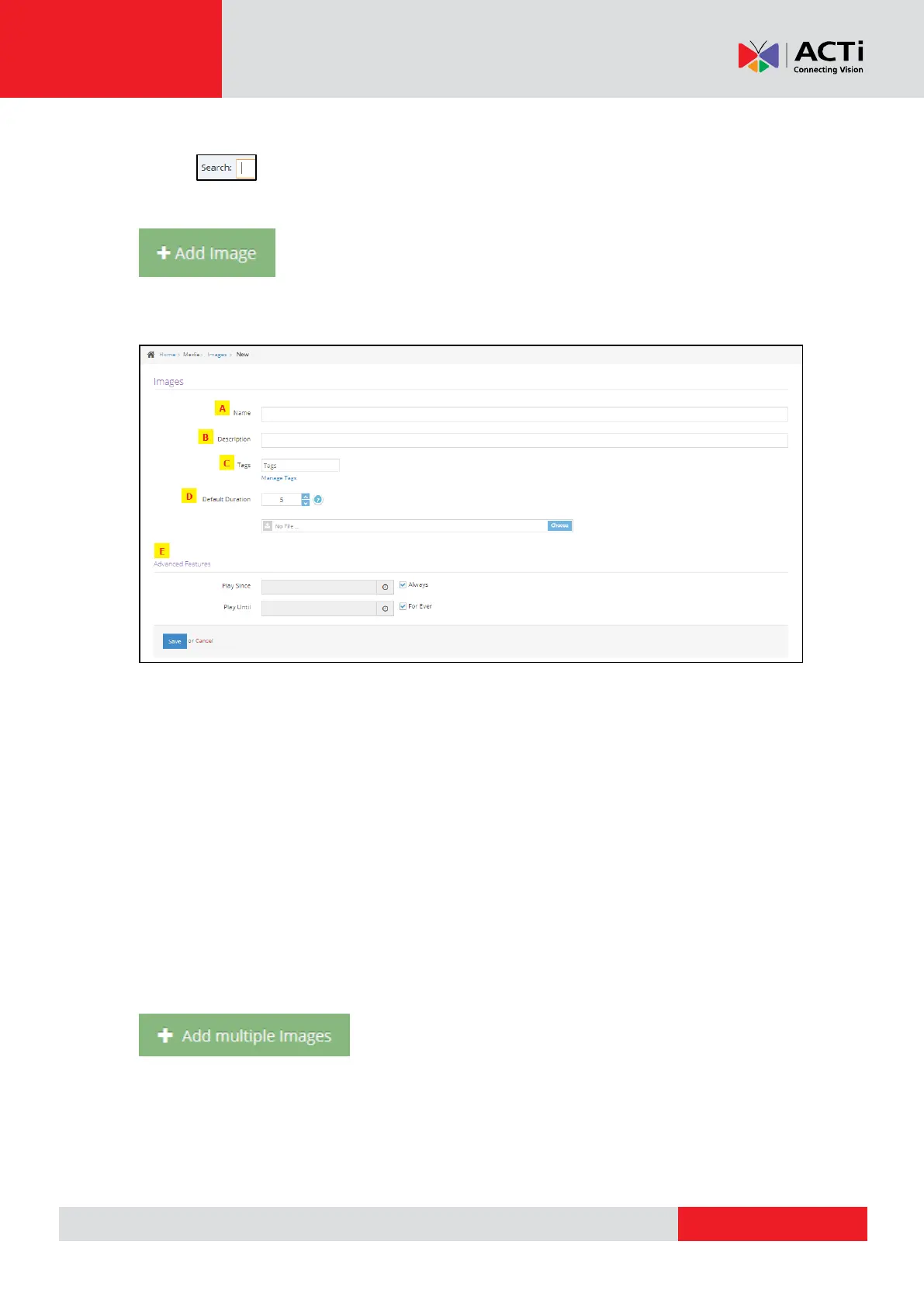
A. the Name of the image
B. an optional Description for it
C. you can add Tags to the uploaded image
D. the actual image file, where you select the image you want to upload
E. From the advanced features you can set the Play Since /Play Until. In other words,
you can set the expiration date, which means that you can choose the exact date and
time that this image will display at your playlist or show or you can set the "Always"
and "For ever" setting and the image will never expire.
Clicking "Save" will upload the image.
Adding Multiple Images
To add multiple images at once, click on the "+ Add Multiple Images" button. In the File
selection dialog that shows up, keep the Ctrl button on your keyboard pressed to select
multiple images. All selected images will be automatically uploaded.



 To Next Page