Hardware Manual
46
To add a Playlist/Media file/Widget click on the relevant icon and a window will appear where
you are requested to:
Select the playlist/media file/widget of your choice
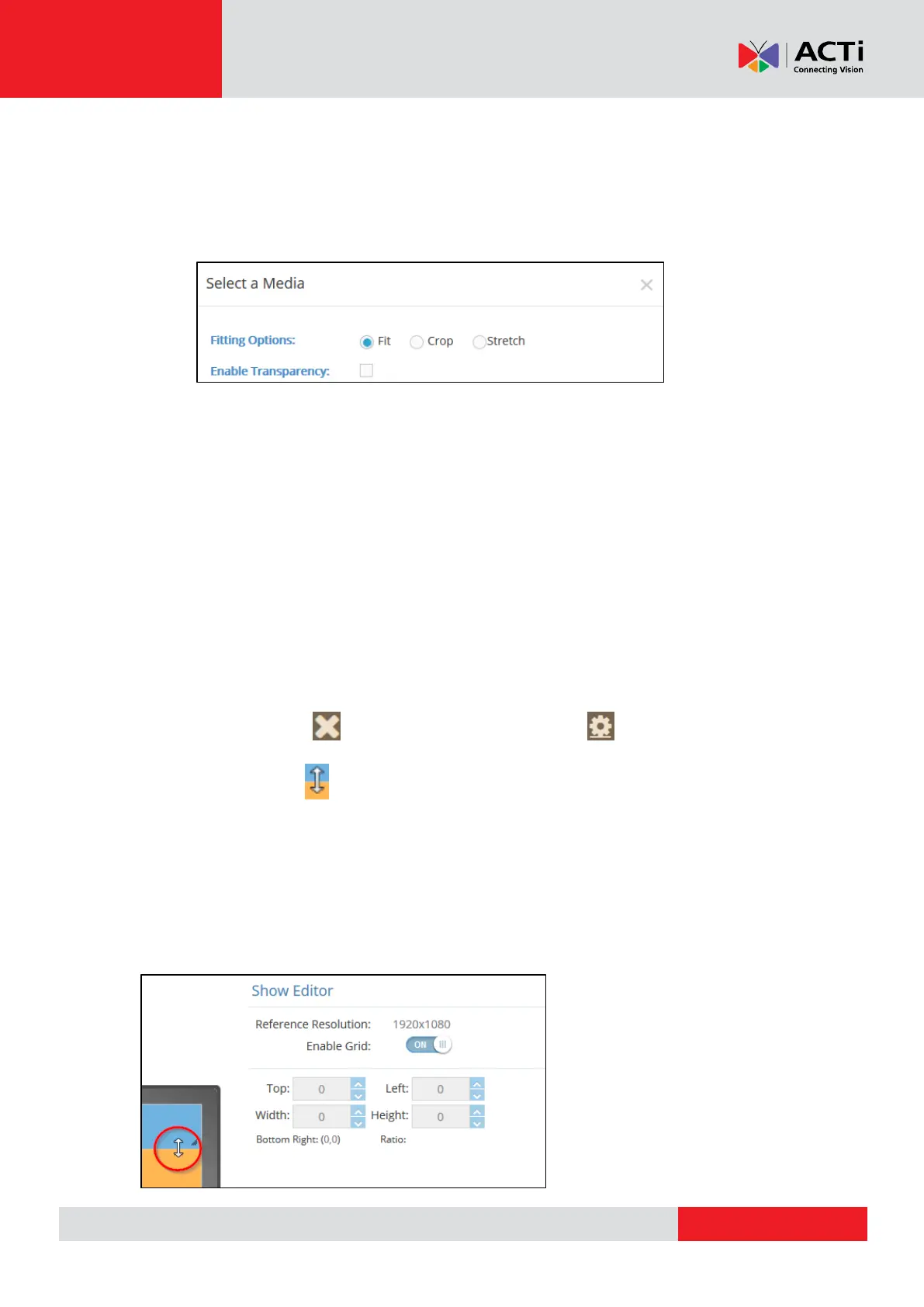
Choose the fitting options on the screen.
Your options are:
"Fit", show the whole content within the area assigned (may add some empty space
or black bars at the edges, again not distorting images or videos)
"Crop", zoom-in so that it covers the whole area assigned (may crop some edges, but
it will not distort images or videos)
"Stretch", show the whole content, stretching it to match the area assigned (no
cropping, empty spaces or black bars, but it might distort images and videos)
Optionally, Enable Transparency of the region. This is useful for content with
transparency and for the "fit" option above.
Once selected, you can "Preview" your item on the simulation of the screen below and you
can Delete it by clicking button or Edit it by clicking on the button.
You can use the arrows on the screen to change its size and/or location. Alternatively on
the "Show Editor" section, you can be as accurate as you wish by entering manually
the Top/Width, Left/Height measurements.
You also have the option to disable or Enable the Grid on your simulation screen, which will
alter the way you place the item by dragging it. By disabling the grid you can literally place the
item anywhere on the simulation screen.



 To Next Page