Hardware Manual
70
Report Files
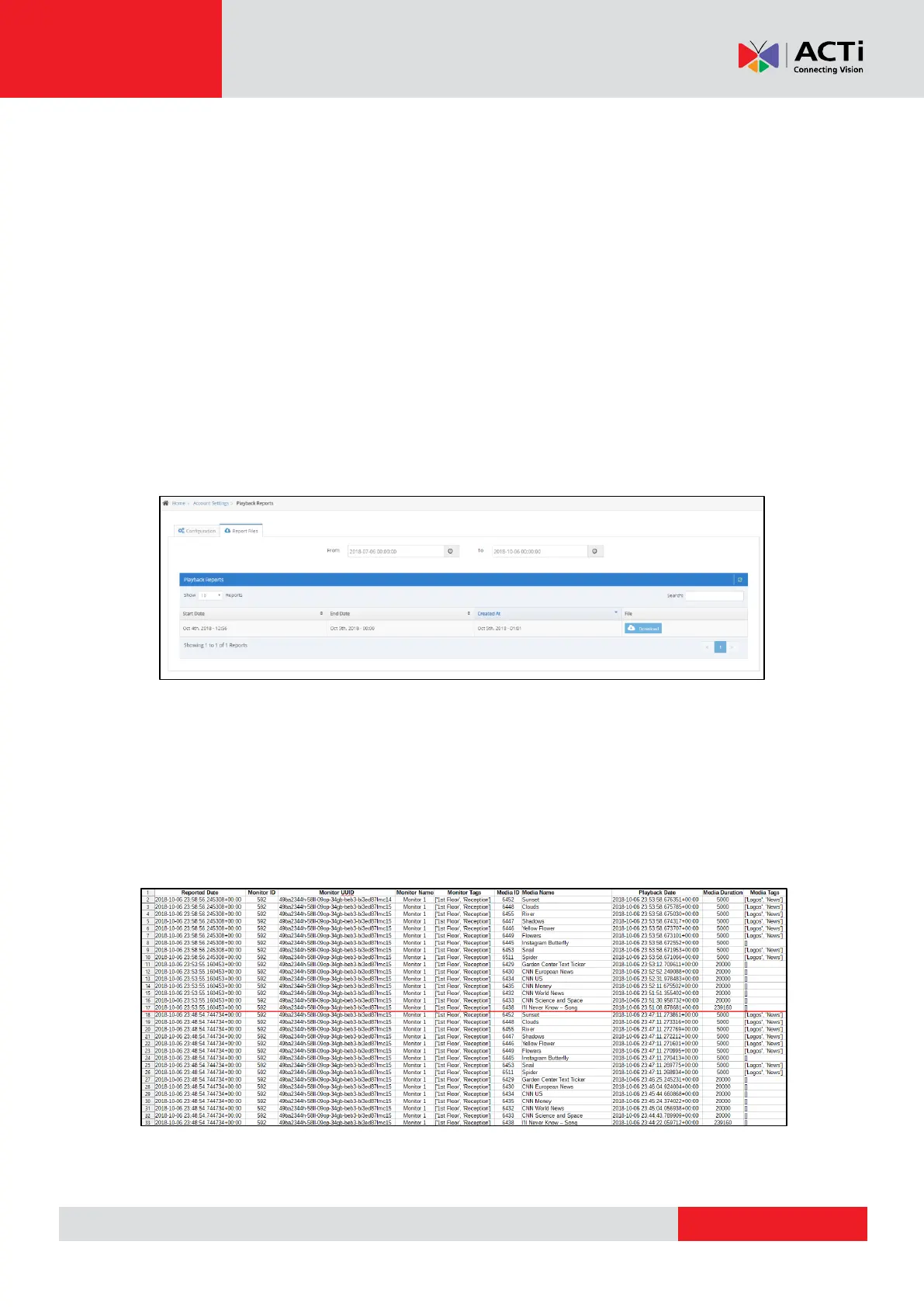
After configuring your Playback Reports, there is another tab called "Report Files". In this
tab you can see all the available CSV files generated in your account. You can download
them locally to your PC if you want, by clicking the "Download" button.
Also, you can filter the CSV files by setting the time and date of your choice in the filter
fields.
Playback Reports Retention
Currently, original Playback Reports are deleted from our database (we store data for up to
3 months), but generated CSV files are not deleted. In the future, this might change. In all
cases, we will retain all data and CSV files for up to 3 months. Make sure you download
the generated reports if you want to keep them for future reference.
CSV File
Below, we have attached a CSV File example from the above generated Playback Report.
In this example, we have added a playlist with 16 Media items in our test monitor named
“Monitor 1”. The red line indicates the playback loop (Playlist started again from the
beginning).
Reported Date: The time & date the player reported the playback to our system
Monitor ID: The ID of the Monitor



 To Next Page