13
THEACTIGRAPH.COM
CENTREPOINT INSIGHT WATCH | E.200.6002 | RELEASED: 01/09/2023 | REV: 7
Information for Participants | Continued
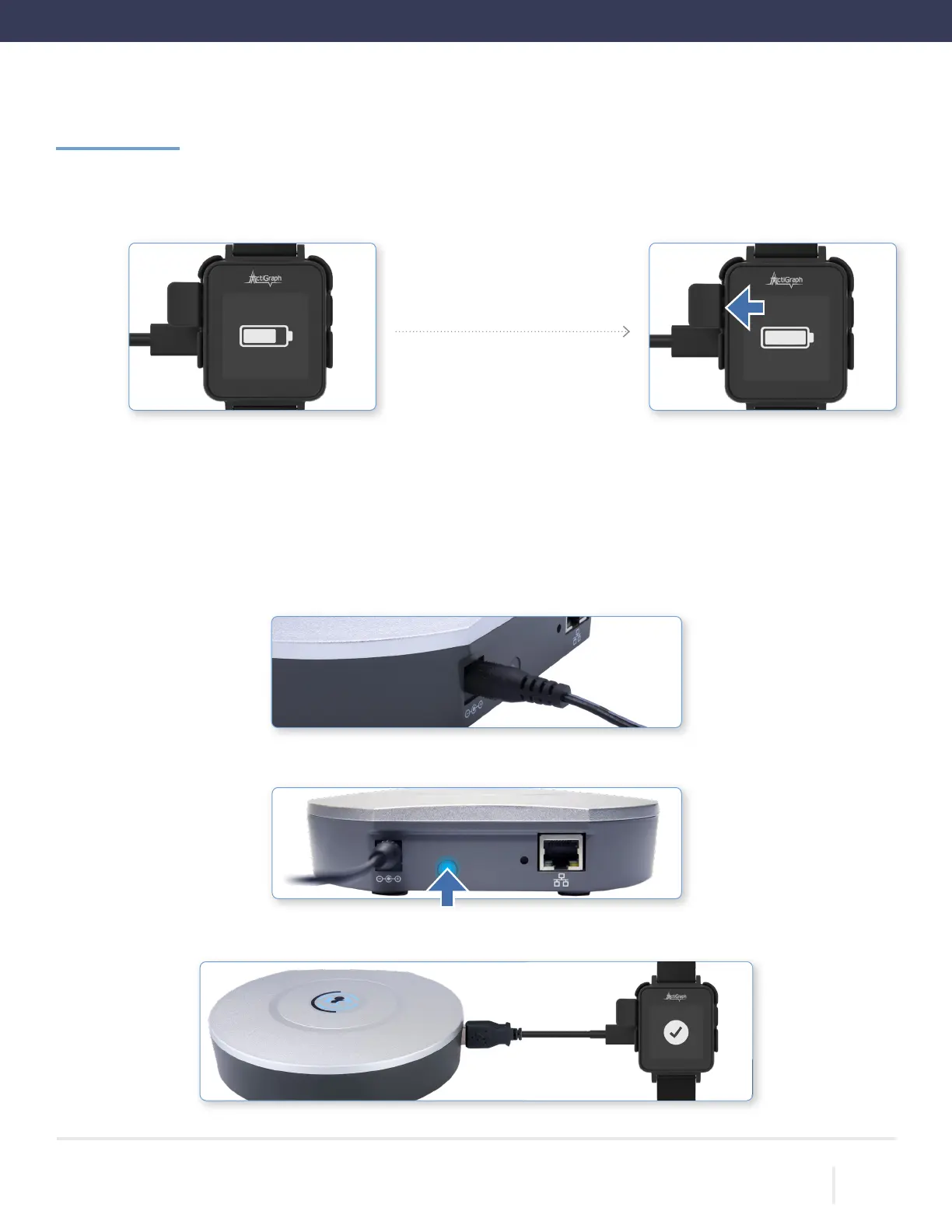
While the CPW01 is connected to the charging dock, an animated battery icon will appear on the screen to indicate
charging. The CPW01 is fully charged once a solid battery icon appears on the screen.
Remove the CPW01 from the charging dock by pulling the plastic tab to the left and away from the CPW01. Continue
wearing the CPW01 according to instructions.
2.
Charging Fully Charged
3.
The CP Data Hub should be placed at home in a location where you spend most of your time.
Connect the adapter end of the power cable to the back of the CP Data Hub, and plug the other end into a wall outlet.
The blue LED on the back of the CP Data Hub will begin to ash during startup. Once the CP Data Hub connects to the
cellular network, the blue LED will stay on solid.
Once the CP Data Hub is successfully connected, plug the USB cable into the USB port on the side of the Hub, and
plug the other end into the charging dock.
1.
2.
Setting up the CentrePoint Data Hub
3.
4.



 To Next Page