●
Press ( ) button to change to photo mode.
●
Mode changes as
in turn.
1. Press ( ) button to shoot photo.
2. In 'Photo Timelapse' mode, Press ( ) button to stop photo shooting.
3. You can adjust photo settings in “User Menu”.
●
You can view recorded video/photo and adjust settings in “User Menu”.
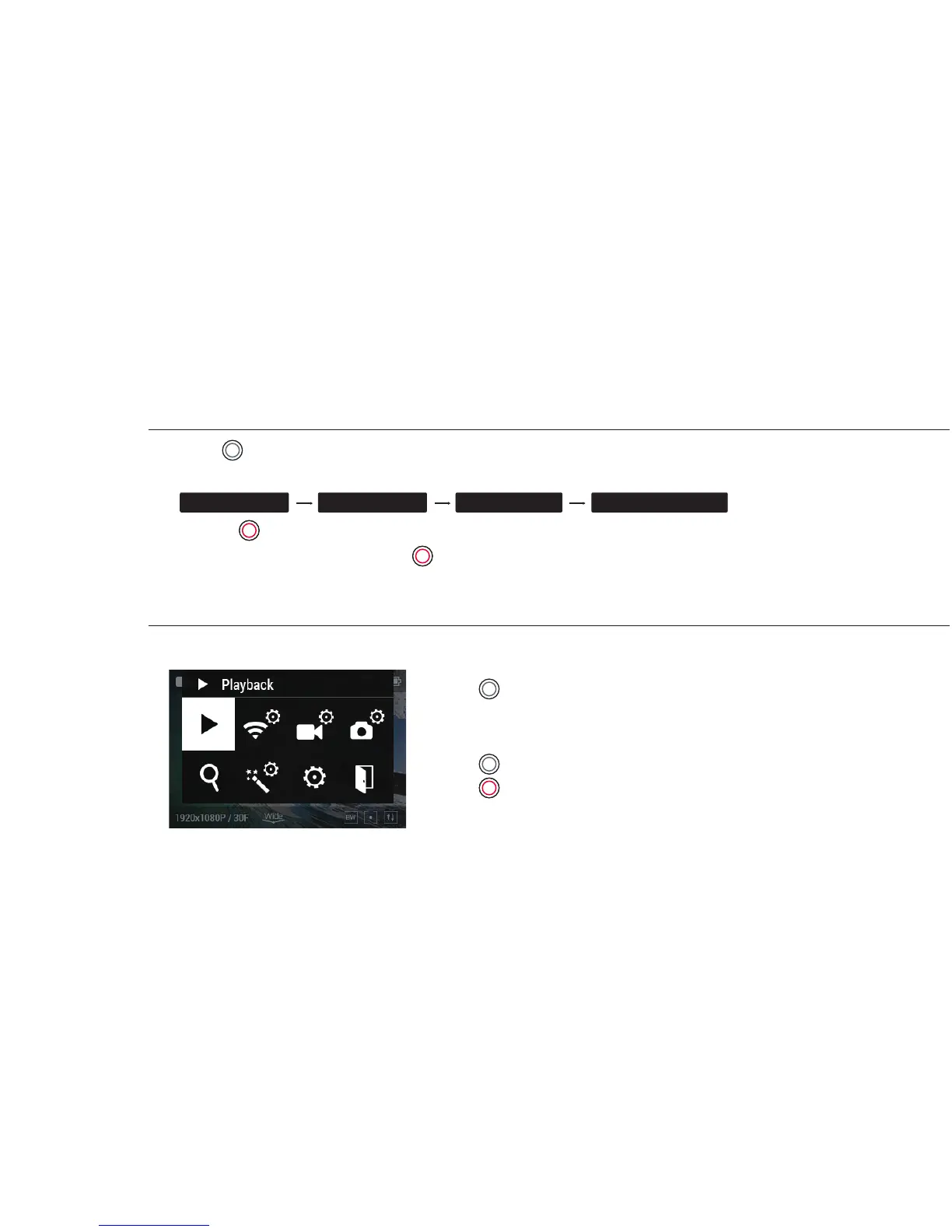
8. User menu
1. Press ( )button and hold for two seconds to enter user menu.
2. User menu is divided into seven categories.
(Playback, WiFi, Video, Photo, Zoom, Eect and General setting)
3. Press ( ) button to move to next option.
4. Press ( ) button to select and conrm each user menu
within sub-menu.
7
7. Photo shoot
Video mode Photo mode Photo burst Photo timelapse



 To Next Page