Chapter 5: Installing the Controller and Disk Drives ● 52
Connecting Solid State Drives (SSDs)
To connect a Solid State Drive to your controller, use a direct-attached connection or a
backplane connection. If your server does not have a standard 2.5-inch drive tray, you must use
a bracket/SLED which enables the SSD to fit properly.
Note:
For Adaptec maxCache applications or hybrid RAID arrays (comprised of hard drives and
SSDs) you can use any Solid State Drive on the compatibility list. See www.adaptec.com/
compatibility for a list of compatible SSDs. Adaptec maxCache is supported on Adaptec Series
Q controllers only.
In a direct-attach connection (described in the steps below), you connect SSDs directly to the
controller with SAS cables (mini-SAS to SATA). In a backplane connection, use the appropriate
cable for your backplane type (see page 51 for more about backplane connections). For
maxCache caching applications, you can connect a maximum of eight maxCache-compatible
SSDs to a controller. For RAID arrays, Adaptec controllers support a maximum of 256 drives,
including SSDs (for details, see page 17).
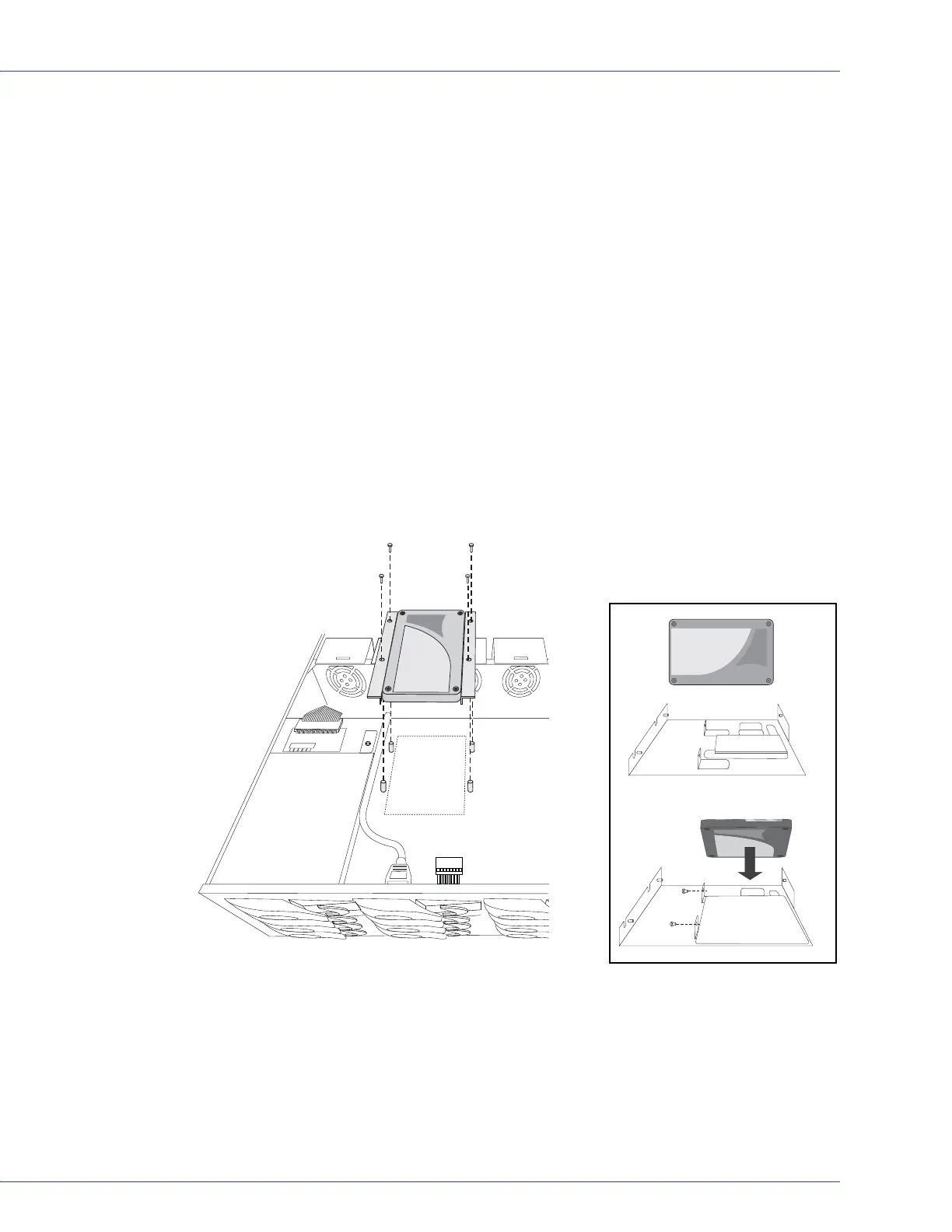
1 Install your SSDs in your server. For servers with a standard 2.5-inch drive tray, install the
SSD directly into the tray. If your server does not have a standard 2.5-inch drive tray, use a
bracket or adapter which enables it to fit properly.
Typical SSD installation
Use a 2.5” to 3.5” adapter to
install your SSD if server does
not have 2.5” tray.


 To Next Page