IRIS-4 160
Quick Installation and
Maintenance Guide
IRIS-4 160
11
10
To initiate the Wi-Fi connection ensure that the
IRIS-4 160 has power and then depending whether
the front cover is on you have two options:
• Frontcoveron;useaphysical‘TapTap’onthe
cover around ½-second interval between.
• Frontcoverremoved;pressthebuttonlabelled
AP on the IRIS-4 160.
Press or perform either the AP button or the ‘Tap
Tap’ and the SYS LED will change colour. For a
local access point connection via Wi-Fi the SYS LED
should be flashing ‘purple’, this indicates AP mode
activated and is awaiting a connection. You now
have a 30-minute time window to search and find the
‘IRIS’ network using either a smartphone, tablet or
laptop’s Wi-Fi connect search function.
Once the smartphone, tablet or laptop’s Wi-Fi
connects to this network, you will need to enter the
password; by default, the password is ‘password’ all
lower case.
Connecting to this should turn the SYS LED solid
‘purple’ and using the web browser connect to the
IRIS-4 160 web interface by browsing to ‘iris.local’.
CongurationviaWebBrowser
using Wi-Fi Connection
Can be configured using the Wi-Fi connection using
a standard Web browser from any smartphone/tablet
or laptop device and supports the following network
security WEP/WPA/WPA2.
The IRIS Web browser interface currently supports
the following operating systems.
Note: You may be required to install some
additional software for some operating systems:
Microsoft Windows.
Microsoft Windows based operating system (PC or
laptop device) will require the initial installation of
the Apple Bonjour service. Downloaded from the
following link:
http://support.apple.com/kb/DL999
Android and Window phones.
Android operating system and Microsoft Windows
phones will require the IRIS Connect App.
Available for Windows Phone or Android from the
App Store, simply search for ‘IRIS Connect’.
Apple iOS.
Apple iOS operation system will work using the
Safari Web interface and already has the Apple
Bonjour service installed.
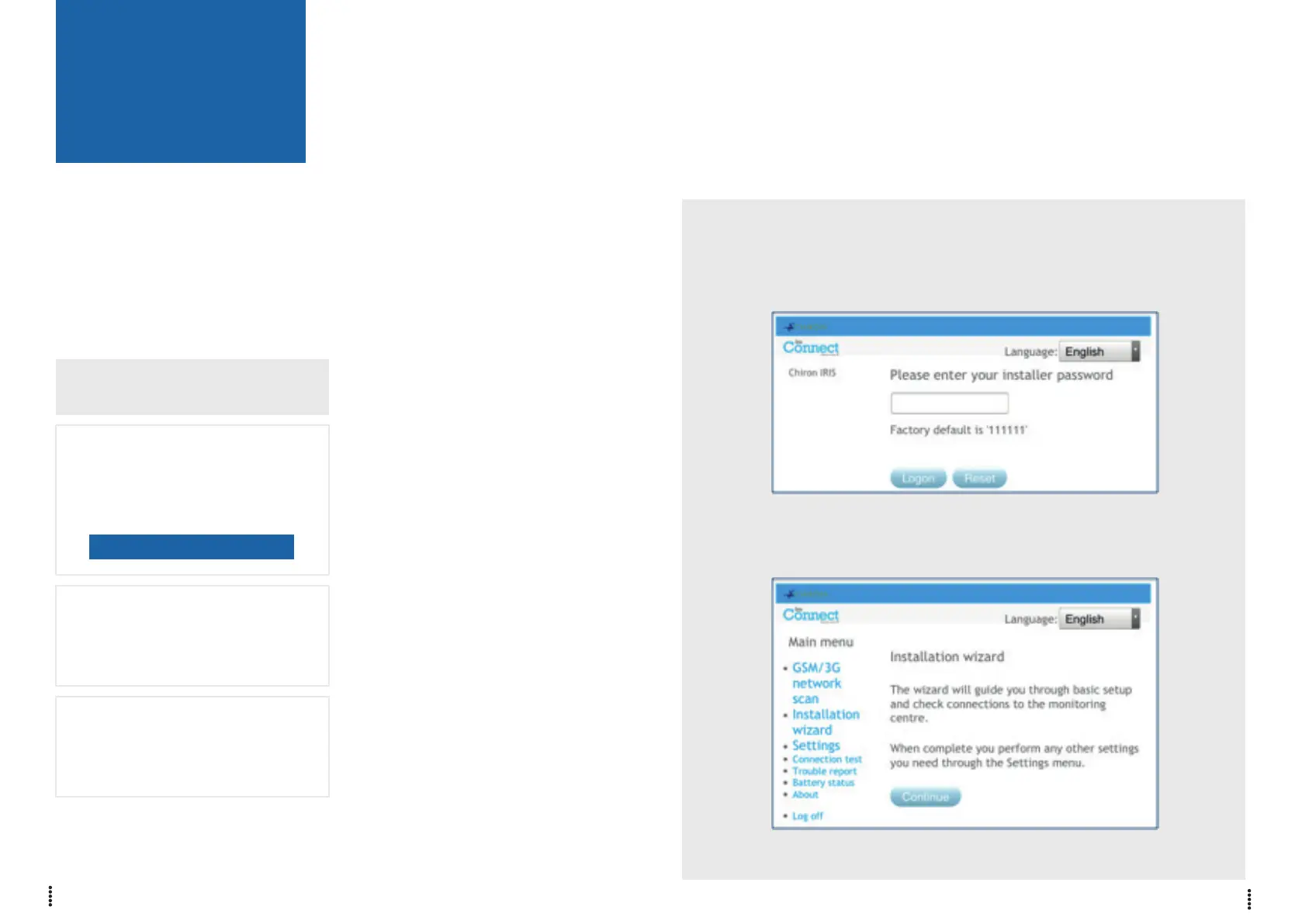
Once connected enter the default installer code:
111111 and then click Logon. You will be
prompted to change the password, please record
the new password. Enter and confirm a new
password and press Submit.
Note: Currently only communicating
with the IRIS-4 160 via its internal
Wi-Fi Access Point.


 To Next Page