3.3. Set Up a Raspberry Pi
NOTE: You should skip this chapter if you finished the last one and Install Python3.7 in the
PC directly.
Unrestricted Access to Raspberry Pi
The Linux operating system is a multi-user operating system which allows multiple users to
log in and use the computer. Normal users are not normally allowed to edit files in other
users' folders or any of the system files. You can run commands as the root user by using
the sudo command before the program you want to run.
More information in: https://www.raspberrypi.org/documentation/linux/usage/root.md
Set Up A Root User
To change ordinary user into root user on the terminal, you need to setup up a password for
the user by entering the following command in the terminal of the RPi:
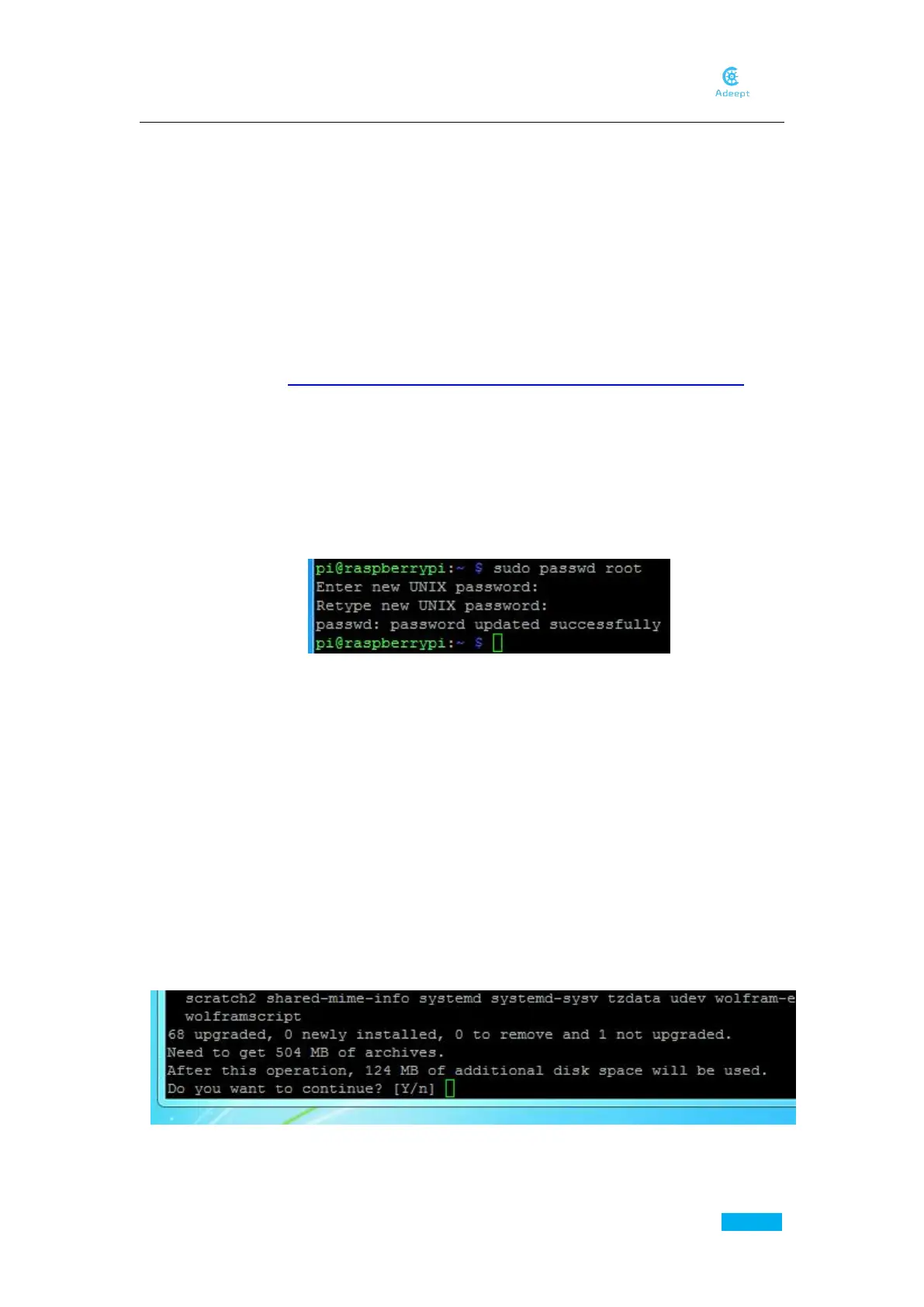
sudo passwd root
Enter the passwd twice, as shown below:
Log in as Root User
Type in the following command in the terminal of the Raspberry Pi:
su –
Press Enter, and type in the password to confirm.
Update System
The system you downloaded may not be the latest version and it may cause inconvenience in
the subsequent operations. Here we first upgrade the system of the Raspberry Pi. Type in the
following command:
sudo apt-get update
The apt-get update command is to acquire the up-to-date software lists and update all the
software, to provide the latest software for next system upgrade.
sudo apt-get upgrade
The window will prompts "Do you want to continue", type in Y and press Enter.
It may take some time for the system upgrade. During this period, do not carry out any



 To Next Page