Installing the Bundled Software CD
1.) Insert the PYRO A/V Link CD
into your CD-ROM drive.
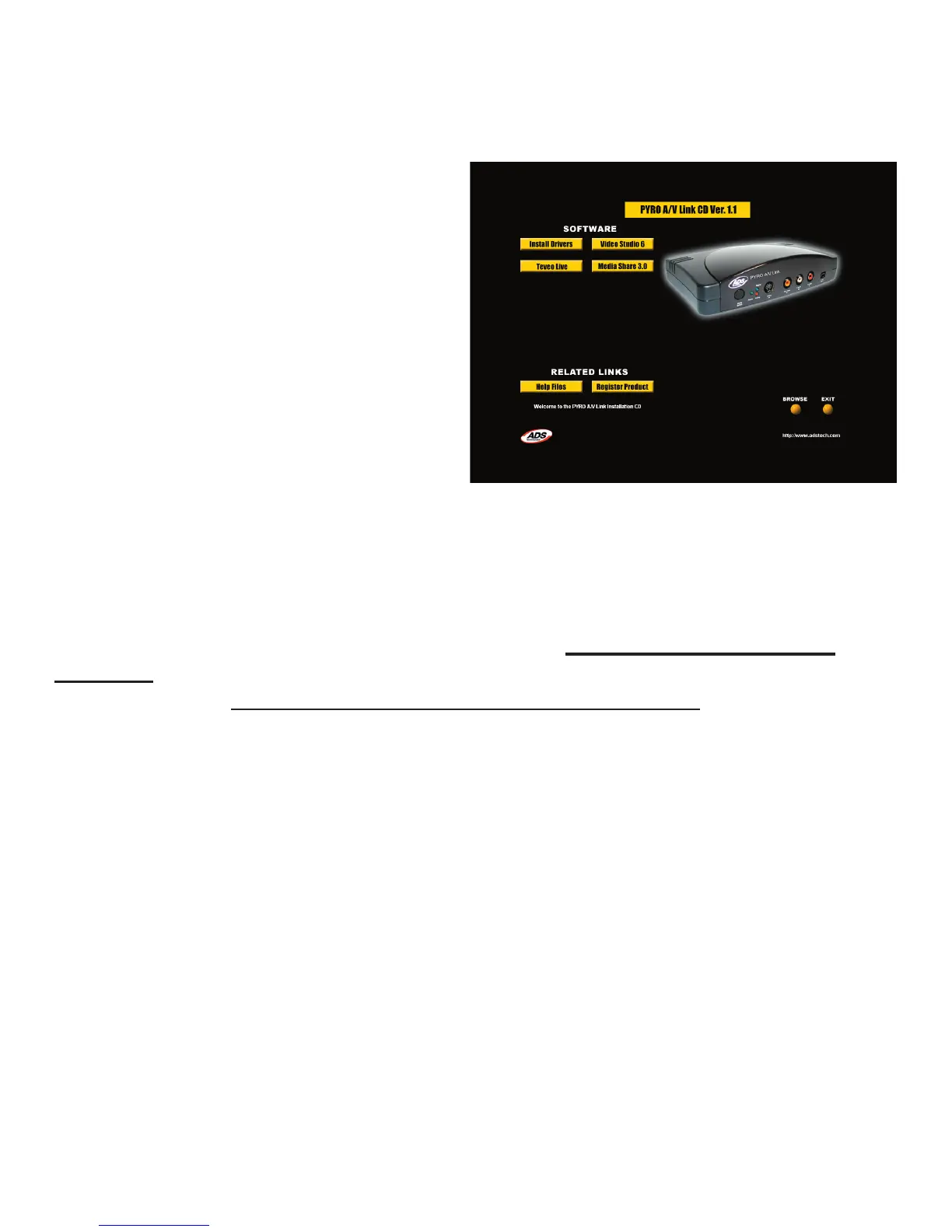
2.) The Auto-run screen displayed
here will appear on your
screen.
3.) This Auto-Run requires Apples
Quick Time player to run. If
you do not have Quick Time
installed, it will automatically
begin installing Quick Time on
your system.
4.) There are 4 Selections:
a. Install Driver
b. Video Studio 6
c. Teveo Live
d. Media Share 3.0
a.) Install Drivers – Driver installation is required ONLY if you are running
Win98SE. This driver is actually a patch to the Microsoft 1394 software in
Windows 98SE. If you have Windows ME, WinXP or Win2000 – skip this Step.
b.) Video Studio - Click the Video Studio button and the Video Studio installer will
open. See the section below for full Video Studio 6 installation instructions.
c.) Teveo Live – it’s a fun software application that turns your PC into a Live Web
Cam. What ever video you run through the PYRO A/V Link will be displayed to
anyone (private or public) on the Teveo web site.
D.) Media Share - is a subscription service with a Free trial offer. Media Share
lets you post images and video on a server so you can share your image and
video collection with friends and family.


 To Next Page