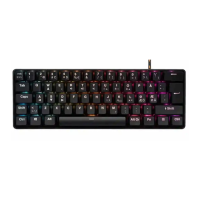
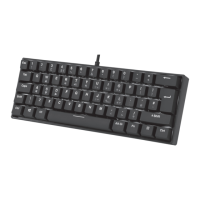
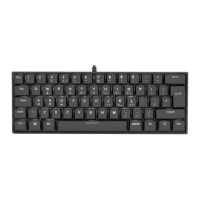
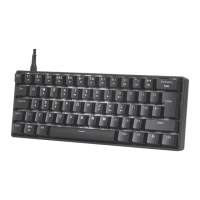
The ADX Firefight Pro 23 (ADXMK0823) is a 60% mechanical gaming keyboard designed for an immersive gaming experience. This instruction manual provides comprehensive guidance on its functions, usage, and software installation.
Function Description
The ADX Firefight Pro 23 is a compact 60% mechanical gaming keyboard, meaning it omits the numeric keypad, function row, navigation cluster, and arrow keys found on full-sized keyboards. However, it retains the functionality of these keys through a combination of the Fn (Function) key and other keys, allowing for a smaller footprint while maintaining full usability.
Key Features:
- RGB Backlighting: The keyboard boasts RGB backlighting, offering a wide range of customisation options to enhance aesthetics and visibility in various lighting conditions.
- Mechanical Switches: As a mechanical keyboard, it provides tactile feedback and durability, which are highly valued by gamers for their responsiveness and longevity.
- 60% Layout: The compact 60% layout is ideal for users who prefer a minimalist setup, have limited desk space, or frequently travel with their keyboard.
- Software Customisation: The keyboard is supported by ADX HUB software, which allows for extensive customisation of lighting effects, macro programming, and key remapping.
Usage Features
The ADX Firefight Pro 23 is designed for intuitive use, with several features that enhance its functionality and user experience.
Basic Operation:
- Connecting the Keyboard: To use the keyboard, simply plug it into an available USB port on your computer. Ensure the USB plug is fully inserted. If the keyboard is not working correctly, try re-inserting the USB plug or using a different USB port.
- System Requirements: The keyboard is compatible with Microsoft® Windows® 8, 10, and 11 operating systems. It requires one available USB port for connection.
Function Keys (Fn Key Combinations):
Due to its 60% layout, many standard keyboard functions are accessed via the Fn key in combination with other keys.
- Esc, F1-F12, Delete: To access these keys, press the Fn key simultaneously with the desired key. For example, Fn + 1 might activate F1, Fn + 2 for F2, and so on, depending on the specific key mapping shown in the manual. The Delete function is also accessed this way.
- Volume Control: The keyboard offers dedicated volume control functions through Fn key combinations:
- Fn + (likely 'Q' or 'W' on the keyboard layout) to decrease volume.
- Fn + (likely 'E' or 'R' on the keyboard layout) to increase volume.
- Fn + (likely 'T' or 'Y' on the keyboard layout) to mute sound.
- Arrow Keys: The arrow keys are typically integrated into the WASD cluster. To activate the arrow key function, press the Fn key and the 'W' button repeatedly to switch the Arrow Keys function on or off. Once activated, you can use:
- 'W' for Up arrow.
- 'S' for Down arrow.
- 'A' for Left arrow.
- 'D' for Right arrow.
Backlight Effect Customisation:
The RGB backlighting is a prominent feature, offering various effects and customisation options.
- Adjusting Flashing Sequence Level: Press Fn + (likely 'U' or 'I') to adjust the speed or level of the backlight flashing sequence.
- Switching Backlight On/Off: Press Fn + <backlight on/off icon> (likely 'O' or 'P') to toggle the backlight on or off.
- Selecting Backlight Effects: Press Fn + (likely 'K' or 'L') to cycle through different backlight effects. The keyboard offers 18 pre-set modes and 1 customised mode.
- Adjusting Backlight Brightness: Press Fn + <brightness up/down icon> (likely 'J' or 'K') to adjust the brightness level of the backlight.
- Changing Backlight Colour: Press Fn + Spacebar to change the backlight colour.
Customising the Backlight Effect (Per-Key Customisation):
The keyboard allows for individual key backlight customisation.
- Select Customise Backlight Mode: Press Fn + repeatedly until the customise backlight mode is selected. Initially, the WASD keys will light up.
- Enter Backlight Setting Mode: Press and hold Fn + to enter the backlight setting mode. The CAPS and WIN keypresses will start flashing, indicating entry into this mode.
- Choose Key Colour: Press the desired key repeatedly to cycle through 8 available colours or choose a colourless option.
- Save Customisation: Once finished, press and hold Fn + again. The CAPS and WIN keypresses will stop flashing, indicating that the customisation has been saved.
- Reset Customised Backlight Effect: To reset the customised backlight effect to default settings, press and hold Fn + <backlight on/off icon> until all backlights start lighting in succession.
Software Installation and User Interface:
The ADX HUB software provides advanced customisation options.
- Download Software: Download the latest gaming software from the ADX Gaming website (https://downloads.adxgaming.com) under the "ADX HUB LIGHTING SOFTWARE DOWNLOAD" section.
- Install Software: Run the "ADX HUB Setup.exe" installer and follow the on-screen instructions to complete the installation.
- Launch Software: Choose "ADX HUB.exe" from your desktop to start the software.
- Note: The software is not available for MAC OS.
- Select Device: In the ADX HUB interface, select "Keyboard" and then "ADXMK0823" from the connected device menu to access the keyboard's settings.
User Interface - Customise:
This section allows for general customisation of keyboard settings.
- Select Customise: Navigate to the "Customise" tab in the software.
- Save Profile: After making your desired settings, save your preferences in the "Profile" menu.
- Apply/Reset Settings: Select "Apply" to implement your changes or "Reset" to revert all settings to their default state.
User Interface - Light:
This section is dedicated to advanced backlight customisation.
- Select Light: Go to the "Light" tab to access the Lighting Settings menu.
- Choose Preferences: Select your preferred settings for:
- Mode: Choose from various lighting modes (e.g., Streamer).
- Brightness: Adjust the overall brightness of the backlighting.
- Speed: Control the speed of dynamic lighting effects.
- Color Mode: Select specific colour options or customisation.
- Apply/Reset Settings: Select "Apply" to implement your changes or "Reset" to revert all settings.
User Interface - Macro:
The macro feature allows you to record and assign sequences of keypresses to a single key.
- Create New Macro: Select the "Macro" tab and click the "+" button to create a new macro command.
- Start Recording: Press "Start Recording" to begin capturing your keypresses.
- Stop Recording: After inputting your desired command sequence, press "Stop Recording."
- Edit Commands: You can edit your recorded commands in the right-hand menu.
- Apply/Reset Settings: Select "Apply" to implement your macro settings or "Reset" to clear them.
User Interface - Light Effect (Synchronisation):
If you have multiple ADX gaming devices connected, you can synchronise their light effects.
- Select Light Effect: Go to the "Light Effect" tab.
- Select Devices: Choose the devices to which you want to apply the light effect.
- Choose Lighting Settings: Select your preferred Mode, Brightness, and Speed for the synchronised effect.
- Apply Settings: Select "Apply" to implement the synchronised light effects.
- Reset Device Setting: To reset the setting of a particular device, select the connected device shown in the menu and then select "Reset."
Maintenance Features
Proper care and maintenance will ensure the longevity and optimal performance of your ADX Firefight Pro 23 keyboard.
Safety Warnings and General Care:
- Read Instructions: Always read the instruction manual carefully before using the keyboard and keep it for future reference.
- Retain Manual: If you pass the unit to a third party, ensure this manual is included.
- No Disassembly: Do not disassemble the keyboard or remove any parts, as this can void the warranty and cause damage.
- Avoid Liquids: Do not immerse the keyboard in water or any other liquid. Spills can cause severe damage to the internal components.
- Avoid Heat and High Temperatures: Do not use the keyboard near heat sources or expose it to high temperatures, as this can damage the materials and electronics.
- Avoid Electromagnetic Waves: Do not use the keyboard where strong electromagnetic waves are present, as these can cause damage to the device.
- Environmental Protection: Keep the keyboard away from direct sunlight, moisture, dirt, or abrasive chemical products (such as harsh cleaning agents).
- Cleaning: For general cleaning, use a soft, dry cloth. Avoid using harsh chemicals or abrasive materials that could scratch or damage the keyboard's surface. For deeper cleaning, especially between keycaps, consider using compressed air to remove dust and debris.
Troubleshooting Tips:
- USB Connection: If the keyboard is not working properly, ensure the USB plug is fully inserted into the USB port. Try using a different USB port on your computer to rule out port issues.
- Software Issues: If you encounter issues with software customisation, ensure you have downloaded and installed the latest version of the ADX HUB software from the official ADX Gaming website.
- Backlight Reset: If backlight effects are not behaving as expected, try resetting the customised backlight effect to default settings by pressing and holding Fn + <backlight on/off icon> until all backlights light up in succession.
By following these guidelines, you can ensure your ADX Firefight Pro 23 mechanical gaming keyboard remains in excellent condition and provides a reliable and enjoyable gaming experience for a long time.

 Need help?

 To Next Page
 General