
 Need help?
Do you have a question about the ADX FIREFIGHT MK06 and is the answer not in the manual?
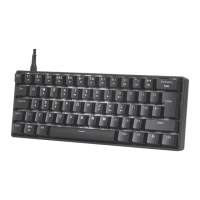
This document describes the ADXMK0620 RGB Mechanical Gaming Keyboard, a peripheral designed for gaming and general computer use, featuring customizable backlighting and a compact layout.
The ADXMK0620 is an RGB mechanical gaming keyboard that connects to a computer via a USB port. It offers a standard QWERTY layout with additional function keys for multimedia control and backlight customization. The mechanical switches provide tactile feedback and durability, which are often preferred by gamers. The RGB backlighting allows users to personalize the keyboard's appearance with various effects and colors.
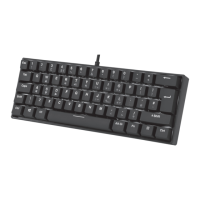
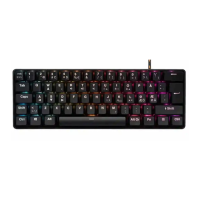
The keyboard features a compact 60% layout, meaning it omits the numeric keypad, function row (F1-F12), and navigation cluster (Home, End, Page Up, Page Down, Delete, Insert) as dedicated keys. These functions are typically accessed via a combination of the Fn key and other keys.
To access Esc, F1-F12, and Delete, the Fn key must be pressed simultaneously with the desired key. For example, Fn + 1 typically acts as F1, Fn + 2 as F2, and so on, up to Fn + 0 for F10, Fn + - for F11, and Fn + = for F12. The Delete function is likely accessed via Fn + Backspace (though not explicitly shown, it's a common convention for compact keyboards).
The keyboard also provides multimedia and system control functions through Fn key combinations:
Fn + W (or A, S, D) likely toggles the WASD keys to function as arrow keys, which can be useful in certain games or applications.Fn + Q (or a dedicated key with a volume down icon)Fn + E (or a dedicated key with a volume up icon)Fn + R (or a dedicated key with a mute icon)The keyboard's RGB backlighting offers several customization options:
Fn + U (with a flashing light icon) allows users to change the speed or intensity of flashing backlight effects.Fn + I (with a power icon) toggles the backlight on or off.Fn + O (with a "Mode" icon) cycles through 5 different preset backlight modes and 1 customizable mode.Fn + J (with a brightness down icon) and Fn + K (with a brightness up icon) adjust the overall brightness of the backlighting.Fn + Spacebar cycles through different static backlight colors.The ADXMK0620 allows for individual key backlight customization:
Fn + O (Mode icon) repeatedly until the "customize backlight mode" is selected. Initially, the WASD keys will light up.Fn + O (Mode icon) to enter the backlight setting mode. The CAPS and WIN keys will start flashing, indicating that the keyboard is ready for customization.Fn + O (Mode icon) again to save the customized settings. The CAPS and WIN keys will stop flashing.Fn + I (power icon) until all backlights start lighting in succession.The manual provides general safety warnings and tips for proper use and care:
The product packaging indicates that the device should not be disposed of with general household waste. Users are responsible for disposing of waste equipment at a designated collection point for the recycling of waste electrical and electronic equipment, in accordance with local regulations. This practice helps conserve natural resources and protects human health and the environment.


 To Next Page
 General