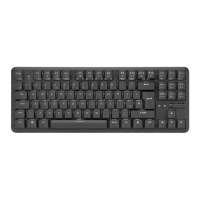
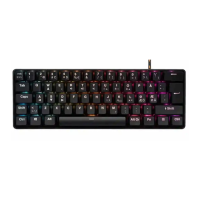
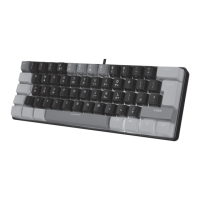
The ADX Firefight Core 23 is an RGB gaming keyboard designed for an immersive gaming experience. This instruction manual (ADXK11P23 / ADXK11G23) provides comprehensive details on its features, usage, and maintenance.
Function Description:
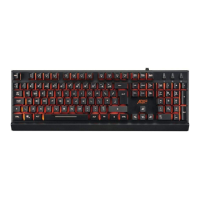
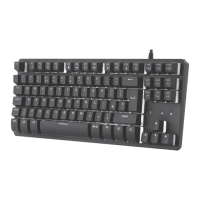
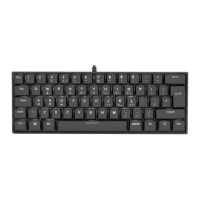
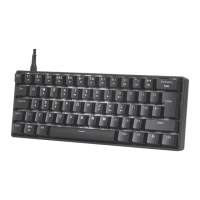
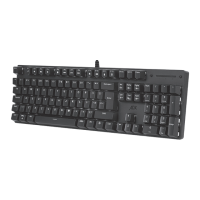
The Firefight Core 23 is a compact gaming keyboard with RGB backlighting, offering a range of customizable lighting effects. It is designed for use with Microsoft® Windows® 8, 10, or 11 operating systems and requires one available USB port for connectivity. The keyboard features a standard QWERTY layout with additional function keys accessible via the Fn key. These function keys allow users to control various aspects of the keyboard, including volume, arrow keys, and backlight effects, without needing to navigate through software.
Important Technical Specifications:
- Model: ADXK11P23 / ADXK11G23
- Dimensions (L × W × H): 292 × 101.5 × 40.5 mm
- Net Weight: 453 g
- Operating Systems: Microsoft® Windows® 8 / 10 / 11
- Hardware Requirement: 1 available USB port
- Connectivity: USB (wired)
- Backlight: RGB with multiple effects and brightness levels
Usage Features:
The keyboard offers several user-friendly features to enhance the gaming and typing experience:
- Function Keys (F1-F12, Delete): These keys are accessed by pressing the Fn key simultaneously with the desired F-key or Delete key. This allows for quick access to system functions or in-game commands.
- Volume Control: Dedicated volume functions are available through the Fn key.
- Pressing Fn + Q (with a speaker icon) decreases the volume.
- Pressing Fn + W (with a speaker icon) increases the volume.
- Pressing Fn + E (with a muted speaker icon) mutes the sound.
- Arrow Keys Functionality: The keyboard allows users to switch the W/A/S/D keys to act as arrow keys.
- To activate/deactivate this function, press the Fn key and the W button repeatedly.
- Once activated, W acts as Up, S as Down, A as Left, and D as Right. This provides flexibility for different gaming styles or applications where arrow keys are preferred in the WASD position.
- Backlight Effects: The RGB backlighting is a key feature, offering various customization options:
- Switch Backlight On/Off: Press Fn + (sun icon) to toggle the backlight.
- Select Different Backlight Effects: Press Fn + Mode to cycle through various lighting modes:
- Streaming light mode (default): A dynamic, flowing light effect.
- Multicolour breathing mode: Colours fade in and out across the keyboard.
- Breathing mode in 8 colours: Cycles through Red, Orange, Yellow, Green, Blue, Purple, Cyan, and White breathing effects.
- Light On mode in 8 colours: Static illumination in Red, Orange, Yellow, Green, Blue, Purple, Cyan, and White.
- Adjust Backlight Flashing Speed: Press Fn + (up/down arrow with light icon) to adjust the speed of flashing effects. This feature is not available in "Light On" mode.
- Adjust Backlight Brightness: Press Fn + (up/down arrow with sun icon) to change the brightness level of the backlight.
Maintenance Features:
The manual provides essential safety warnings and tips to ensure the longevity and proper functioning of the keyboard:
- General Care:
- Read all instructions carefully before use and retain the manual for future reference.
- Do not disassemble the keyboard or remove any parts.
- Avoid immersing the keyboard in water or any liquid.
- Keep the keyboard away from heat sources and high temperatures.
- Do not use the keyboard in areas with strong electromagnetic waves, as this can cause damage.
- Protect the keyboard from direct sunlight, moisture, dirt, or abrasive chemical products (such as cleaning products).
- Troubleshooting Tips:
- If the keyboard is not working properly, ensure the USB plug is fully inserted into a USB port.
- Try using a different USB port on your computer.
- If issues persist, re-insert the USB plug into the USB port.
Environmental Responsibility:
The product packaging includes a symbol indicating that the device should not be disposed of with general household waste. Users are responsible for handing over waste equipment to a designated collection point for the recycling of electrical and electronic equipment. This practice helps conserve natural resources and ensures environmentally sound recycling, protecting human health and the environment. For more information on recycling, users should contact their local authority or the retailer where the product was purchased.
Windows is a registered trademark of Microsoft Corporation in the United States and other countries. All other trademarks mentioned are the property of their respective owners and are acknowledged. The features and specifications of the keyboard are subject to change without prior notice.

 Need help?


 To Next Page
 General