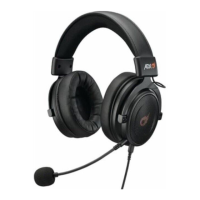
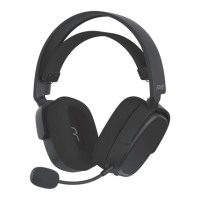
The ADX Firestorm H09 Gaming Headset is designed for an immersive gaming experience, offering a range of audio customization and microphone features.
Function Description:
The ADX Firestorm H09 is a gaming headset that connects via USB. It provides virtual 7.1 surround sound for an enhanced audio experience, allowing users to precisely locate in-game sounds. The headset includes a microphone for communication, with features to adjust its volume and clarity. The accompanying software enables extensive customization of audio output and microphone input.
Important Technical Specifications:
- Model: AFSH0917
- Frequency Response:
- Headset: 20Hz - 20kHz
- Microphone: 100Hz - 10kHz
- Impedance:
- Headset: 32Ω
- Microphone: ≤2.2KΩ
- Net Weight: 406 g
- Operating Systems: Microsoft® Windows® 7 / 8 / 10 (Software not available for Windows Vista® & MAC OS)
- Hardware: 1 available USB port, CD-ROM for gaming software installation
Usage Features:
Safety Warnings:
- Do not use earphones while driving or cycling for traffic safety.
- Prolonged listening to loud sounds can permanently damage hearing.
- Always turn the volume down before putting on earphones, then slowly increase to a comfortable listening level.
Product Overview:
The headset features a microphone, a vibration button, and a volume control.
Software Installation:
- Insert the provided Setup Disc into the computer's CD-ROM drive.
- Run
AFSH0917_setup.exe from the CD drive.
- Follow the on-screen instructions to complete the installation.
- Launch
AFSH0917 Configuration.exe from the desktop to start the software.
- Note: The software is not compatible with Windows Vista® or MAC OS.
User Interface (Software):
The software interface allows users to:
- View software information.
- Access setting options.
- Minimize or exit the software.
- Switch between Status and Profile panels.
- Adjust overall volume.
- Mute or restore sound.
- Toggle "Show System Tray Icon."
- Adjust UI transparency level.
- Toggle "Don't show start up message."
- Save or cancel current settings.
Speaker Setting (Software):
Right-clicking the speaker icon in the system tray or within the software opens a menu with various speaker settings:
- Volume Control:
- Adjust the overall volume.
- Mute or restore sound.
- Individually adjust left and right front speaker volumes.
- Lock left and right speakers for simultaneous adjustment.
- Volume range: -37.00 dB to 0.00 dB.
- Sample Rate: Choose different audio sample rates (e.g., 44.1 KHz, 48 KHz, 88.2 KHz, 96 KHz) and bit depths (16 Bits, 24 Bits).
- Equalizer:
- Enable/disable the equalizer.
- Customize EQ settings across various frequency bands (30Hz to 16KHz).
- Choose from preset sound effect modes (Dance, Rap, Metal, Jazz, SoftRock, Rock, Live, Treble, Bass, Classic, Opera, Default) or manual adjustment.
- Save, input names for, or delete custom EQ profiles.
- Surround Headphone (Xear Surround Headphone):
- Enable/disable the Xear Surround feature.
- Choose between "Music mode" and "Movie mode" for surround sound.
- Adjust the room size effect.
- Audio Brilliant (Xear Audio Brilliant):
- Enable/disable the Audio Brilliant feature.
- Adjust the "Brilliant Level."
- Reset to default settings.
- Dynamic Bass (Xear Dynamic Bass):
- Enable/disable the Dynamic Bass feature.
- Adjust the "Bass Level."
- Adjust the "Cut-off Frequency" (100Hz to 400Hz).
- Reset to default settings.
- Smart Volume (Xear Smart Volume):
- Enable/disable the Smart Volume feature.
- Adjust the "Volume Level."
- Choose a "Mode" for smart volume.
- Reset to default settings.
- Voice Clarity (Xear Voice Clarity):
- Enable/disable the Voice Clarity feature.
- Adjust the "Voice Clarity Level."
- Adjust the "Noise Suppression for communication" level.
- Reset to default settings.
- Surround Max (Xear Surround Max):
- Enable/disable Surround Max.
- When enabled, content played by the front left and right virtual speakers will be cloned to all side and back speakers.
Microphone Setting (Software):
Right-clicking the microphone icon in the system tray or within the software opens a menu with various microphone settings:
- Volume Control:
- Adjust the microphone volume.
- Listen to your own voice when speaking into the microphone.
- Mute or restore the microphone.
- Volume range: -37.00 dB to 0.00 dB.
- Sample Rate: Choose different audio sample rates for the microphone.
- Magic Voice (Xear Magic Voice):
- Enable/disable the Magic Voice feature.
- Choose a "Magic Voice" mode (e.g., Monster, Cartoon, Male, Female).
Maintenance Features:
Hints and Tips:
- Ensure the USB plug is fully inserted into a USB port and the computer is on. Try using a different USB port if issues persist.
- If the software is not functioning correctly, uninstall it, reboot the computer, and then reinstall the software.
The product and its packaging are marked with a symbol indicating that it should not be disposed of with household waste. It is the user's responsibility to hand it over to a designated collection point for the recycling of waste electrical and electronic equipment. Separate collection and recycling help conserve natural resources and protect human health and the environment. Contact your local authority or product retailer for recycling information.

 Need help?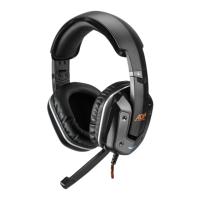

 To Next Page
 General