8. Using a Remote Controller
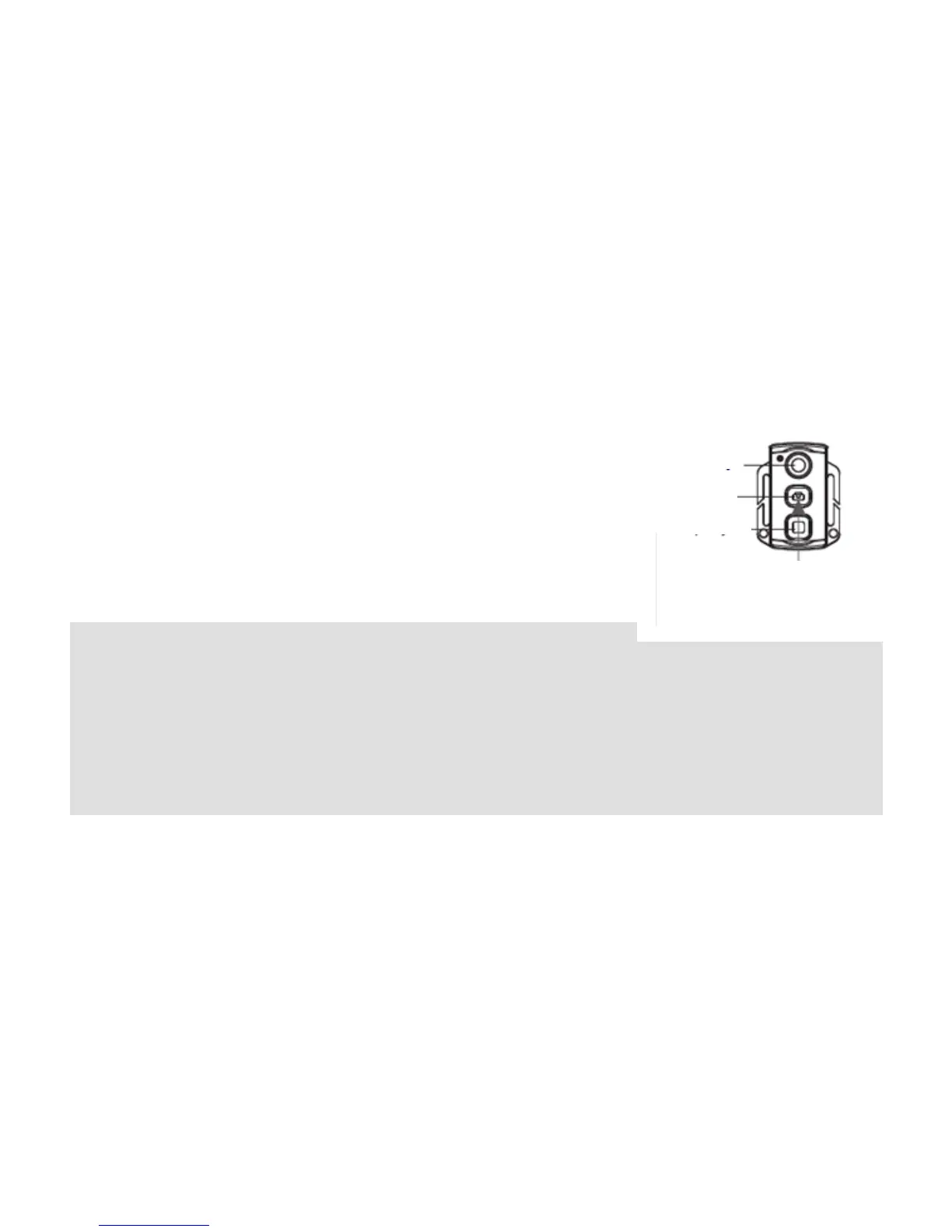
The SD21 video camera is equipped with a remote controller, which is used for control of video recording,
shooting as well as turning on/off laser. After you pressing a key, the red indicator on the remote controller
blinks once. The following figure shows the functional keys of the remote controller.
To match the functions of the remote controller with those of the SD21 video
camera, perform the following operations for code pairing before using the
remote controller.
Press and hold the Record key on the SD21 video camera in
power-off mode.
Turn the power switch to the ON position.
Release the Record key, and within 3 seconds, press the Video and
Stop keys on the remote controller at the same time.
After successful code pairing, the SD21 video camera generates the tick
tone twice.
Note:
a. To check whether code pairing is successful, use the wireless remote controller to control the SD21 video
camera. The control functions include starting/stopping video recording, shooting, waking-up in standby
mode, and turning on/off the laser indicator. For each operation, the SD21 video camera ticks once, indicating
that the operation takes effect. When you use the remote controller to stop video recording or turn off the
laser indicator, the SD21 video camera ticks twice.
b. The remote controller must be no more than 10 meters away from the camera, without any obstacle in
between.
c. In standby mode, you can press the Record, Photo, or Stop key on the remote controller to wake up the
SD21 video camera.
9. Wake up SD21 in Standby Mode
The SD21 video camera enters preview mode after power-on by default. If no task or operation is carried out
within the preset standby time, the system automatically enters the standby mode to save power. To wake up


 To Next Page