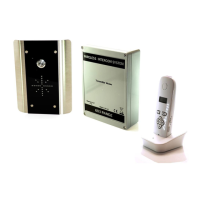
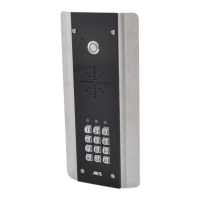
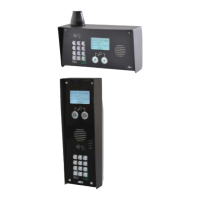
The document describes the Prime6 Advanced GSM Intercom System, a homeowner user manual for a GSM intercom device that operates on 2G, 3G, or 4G networks. This system allows users to control access to gates or doors via calls, an associated mobile application, keypad codes, and proximity cards.
Function Description
The Prime6 intercom system provides comprehensive access control for residential properties. It enables users to open gates or doors by making a call to the intercom, using a dedicated mobile application, entering keypad codes, or presenting proximity cards. The system supports multiple users and offers various access control methods to suit different needs, including permanent, time-restricted, and auto-expiring access.
The core functionality revolves around its GSM capabilities, allowing the intercom to communicate with designated phone numbers. When a call is made to the intercom, it can trigger an output to open a gate or door. The system can be configured to support up to 100 "authorized phone users" who can call the intercom to trigger output 1 and open the gate/door. If the user's number is not stored, the call will be rejected.
The mobile application, "Cellcom Prime," is available for both Android and iPhone devices. It serves as a central interface for managing the intercom system. Through the app, users can:
- Open/Unlatch Gates: Manually open or unlatch gates (Output 1 and Output 2).
- Manage Keypad Codes: Add, edit, or delete various types of keypad codes.
- Configure Timing Functions: Set up automatic gate opening and closing schedules.
- Monitor Status: Check signal strength, stored numbers, keypad codes, proximity card users, gate status, and activity logs.
- Manage Caller ID Access: Add or restrict caller ID numbers for access.
- Set Notifications: Receive SMS notifications for gate openings.
- Configure Do Not Disturb: Set specific times when the call button will not operate.
The system supports two independent outputs, allowing control of two separate gates or doors. For instance, Output 1 could control a pedestrian gate, and Output 2 could control a driveway gate.
Important Technical Specifications
The Prime6 intercom operates on GSM networks (2G, 3G, or 4G), requiring an active SIM card for functionality. The device itself is a physical unit installed at the gate or door, with a keypad and a call button.
Keypad Codes:
- Permanent 24/7 Codes: Up to 200 codes.
- Time-Restricted Codes: Up to 20 codes, active during pre-set days and times of the week.
- Temporary Codes: Up to 30 codes, auto-expiring after a set number of hours (1 to 168 hours).
- Code Length: 4 digits.
- Relay Activation Time: Configurable from 1 to 9999 seconds (2.7 hours).
- Automatic Gates: Enter 0 for latching code (hold open), 1 for trigger normally, 3600 for 1 hour hold open.
- Strike Locks: Enter 1 second for magnetic locks, 7 seconds for strike locks.
Proximity Cards/Tags (Prox Capable Models Only):
- Permanent 24/7 Access: Up to 200 proximity cards.
- Time-Restricted Prox Cards: Up to 20 cards, active during pre-set times and days.
- Temporary Prox Cards: Up to 30 cards, auto-expiring after a set number of hours (1 to 168 hours).
- Card ID Length: 10 digits.
- Relay Activation Time: Configurable from 1 to 9999 seconds.
- 4G Version: Supports 6-character nicknames for card IDs and shows activity logs with user names.
Caller ID Access:
- Unlimited Access (24/7): Up to 100 visitor phone numbers.
- Time-Restricted Caller ID Access: Up to 20 phone numbers, active during pre-set times and days.
Outputs:
- Two independent outputs (Output 1 and Output 2) for controlling gates/doors.
Usage Features
Receiving a Call and Opening Gates/Doors:
- Press Call Button: Initiates a call to designated phone numbers in sequence.
- Answer Call: User answers the call, speaks to the visitor, and grants access via telephone.
- Press 1 to Open: For Output 1 (e.g., pedestrian gate).
- Press 2 to Hold Open: For Output 1.
- Press 3 to Un-hold: For Output 1.
- Press 4 to Open/Activate: For Output 2 (e.g., driveway gate).
- Press 5 to Hold Open/On: For Output 2.
- Press 6 to Un-hold/Off: For Output 2.
Using the App:
- Intuitive Interface: The app home screen provides quick access to open/unlatch gates, manage codes, and view status.
- Speed Dial Gates: Allows quick opening of gates directly from the app.
- Latch/Unlatch: Provides control over holding gates open or closing them.
- Change from Gate 1 to Gate 2: Switches control between the two outputs.
- Keypad Code Management: Simplifies adding, editing, and deleting codes.
- Timing Functions: Allows scheduling automatic gate operations.
- SMS Notifications: Users can receive SMS alerts when gates are opened.
Adding Keypad Pin Codes:
- Keypad Code: Permanent 24/7 codes.
- Timed Code: Time-restricted codes.
- Temporary Code: Auto-expiring codes.
- Delete Code: Removes existing codes.
- Stored Keypad Codes: Displays a list of all stored codes.
Adding Proximity Cards:
- Prox Card: Permanent 24/7 access.
- Timed Prox Card: Time-restricted access.
- Temporary Prox Card: Auto-expiring access.
- Delete Prox Card: Removes existing cards.
- List of Prox ID Users: Displays a list of all stored proximity card users.
Time Clock Opening and Closing of Gates:
- Automatic Timing: Set up daily or weekly schedules for automatic gate opening and closing.
- Step-by-Step Automation: Configure specific opening and closing events for each day, with up to 4 events per day.
Status Options:
- Signal Strength: Check the GSM signal level (1-31).
- Stored Numbers: View phone numbers for dial-out and CallerID access.
- Stored Keypad Codes: View all stored keypad codes.
- List of Prox ID Users: View all stored proximity card users.
- Gate Status: Check the status of both relays (ON/OFF) and the optional "Status" input.
- Activity Log: View a log of the last 20 events, including who gained access and when.
24/7 Caller ID Access:
- Enter up to 4 phone numbers at a time, up to 100 total, for unlimited access.
Time Restricted Caller ID Access:
- Enter phone numbers and select specific days and times for access.
Notifications:
- Set up SMS notifications to a specific phone number when the intercom triggers the gates.
Do Not Disturb:
- Prevent calls during unsociable hours or weekends. The call button can be turned ON/OFF, and specific times can be set for the call button to work or not.
Out of Hours:
- Configure an alternative phone number to call during "do not disturb" times, useful for security guards or site managers.
Maintenance Features
Troubleshooting:
- Problems Installing the App: Ensure the full phone number of the intercom is entered in the settings screen, and that the pass codes used are correct. Installers should refer to the manual for permissions.
- On an iPhone it does not activate the commands without first taking me to my dialling screen or SMS screen: This is a security feature by Apple. Direct SMS or dialling from the app may require re-confirming the SMS sending or call generation before it will occur.
- My gates are opened and will not close: This may be due to the intercom not seeing other pieces of hardware connected to the gate, which is holding open the gate. Check the Gate Status button. If either relay is ON, then go to the home screen and press the UNLATCH button to restore the relays to their normal state.
- My intercom is not responding to SMS messages: This can be caused by poor reception, insufficient power cable from the transformer to the intercom, or a service issue with your network provider. Some SIM cards can get de-activated by the provider due to a long period of inactivity. Contact your provider and installer for support.
- My intercom is no longer operating at all: Contact your installer for support.
Important Notes:
- For legal and safety reasons, the manufacturer cannot offer telephone technical support to un-certified or non-qualified persons. Technical support can only be delivered via a qualified gate-safe installer.
- Android users, if you receive an error message "Command Failed," go to Phone Settings/Application Manager/Permissions, and turn on all permissions for the app & check the intercom phone number is stored in the app.
- iPhone users should note that due to security restrictions by Apple, any SMS button commands will take you to your native SMS screen where you must re-confirm the SMS before it will send. Android devices will send the SMS automatically.
- Remember only one phone at a time can use the notifications feature. Activating notifications will mute the keypad confirmation tones.

 Need help?
 General

 To Next Page