EasyManua.ls Logo

AES MultiCOM Classic 4G - User Manual

AES MultiCOM Classic 4G
6 pages
Print Icon
To Next Page IconTo Next Page
Loading...
LIGHTNING PRONE AREAS MUST USE SURGE PROTECTION
FOR POWER SUPPLY!
Relay Connections
4
See overleaf for
more PCB details
SIM Preparation
Ensure you read all instructions before continuing.
The SIM cards provided need activated before
use. Follow the instructions provided or visit our
telecoms website for more details:
www.aesglobaltelecom.com
1
1
Ensure there is good
4G signal on site. 4G
units will fall back to
3G service in some
countries.
SITE SURVEY
This product requires a regular voice & SMS SIM card.
Do not use a data only SIM, as this will not work in the unit.
In order to make voice calls on a 4G system
and get optimum service, your SIM and provider will need to offer
VOLTE support (Voice over LTE).
Site Wiring
TIP: Most technical calls received are due to installers using CAT5 or alarm cable
to power the unit.
NEITHER are rated to carry enough power! ( 1.2amp peak )
Please use the following cable:
Up to 2 metres ( 6 feet ) Use minimum 0.5mm
2
( 18 gauge )
Up to 4 metres ( 12 feet ) Use minimum 0.75mm
2
( 16 gauge )
Up to 8 metres ( 24 feet ) Use minimum 1.0mm
2
( 14 gauge )
POWER CABLE
KEEP POWER SUPPLY AS CLOSE AS POSSIBLE.
Power
Consumption:
Standby = 80mA
Calling Out = 300mA
INGRESS PROTECTION
We recommend sealing all entry holes for prevention of insects that can
cause issues with a risk of shorting out components.
To maintain the IP55 rating please follow the sealing instructions included.
(also available online)
Set up on a bench in workshop
BEFORE going to site.
Program the unit in the comfort
of your work bench and call
technical support should you
have any questions.
Please read this entire manual before installing this
product. A full comprehensive manual is available on
our website for additional information.
Power
3
2
!
!
14 gauge - 24 ft MAX
Earth rod
close as
possible to
device!
Use 110V
surge
protection!
To Earth
Rod!
Earthing
This product MUST
be EARTHED in
the following states
in order to qualify
for manufacturers
warranty
FL, LA, MS, AR, OK, MO, AL, IL,
KY, TN, IN, KS, SC, GA, IA, TX,
OH, NC, NE, MD, WV, VA, DE
24V DC IN
(PSU included)
NEED MORE ASSISTANCE?
+1 (321) 900 4599
SCAN THIS QR CODE TO BE BROUGHT TO OUR RESOURCES PAGE.
VIDEOS | HOW-TO GUIDES | MANUALS | QUICK START GUIDES
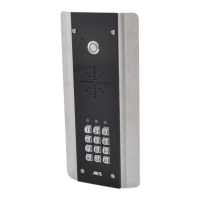
MultiCOM Classic 4G
- Advanced Multi-Resident GSM Intercom
* ALWAYS TEST THE UNIT ON SITE BEFORE INSTALLATION TO AVOID RE-STOCKING FEE * See full T&C’s on our website
STILL HAVING TROUBLE?
Find all of our support options such as Web Chat,
Full Manuals, Customer Helpline and more on
our website:
WWW.AESGLOBALUS.COM
Relay1
Relay 2
COM
N/C
N/O
COM
N/C
PRESS
TO EXIT
Optional
Exit Button
Separate
lock PSU
Driveway
Gates
Gate
Controller
N/C
N/O
Magnetic Lock
Different networks use different APNs,
and these must be set correctly for full
operation. See Details overleaf on
setting a new APN.
Question and Answer IconNeed help?

Do you have a question about the AES MultiCOM Classic 4G and is the answer not in the manual?

Summary

Installation Preparation

SIM Preparation

Ensure SIM card activation and correct APN settings for network operation.

Site Survey and Wiring

Check 4G signal and follow site wiring guidelines, including surge protection.

System Connections

Relay Connections

Connect gate controller, relays, and optional exit button for gate access.

Power Supply and Earthing

Use appropriate power cables and ensure correct earthing for warranty and safety.

Wiring Connections Overview

PCB Status LEDs

Understand the meaning of different LED light combinations for system status indication.

SIM Orientation and Network Connection

Correctly insert the SIM card and connect to the network, checking modem LED indicators.

APN Configuration Methods

Change APN via SMS

Update the Access Point Name (APN) by sending an SMS to the intercom for network settings.

Change APN via Keypad

Configure APN settings using the keypad when no 3G signal is available.

Alternative Wiring Examples

Magnetic Lock Wiring

Example wiring diagrams for connecting magnetic locks to the system.

Strike Lock Wiring

Example wiring diagrams for connecting strike locks to the system.

AES Pro App Setup

Download and Install App

Get the AES Pro app from the app store and grant necessary permissions.

Getting Started with the App

Follow the steps to select language, register, and sign in to the AES Pro app.

Device Configuration via App

Select Device Type

Choose the correct intercom model from the list provided in the device setup.

Enter Setup Information

Input required details to configure the device, which may involve multiple screens.

Advanced App Configuration

LCD Screen Programming

Customize the intercom's LCD screen, including welcome messages and brightness.

Advanced Settings and Features

Configure settings like Auto Opening, Passcodes, Relay Times, and Time Synchronization.

Advanced Programming and SMS Commands

YouTube Walkthrough

Access a YouTube channel for a full app walkthrough and programming guidance.

SMS Reply Examples

View examples of SMS commands for checking system status and programming functions.

LCD Screen Customization

Display Pin Code Option

Enable or disable the display of the PIN code on the intercom screen.

Edit LCD Welcome Message

Edit the welcome or instruction message displayed on the intercom's LCD screen.

End User Gate Management

Using AES Pro App for Gates

Manage gates and doors via the AES Pro app, sending trigger, latch, or unlatch commands.

Receiving Calls and Opening Gates

How visitors call, how the intercom rings designated numbers, and how to grant access via keypad.

Basic SMS Commands for Management

Add New Resident via SMS

Use SMS commands to add resident details including apartment number, name, and phone numbers.

Relay and Access Control SMS

Manage relays, set times, name relays, and configure caller ID access via SMS.

Intercom Maintenance and Troubleshooting

Troubleshooting Common Issues

Address problems like no power, no network, call issues, or audio quality problems.

Reset Default Unit Procedure

Follow steps to perform a factory reset, clearing all programming and saved data.

AES MultiCOM Classic 4G Specifications

General IconGeneral
CategoryIntercom System
Operating Temperature-20°C to +55°C
Connectivity4G
Communication TechnologyGSM, LTE
Power Supply12V DC
Audio CodecGSM

Related product manuals