19
Numeric Editing
Any numeric parameter may be changed in one of the following ways:
• Enter a new value from the numeric key pad.
• Use the left and right cursor keys to select a digit position then use the knob to
increment/decrement the value at that position.
Examples of each method are shown below.
Using the Numeric Key Pad
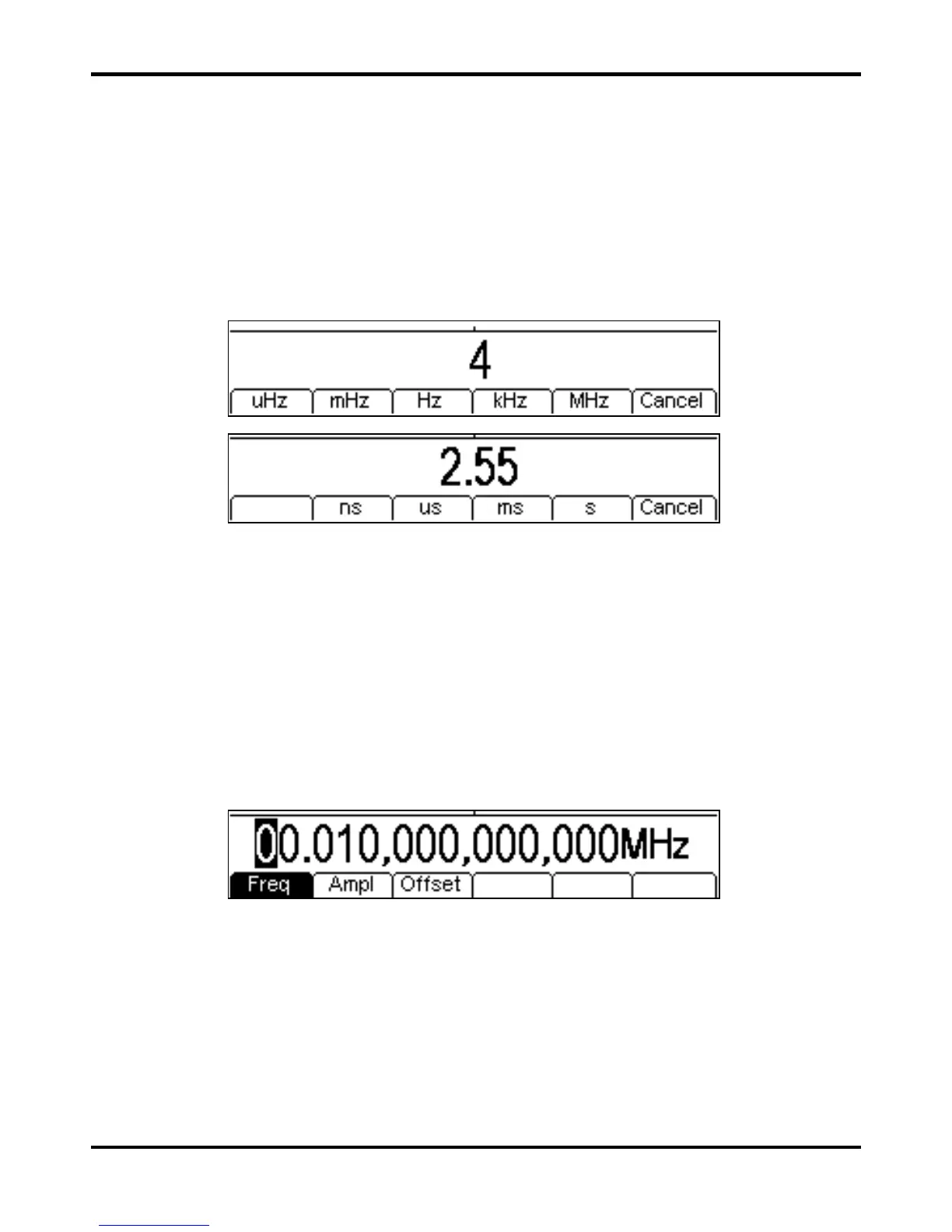
Pressing a number key will erase the current parameter value in the Edit Box and replace it with the
current entry. The Soft-key Labels will also change to a list of units applicable to the parameter
being edited. The examples below show frequency units and period (time) units respectively.
During the numeric data entry a decimal point and, if appropriate, a sign may be entered. The
+/-
key is used to alternately change the sign between + and –. The left cursor key may be used to
erase the last digit entered. The entry may be cancelled by pressing the
Cancel key
Once the entry is complete it may be terminated by pressing the soft-key below the required units.
The value will be checked and accepted as the new value for the relevant parameter.
Using the Knob and Cursor Keys
A numeric parameter will be displayed with an inverse edit cursor over one of the digits. The left and
right cursor keys may be used to move the edit cursor to any digit in the value. Values are always
shown with enough digits to the right of the decimal point to show the best resolution for the
parameter. For example the right-most digit in a frequency value will be µHz. Depending on the
actual value one or more digits to the left of the most significant digit displayed may be zero and will
not be shown. It is possible to move the edit cursor into these digit positions and the suppressed
zeros will be shown as in the example below.
With the edit cursor positioned at the required digit the knob may be rotated left or right to
decrement or increment the digit. As the value passes between 9 and 0 the digits to the left will also
change. In this way it is possible to set any legal value for the parameter.
Changes made by turning the knob are applied immediately to the parameter as long as the value
remains legal.
Display Contrast and Brightness
The LCD contrast may vary a little with changes of ambient temperature or viewing angle but can
be optimised for a particular environment by using the contrast and brightness controls. Refer to the
Utility Operations section for how to change the contrast and brightness.


 To Next Page