72
Copy
The copy operation allows set-up files to be copied between local storage and an attached USB
flash drive.
To copy a file from local to disk:
1. Select the
Local: Box by pressing the Local soft-key.
2. Select the file to be copied.
3. Press the Copy soft-key.
4. Optionally modify the name of the file to receive the copy. This will default to the name of the
file selected in step 2 above if it is not modified.
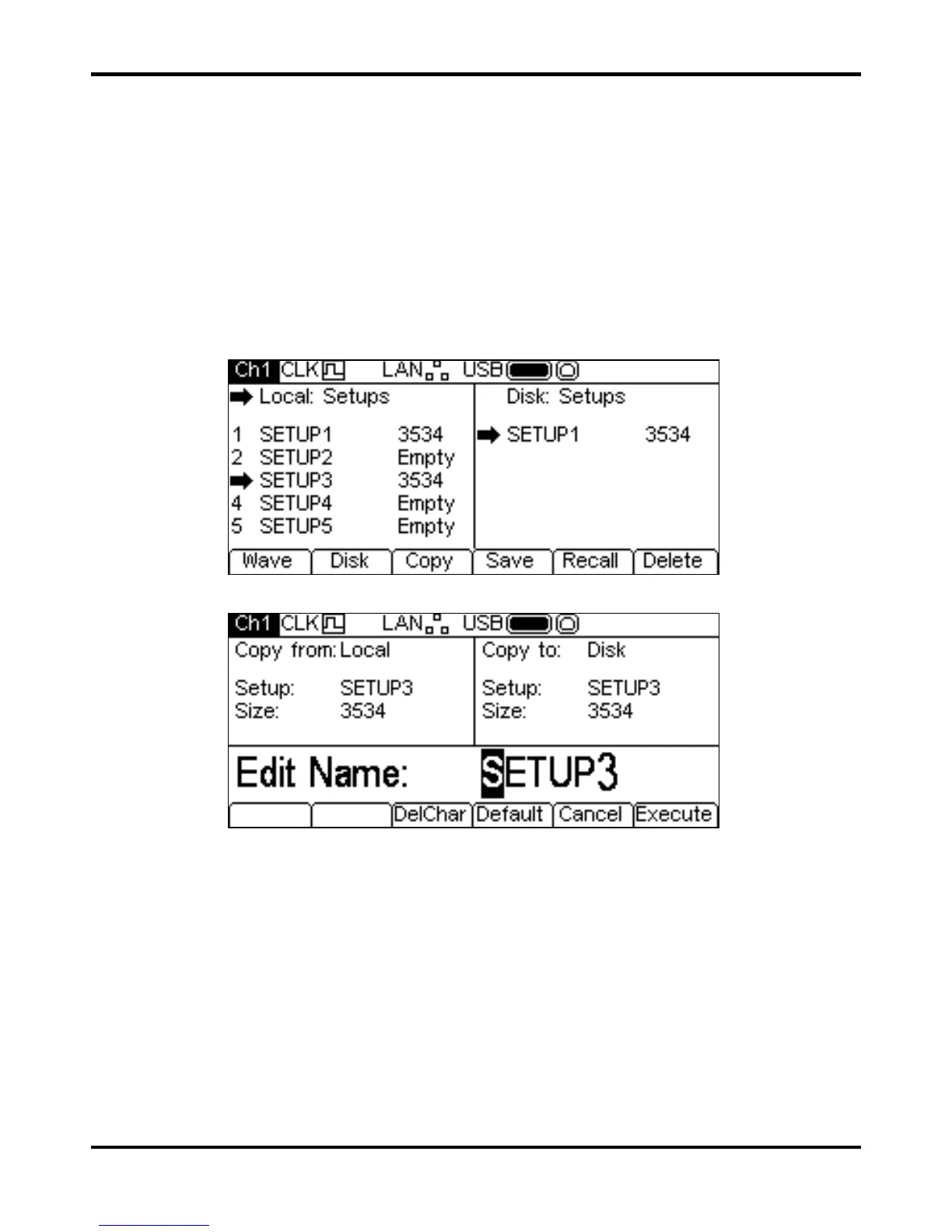
The screen below shows an example after performing the above actions. Here the file in store
3 will
be saved to a set-up file on disk. The name will be
SETUP3 unless it is changed.
Pressing the
Copy soft-key will then show the following:
The
Copy from: Box shows that the source is Local and shows the file to be copied. The
Copy to: Box shows the file that will be written to Disk. The Edit Box shows the name of the
file that will be written and the soft-key labels, KNOB and cursor keys allow the name to be edited.
The
DelChar key allows characters to be deleted from either end of the name but not from the
centre.
The
Default soft-ket displays the name of the source file again.
The
Cancel key cancels the copy operation and returns to the top level stores menu.
The
Execute soft-key starts the copy operation and returns to the top level Stores menu when
complete.
The cursor keys will move the edit cursor through the name and turning the KNOB will cycle
through all valid characters, numbers and symbols.


 To Next Page