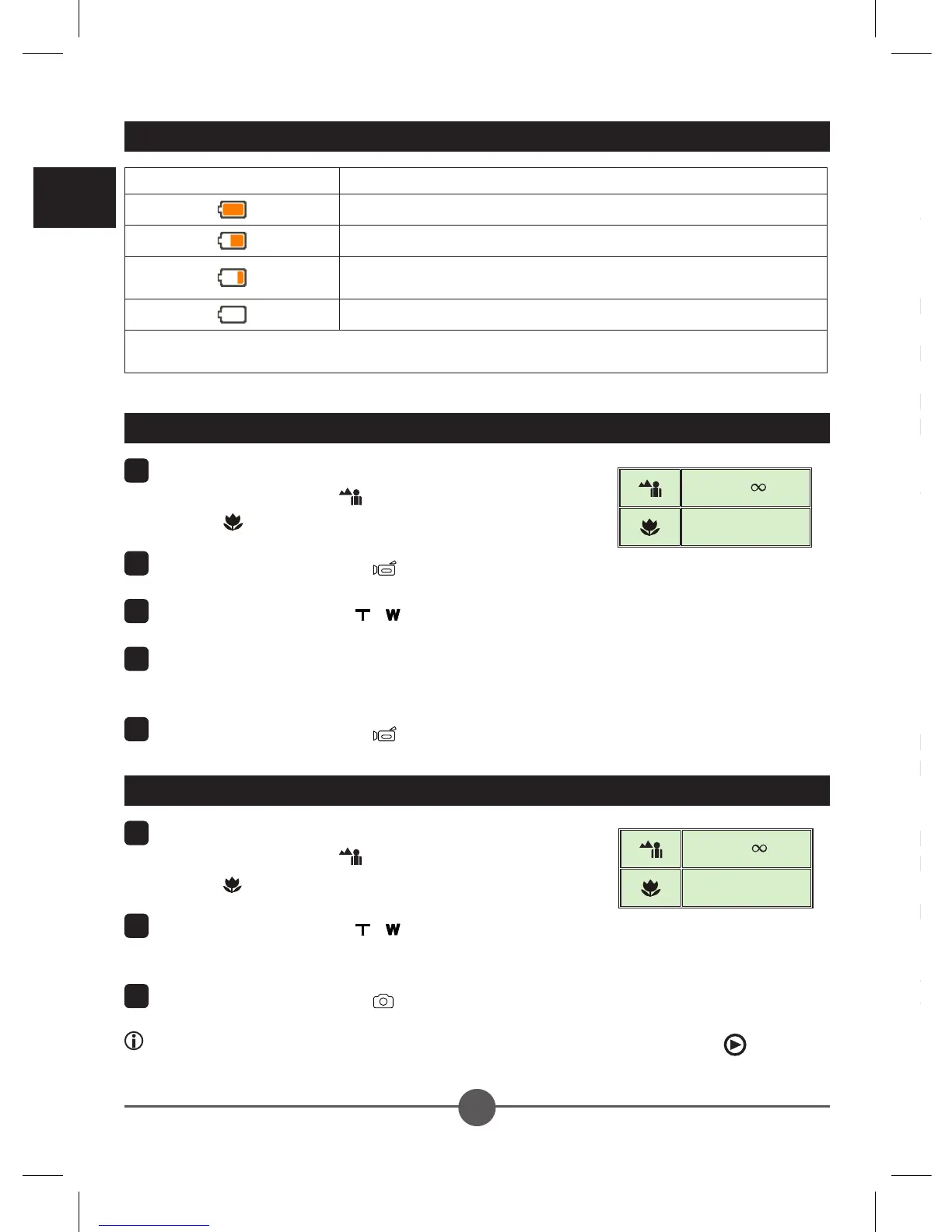
1
Set the focus to an appropriate setting. Normally, you
may set the focus to ( ) for most lming conditions.
Select ( ) only for close-ups.
2
Use the Zoom buttons ( / ) to zoom in or zoom
out the screen.
3
Press the Shutter button ( ) to take a still picture.
If you want to playback the recorded videos/pictures, press the Playback ( ) button.
Taking a still picture
Icon Description
Full battery life
Moderate battery life
Low battery life
* The ash strobe will be disabled.
Empty battery life
Note: To avoid sudden outage of power supply, you are recommended to replace the
battery when the icon indicates low battery life.
Realizing the battery life indicator
1
Set the focus to an appropriate setting. Normally, you
may set the focus to ( ) for most lming conditions.
Select ( ) only for close-ups.
2
Press the Record button ( ) to start recording.
3
Use the Zoom buttons ( / ) to zoom in or zoom out the screen.
4
Use the Joystick Enter to pause, and Enter again to resume. (*For select model
only.)
5
Press the Record button ( ) again to stop recording.
Recording a video clip
TV : Traditional CRT TV
The TV system is different across areas. If you need to adjust the TV-out setting, please
refer to the “Advanced settings” section for more information. (Taiwan: NTSC; America:
NTSC; Europe: PAL; China: PAL)
1
Turn on your TV and switch the TV to
AV mode.
2
Connect the audio and video ends of
the AV cable to the TV.
3
Turn on the camcorder.
4
Connect the other end of the AV
cable to your camcorder.
The AV cable is an optional item. Please
purchase the cable at your local retailer:
White
Red
Yellow
TV : HDTV with HDMI input port
*For select model only. Please refer to the package printing for detailed specication.
1
Turn on your HDTV.
2
Connect the HDMI-in connector (the
larger end) of the HDMI cable to the
HDTV.
3
Turn on the camcorder.
4
Connect the other end of the HDMI
cable to your camcorder.
5
Switch the HDTV to the “HDMI input”
mode.
Camcorder and Camera functions are not available in AV/HDMI-out mode.
The HD TV will display your video clips in 1080i (60 elds) resolution mode although it is
recorded in 1080P (30 frames) setting.
50cm ~
30cm ~ 50cm
Focus settings
50cm ~
30cm ~ 50cm
Focus settings



 To Next Page