EasyManua.ls Logo

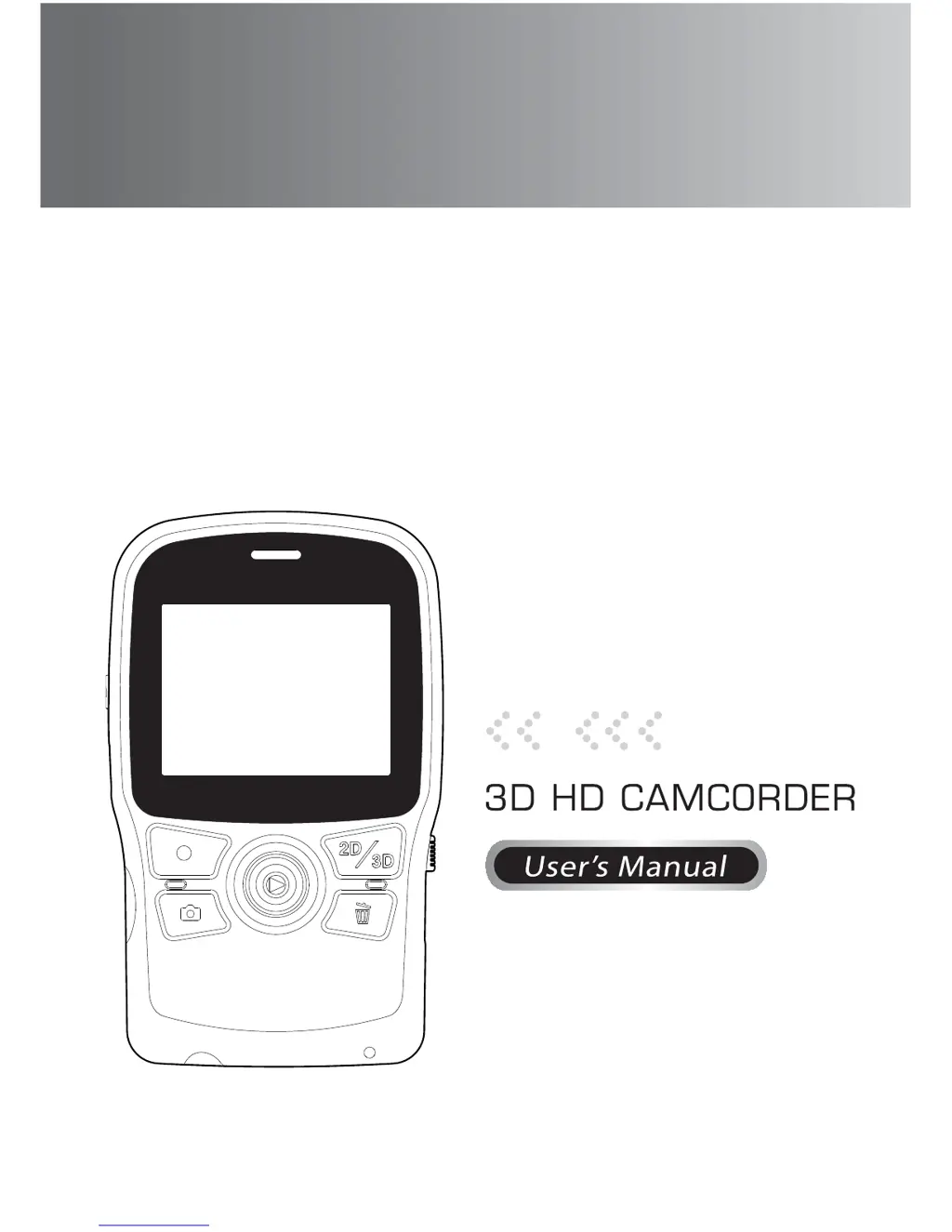
AIPTEK 3D i2 - User Manual

AIPTEK 3D i2
171 pages
Print Icon
To Next Page IconTo Next Page
Loading...

Table of Contents

Questions and Answers

  • M
    Margaret MedinaAug 10, 2025
    What to do if the 3D effect doesn't work when playing 3D videos/photos on my 3D-featured AIPTEK Camcorder connected to PC/notebook?
    • C
      carlosrodriguezAug 11, 2025
      If your 3D videos/photos don't display the 3D effect on your 3D-featured PC/notebook using your AIPTEK Camcorder, it could be due to the PC/notebook not supporting the 'side-by-side' 3D format, or the system not being correctly set up. Here are some possible solutions: 1) If your 3D PC/notebook is “Nvidia 3D” compatible, you can set the TotalMedia HDCam program to support “Nvidia 3D” directly. 2) If your PC/notebook is not “Nvidia 3D” compatible, you may consider installing “Nvidia 3D kit” to support the effect. 3) You can download and install the 3D freeware “Stereoscopic Player”, and set up the software to support “side-by-side” 3D effect.
  • S
    Stacy HammondAug 17, 2025
    Why doesn't the 3D effect work when I output 3D video/photo playback from my AIPTEK Camcorder to my home 3D HDTV?
    • V
      Victoria BlakeAug 18, 2025
      If the 3D effect is not working when you output 3D video/photo playback from your AIPTEK Camcorder to your 3D HDTV, the system of your 3D TV/display might not be correctly set up to support the format of the 3D videos. To resolve this, select the “side-by-side” setting on your 3D HDTV/display. This should correctly display the 3D effect.
  • D
    Darlene WhiteAug 25, 2025
    Why doesn't the 3D effect work when I output 3D video/photo playback from my AIPTEK 3D i2 Camcorder to my home HDTV?
    • W
      walkeradamAug 26, 2025
      If the 3D effect is not working when you output 3D video/photo playback from your AIPTEK Camcorder to your HDTV, it is likely because your TV/display is 2D and does not support the format of the 3D videos. To solve this, convert the 3D video/photo into red/cyan format and then play and output the converted 3D on your HDTV display. Remember to wear the accessory red/cyan glasses.
  • M
    Mary CraigSep 2, 2025
    What to do if flash occurs when watching 3D videos with Shutter Glasses (that comes with 3D HDTV/display) from AIPTEK Camcorder?
    • C
      Christine KramerSep 2, 2025
      If you experience flashing when watching 3D videos with your Shutter Glasses (that comes with 3D HDTV/display) from your AIPTEK Camcorder, it's likely due to watching 3D videos under fluorescent light. Turn off the fluorescent light to avoid interference, and then watch the 3D videos.

Summary

FCC Compliance Statement

FCC Compliance Statement

Statement detailing compliance with FCC Rules, including conditions and measures for interference.

Safety Notice

Safety Notice

Important safety precautions for using the camcorder, including handling, environment, and battery.

3 D Viewing Information

Battery Management

Loading the battery

Step-by-step instructions on how to open the battery cover and insert the battery correctly.

Charging the battery

Procedure for charging the camcorder battery via USB, including pre-charge checks and LED indicators.

Playback

PC File Management

HDTV Connection

Appendix

Troubleshooting

Common problems encountered with 3D playback and recording, with possible causes and solutions.

Specifications

Specifications

Technical specifications of the camcorder, including sensor, resolution, file format, dimensions, and operating conditions.

AIPTEK 3D i2 Specifications

General IconGeneral
Video Resolution1920 x 1080
3D Video RecordingYes
Display2.4-inch LCD
Optical Sensor Resolution5 Megapixels
Digital Zoom4x
Image SensorCMOS
Sensor TypeCMOS
Lens TypeFixed
Focus TypeFixed
StorageSD/SDHC card
Optical Sensor Size1/2.5-inch
BatteryRechargeable Li-ion

Related product manuals