6408 216th Street SW | Mountlake Terrace, WA 98043 USA
T +1.425.778.7728 F +1.425.778.7727 | www.SymetrixAudio.com
20
Quick Start Guide
Connection Wizard
Refresh List:
ClickingtheRefreshListbuttonwillre-scanthenetworkfor
devices and refresh the list of devices. If at first your device
is not located, double-check network connections and that
thedevice(s)is/arepoweredon.ThenclicktheRefreshList
button.
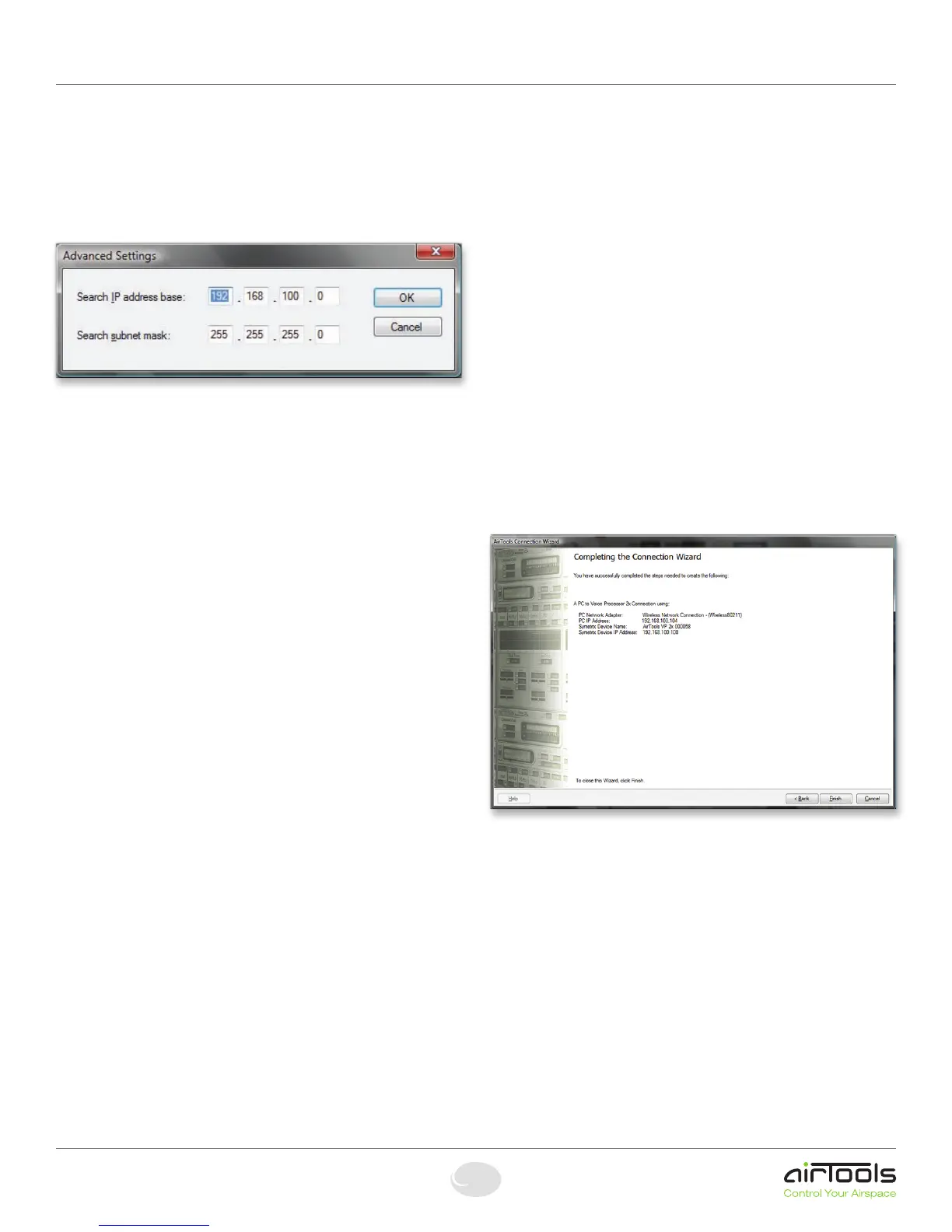
Advanced:
The Advanced dialog will allow you to broaden your network
search for devices allowing you to manually designate a
Search IP address base and Search subnet mask. These
options can be used to search a network for devices
(through a router) other than the one your computer is
currently on.
General Notes:
1. The 2x boots up with DHCP enabled by default. This
means that as soon as you connect it to a network, it will
look for a DHCP server in order to obtain an IP address.
If a DHCP server is present, the 2x will get its IP address
from it. This process may take several minutes. With your
PC attached to the same network and thus getting its IP
address from the same DHCP server, all will be ready to
go.
2. If your network does not have a DHCP server, the 2x
will not be able to obtain an IP address. While waiting,
the 2x will default to a private IP address in the range
of169.254.x.xwherex.xisthelastfouralphanumeric
charactersofthe2x’sMACaddress(MACaddresshex
value is converted to decimal for IP address). The 2x’s
MACaddresscanbefoundonastickeronthebottom
of the 2x. When there is no DHCP server present to
assign IP addresses to either the 2x or your PC, you may
need to configure your PC with a static IP in the range
of169.254.x.xwithaSubnetMaskof255.255.0.0in
order to communicate with the 2x in a direct connect
mode. However, if your PC is using the default network
settings, it should also have automatically self-assigned
asimilarprivateIPaddressintherangeof169.254.x.x,
and if this is the case, you should be able to connect to
the 2x directly. Even if the PC’s default settings have been
changed, the 2x will try to establish communications
by setting up appropriate routing table entries to reach
deviceswith169.254.x.xaddresses.
3. In the case of the first two methods (direct connection
and indirect connection), the 2x software will attempt to
set-up appropriate routing table entries for a seamless
connection regardless of the IP addresses of your PC
and 2x. However, under Windows® Vista, administrative
privileges are required to allow the 2x software to modify
the routing table. For best results, launch the 2x software
while logged in as an administrator, or run choose to
run the software as an administrator. Note: To run a
program as the Administrator under Vista, right click
on the program’s icon or shortcut and choose “Run as
administrator”.
4. The 2x will display its current IP address, subnet mask,
and gateway as well as other useful information on the
front panel display when in Status mode. To enter Status
mode,holddowntheMenubuttonfor5seconds.Then
the up and down arrow keys can be used to move
between various displays. This information may be useful
for troubleshooting.
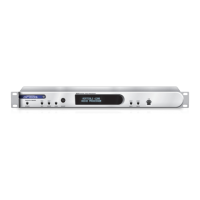
UponclickingtheNextbutton,youarenishedwiththe
Connection Wizard. A summary of your actions appears on
the following screen.
Click the Finish button to exit the Connection Wizard. You
are now ready to Go Online.


 To Next Page