KUMO Quick Start Guide v4.2 5 www.aja.com
KUMO Temporary Static IP Address
KUMO devices also offer a factory default static IP address, allowing a direct and
fail-safe way to connect via a computer connected to KUMO either directly or via
a LAN connection. The computer you use will need to be set to a static IP address
that is compatible with the KUMO temporary IP address. Once connected, the
KUMO device’s network settings can be reconfigured to work with your facility
network. The KUMO default static IP address is temporary and is intended only to
allow an initial connection.
NOTE: All KUMO routers and control panels have the same temporary static IP address,
so more than one device set to this default cannot reside on the same network
simultaneously. Work with only one device at a time.
Table 1. KUMO Device Temporary Static IP Address Values
Device IP address Subnet Mask
KUMO Router and KUMO CP 192.168.101.1 255.255.255.0
NOTE: The default static address is temporary and will be disabled the next time KUMO
restarts. Any changes in the Network configuration will be saved upon restart.
To set KUMO to its temporary static IP address:
1. Power up the KUMO device and wait for it to boot normally.
2. Set the KUMO device to its static IP address::
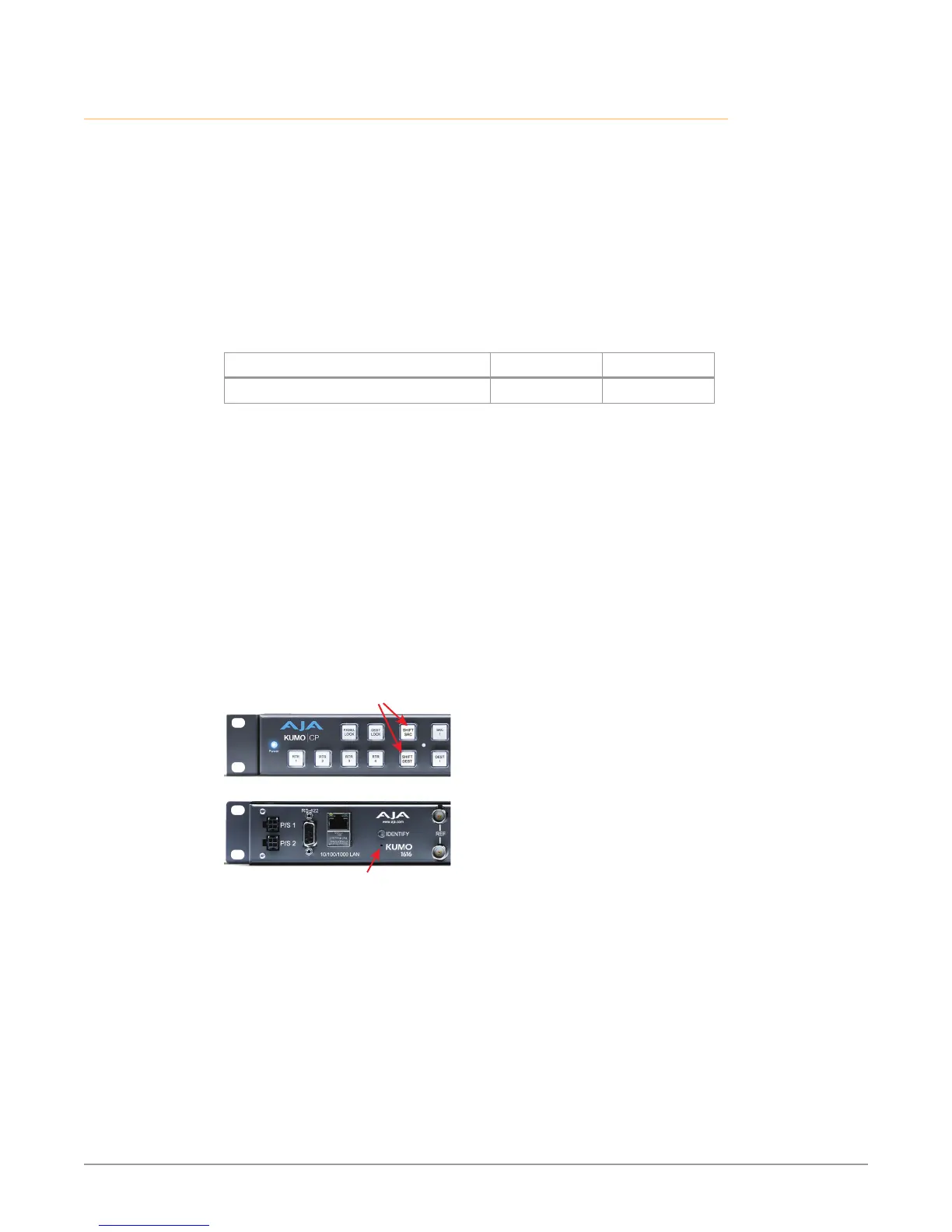
• For a KUMO router, insert a straightened paper clip or similar device into the
reset slot on the rear and hold for ve seconds and then release. The KUMO
will restart with the default IP. When the KUMO router default IP is set the
Identify LED will blink.
• For a KUMO CP, press and hold the two SHIFT buttons on the panel for ve
seconds and then release. When the KUMO CP default IP is set, the Source
and Destination buttons will ash alternately.
Figure 4. KUMO Router and KUMO CP Default Static IP Setting
Press Both Buttons
Recessed Button
Under Slot
KUMO Router
KUMO Control Panel
IMPORTANT: Be sure to record your computer’s existing TCP-IP settings before the
next step so that you can return the computer to normal operation after this
procedure.
1. Congure your computer to 192.168.101.X. Do not use .1 at the end of the
address to avoid duplicate IP addresses.
2. Start a web browser and enter 192.168.101.1 as the web address. This is the
KUMO temporary static IP address.
3. Once you’ve connected using the static IP, you can then enter a desired
network conguration using the KUMO device’s Network tab.


 To Next Page