13 14
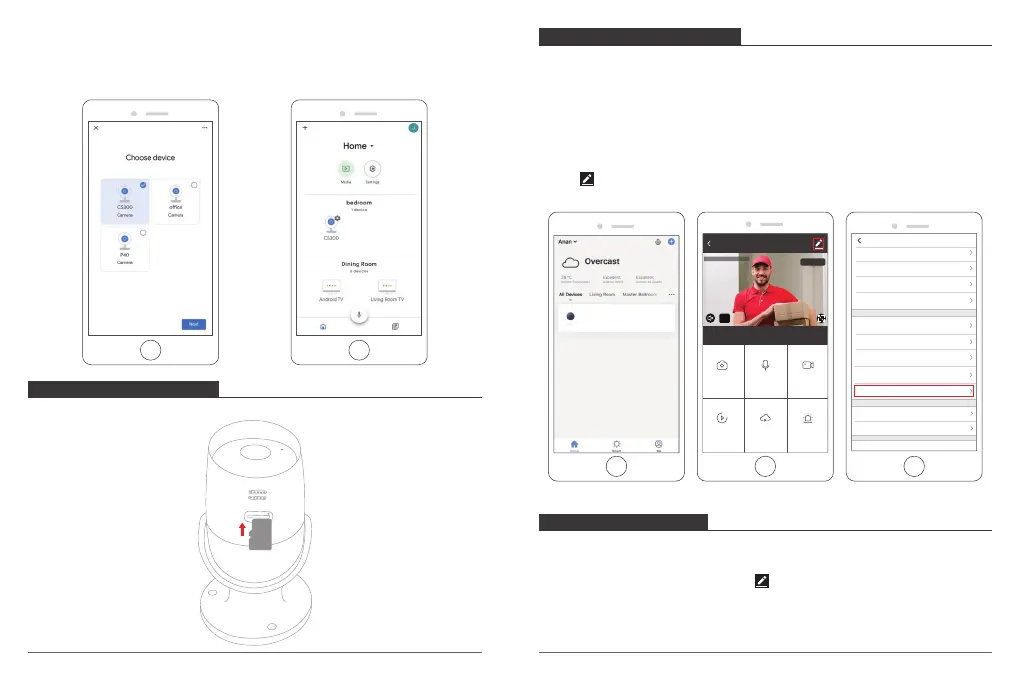
④ Enter the Smart Life app account and password, then tap “Link Now” to link your
Smart Life account. Choose the room where your device is located, and then the
skill will appear on the Home Control Devices list. Now you can begin your smart
home journey.
INSERT MICROSD CARD
Insert MicroSD Card
FORMAT MICROSD CARD
MicroSD Card and Cloud Storage can be selected, support 2-128GB card with
Class 10 or above. In order to make sure the card more compatible with the camera,
please format it firstly on computer as FAT32, then format it again in camera after
inserting the card. After finishing, the camera will start to record. Please format as
per the below:
① Open “Smart Life” to enter into the main interface, click camera icon to enter
intor the live view interface.
② Click on the right top to enter into the more setting, click “Storage Settings →
Format → OK” to format the card, please see below:
MOTION DETECTION
When the motion is detected, an alarm message with snapshot will be sent to
message center on the mobile phone, at the same time you will hear alarm sound.
① Motion Detection Alarm Setting: Click on the right top to enter into the more
setting, click “Motion Detection”, turn on it and select the level of sensitivity.
Settings
Device Name AKASO camera
Share Device
Device information
Use Echo
Basic Feature Settings
Decibel Detection Settings Off
Storage Settings
FAQ & Feedback
Motion Detection Medium
Purchase VAS
Firmware Information
Remove Device
AKASO camera
Screenshot
Alarm
Speak
Playback
HD
2020-04-20 13:51:48
Record
Cloud storage
Signal: 91%
AKASO camera


 To Next Page