English
11
II UWATEC Aladin TEC 2G
2 Operation
II
Setting
• Depth alarm
• Dive time alarm
• Safety stop duration
• Maximum partial pressure of
oxygen (ppO
2
max)
• Time limit to reset the O
2
% mix to air
• Deco gas
• Unit system
• Water type
• Backlight illumination duration
• Audible attention signals
• Water contacts
• Reset desaturation
• Gauge mode
• Alarm clock
• UTC (Universal Time Change) zone
• Time of day
• 24 or AM/PM setting
• Date
• Display contrast
• Sound
Range
5 - 100m (20 - 330ft) on/off
5-195min, on/off
1-5min
1.2-1.6bar
no reset / 1 - 48hrs
on/off
metric/imperial
on (salt water)/off (fresh water)
2-12s ; push on / push off
on / off (SmartTRAK: selective)
on / off
on / off
on / off
0 - 23h 59min, on/off
±13hrs, increments: 15min
hours:minutes
24 (off) / AM/PM (on)
1 (low) -12 (high)
on / off
Default
40m (130ft),off
60min, off
3 minutes
1.4bar
no reset
off
on (salt water)
6s
on
on
no reset
off
12:00, off
4
on
Page
45
46
46
46
46
46
46
46
47
47
47
47
30
48
48
48
49
49
49
50
The following data may be recalled with SmartTRAK:
• Number of past dives
• Total duration of dives
• Deepest dive
• Longest dive
• Atmospheric pressure
• Dive profile
• Logbook
• Temperature curve
• Alarms and attention messages
• Bookmarks
• Average depth
• Battery condition
The following settings may be changed with SmartTRAK or via
"
set 1
"
or
"
set 2
"
directly on
Aladin
:
Downloading your dives
Aladin’s memory allows you to store approximately 25 hours of dive profile
information in 4 second sampling intervals. With SmartTRAK you can transfer
this information to the PC in order to visualize and analyze your dives on the
monitor. To download data from Aladin, click on "NEW" under the "LOGBOOK"
menu to open and name a new logbook or open an existing logbook. Then
click on the "TRANSFER DIVES" icon: a box will appear on the screen identify-
ing the computer being downloaded, and a progress bar will show the status
of the transfer.
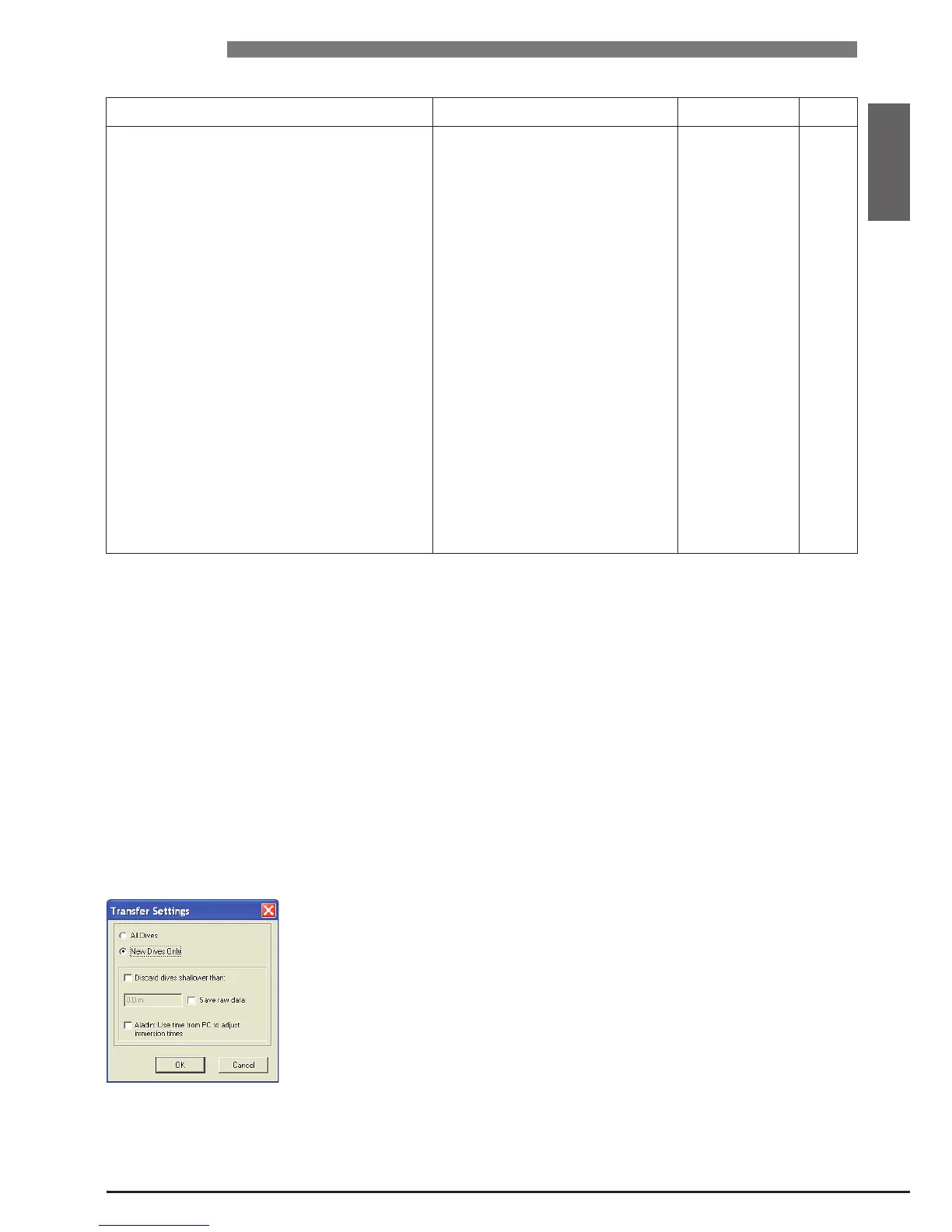
You can choose between transferring all dives or new dives only (default setting)
from Aladin’s memory. If you choose to transfer new dives only, SmartTRAK will
only transfer dives that are more recent than the most recent dive already saved
in the PC logbook. To transfer all dives, you must change the default setting by
selecting "Transfer" under "Dives" in the main menu bar.
Once the data is downloaded, a window will show you a summary table of all
dives; for the selected dive, another window will show you its details. From
these windows you can add and edit your dive information.


 To Next Page