Display Name
■
Usually the same number as the Authentication User.
Authentication Password
■
The Secret of the Extension as received in the e-mail associated with this extension.
Example: _%Z4M3*Ts9y7. A password is generated automatically for each newly created
Extension.
SIP Server
■
Enter the Hostname or IP Address of PBXware.
- Example of a Hostname: voip.bicomsystems.com
- Example of an IP Address: 192.168.1.10
Click the Confirm button at the bottom of the page.
■
If everything is done as described above, you should have successfully registered your phone
■
to PBXware.
Dial *123 to verify the registration.
Auto Provisioning
This section describes how to set UAD settings, create a PBXware Extension and register the
phone using DHCP or Static IP address.
The following topics are covered:
UAD Settings
■
Creating an Extension
■
Registering a Phone
■
UAD Settings
UAD settings
Log in to the PBXware's web administration interface.
Open a new browser window and enter the IP address in order to access the PBXware's web
■
administration login screen. Example: http://192.168.1.10.


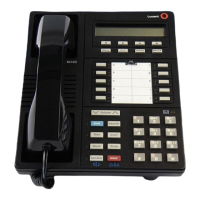
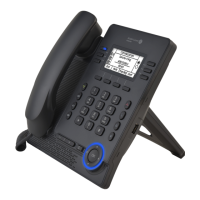
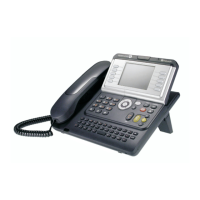
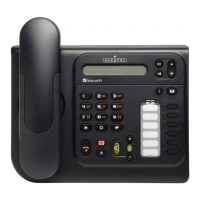

 To Next Page