Example of an IP Address using HTTP: http://92.168.1.10/prov
Example of an IP Address USING HTTPS: https://192.168.1.10/prov
If you choose to use TFTP Protocol Type, enter Hostname or IP Address.
Example of a Hostname: tftp://voip.bicomsystems.com
Example of an IP Address: tftp://192.168.1.10
Make sure that the Update Mode is set to Update After Reboot.
■
Click Apply.
■
Click Autoprovision Now.
■
A pop-up window will show up, click OK to confirm.
■
You will have to wait a couple of seconds for the configuration to be updated. NOTE: Do not
■
power off your phone.
The auto-provisioning process will start during the phone's reboot process. The phone will pick
■
up an appropriate configuration file from PBXware. If everything is done as described above,
you should have successfully registered your phone to PBXware.
Dial *123 to verify registration.
Additional Configuration Template
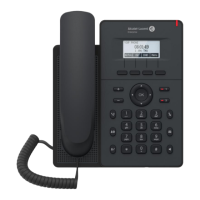
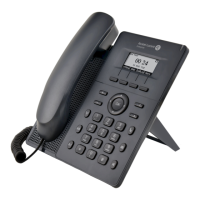
If you want to include some additional UAD configuration for Alcatel-Lucent Enterprise H2P,
just add fields to User Agent General Auto Provisioning Template in Settings -> UAD ->




 To Next Page