Set to Yes.
MAC Address
■
Enter the Alcatel-Lucent Enterprise phone's MAC address. Example: 001565FF1536. The
MAC address can be found at the back of the phone.
Click Save.
■
Registering a Phone
This section describes how to register the Alcatel-Lucent Enterprise phone using TFTP, or
HTTP & HTTPS.
TFTP & HTTP & HTTPS
Open a new browser window and enter your phone's IP address, e.g. http://192.168.1.22.
■
Enter username and password and press Confirm. NOTE: The factory default login details
■
are as follows: username is admin and password is 123456.
Click Auto Provision in the navigation tab.
■
Enter Auto Provisioning username and password into the Authentication Name and
■
Authentication Password fields.
Make sure the Download CommonConfig enabled check box is NOT checked.
Click Static Provisioning Server.
■
Choose which Protocol Type you intend to use: HTTP, HTTPS, or Trivial FTP. NOTE: Our
■
recommendation is to use HTTP.
If you choose to use HTTP or HTTPS Protocol Type, enter Hostname or IP
Address, then followed by /prov.
Example of a Hostname using HTTP: http://abc.bicomsystems.com/prov
Example of a Hostname using HTTPS: https://abc.bicomsystems.com/prov



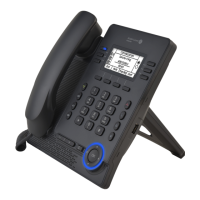
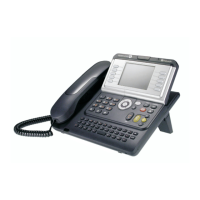
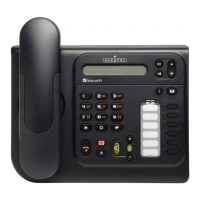
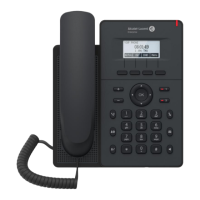

 To Next Page