Scripts September, 2022 • Rev. 2 • FlowVision 2.0™ user manual 22
Script Tab
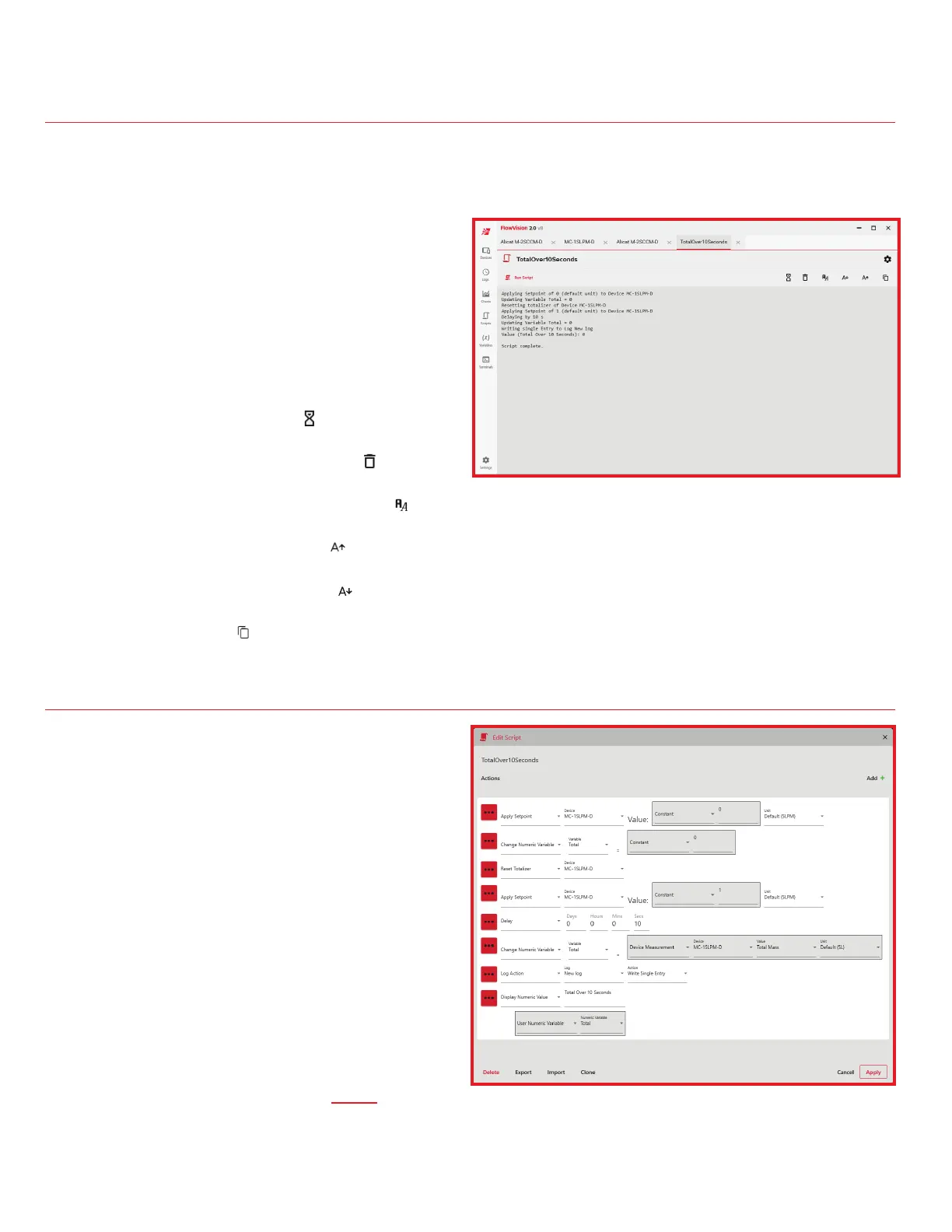
See figure 30
The title of the script is displayed at the top left of the
tab, and to the right of its title is the Edit button.
• To edit a script, click the Edit button. The
Edit Script window opens allowing you to
change the parameters of the script.
The center of the tab displays the output information
from the script as it is received. Between the output
information and the title bar is the script actions panel,
which contains buttons with additional functionality:
• Begin a script by clicking Run Script.
• Stop a running script by clicking Cancel.
• Edit device polling rates while the script
runs by clicking Device Timing ( ).
• Clear all the output information currently
displayed by that script by clicking Clear ( ).
• Toggle between a serif and a sans-serif font used by
the output field by clicking Toggle Font Face ( ).
• Increase the size of the font used by the output
field by clicking Increase Font Size ( ).
• Decrease the size of the font used by the output
field by clicking Decrease Font Size ( ).
• Create a new tab of the same script
by clicking Duplicate ( ).
Sample Script
See figure 31
Below is a sample script for a device to totalize flow over
a period of 10 seconds. As noted under script actions,
there are many dierent ways to dictate what a script can
do. This is just one example of what’s possible with scripts:
. Apply a Setpoint of 0 to the device.
2. Change Numeric Variable of the variable Total to 0.
3. Reset Totalizer of the device.
4. Apply a Setpoint of 1 to the device.
5. Delay for 10 seconds.
6. Apply a Setpoint of 0 to the device.
7. Delay for 1 second (So the system equalizes).
8. Log Action to log a single entry to a defined log.
9.
Display Numeric Value using the User Numeric
Variable.
If you need assistance with writing a script for your
device, please contact Alicat support (page 2)
Figure 30. Running a script.
Figure 31. Sample script.



 To Next Page