Set up your Alienware Area-51m
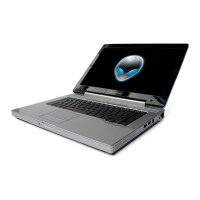
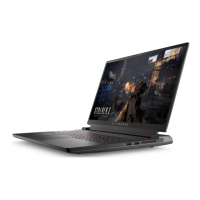
NOTE: The images in this document may dier from your computer depending on the conguration you ordered.
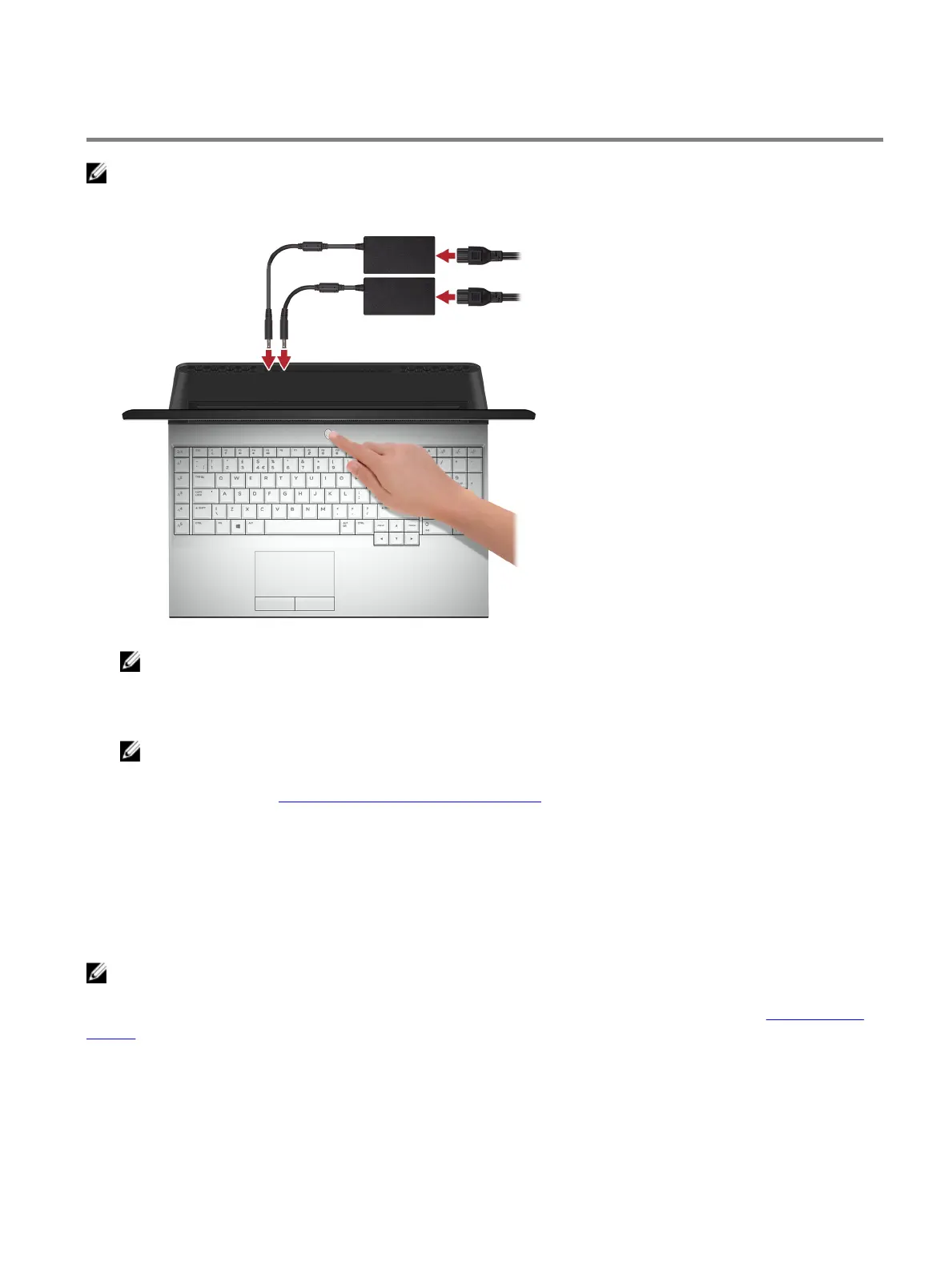
1 Connect one or both power adaptors supplied with your computer, then press the power button.
NOTE: Your computer ships with two power adapters, and it will operate normally with one power adapter
connected. For maximum gaming performance, it is recommended to connect two adapters. Only use adapters
supplied with your device, or Dell-approved adapters to power your device.
2 Create recovery drive for Windows.
NOTE: It is recommended to create a recovery drive to troubleshoot and x problems that may occur with
Windows.
For more information, see Create a USB recovery drive for Windows.
Alienware Graphics Amplier
Alienware Graphics Amplier enables you to connect an external graphics card to your computer.
When using the Virtual Reality (VR) headset, connect the HDMI cable to the graphics card installed on your Alienware
Graphics Amplier. The USB cables from the VR headset can be connected either to your computer or your Alienware
Graphics Amplier.
NOTE: The USB dongle is not required, if you are connecting the USB 3.1 Gen 1 cables on your VR headset to the
USB 3.1 Gen 1 Type-A port on your Alienware Graphics Amplier.
For more information about Alienware Graphics Amplier, see
Alienware Graphics Amplier User’s Guide
at www.dell.com/
support.
5



 To Next Page