AlienFX Lighting Set up (Auto & Manual)
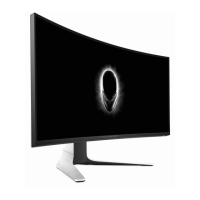
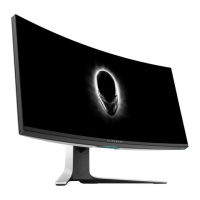
The AW3418DW & AW3418HW provide "AlienFX Lighting" functionality for you to adjust the
lighting color of following four zones:
Zone1: Alienware logo lighting and Triad lights on the back
Zone2: Stand of the monitor
Zone3: Downlights on the bottom of the monitor
Zone4: Power button.
AlienFX Lighting offers following two different adjusting modes:
Color:
Allow you to manually specify an LED lighting color from the list of 20 available colors.
Spectrum:
When you select On, the LED lighting automatically glows and changes colors in
sequence of spectrum: red, orange, yellow, green, blue, indigo, and violet.
To automatically set up AlienFX Lighting:
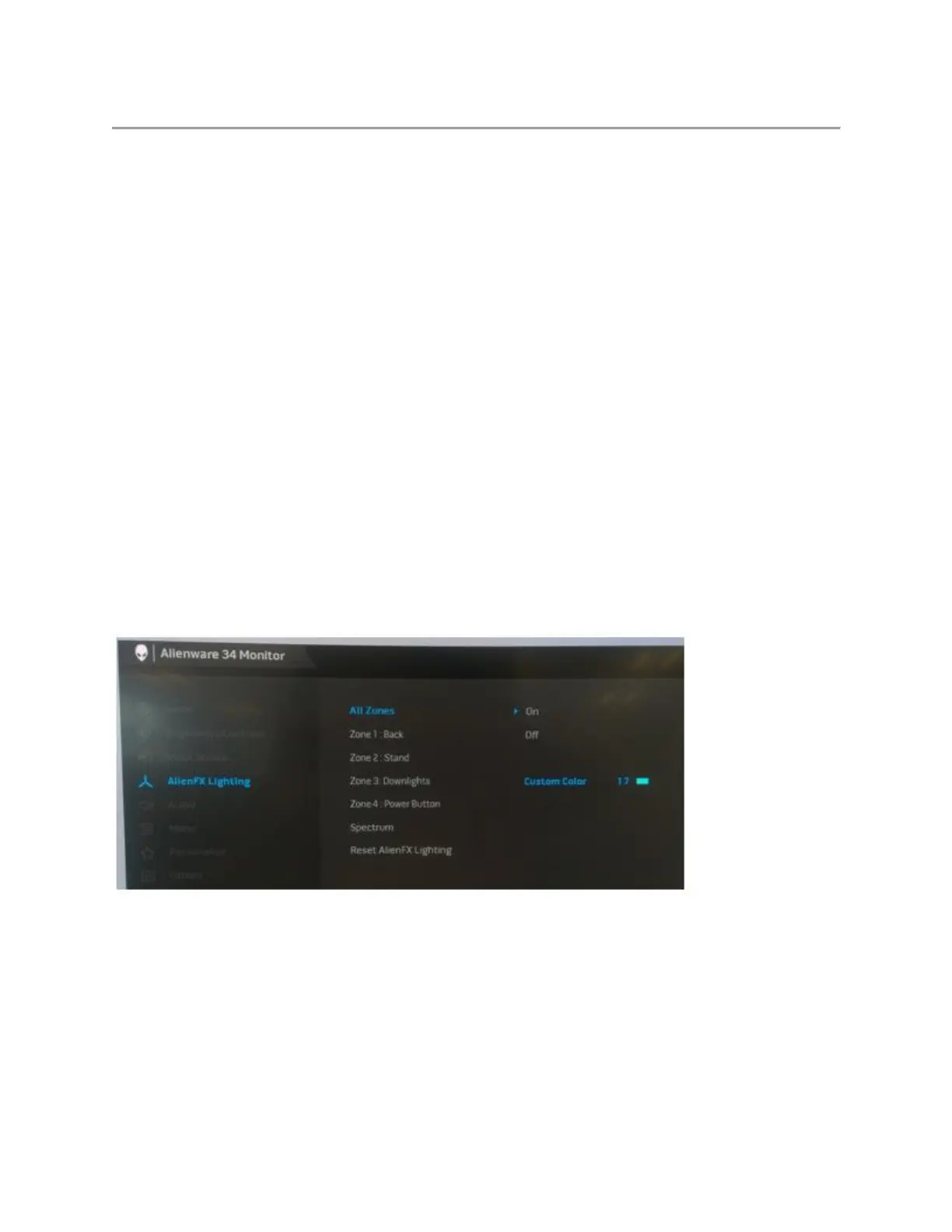
Go to the OSD->AlienFX Lighting->Spectrum->Select "On" (Figure 5.)
Figure 5. - Automatic setup of AlienFX Lighting
To manually set up AlienFX Lighting:
Go to the OSD->AlienFX Lighting->select All Zones, Zone1, Zone 2, Zone 3 or Zone 4 -
>Select Custom Color->Select color from the list of 20 available colors. (Figure 6.)








 To Next Page