Configure Web Interface
Configure Web Interface
The available sensors and actuators can be placed and configured on the web interface under "Main
page" > "Overview" as desired. The arrangement and color design is specified under "Configuration"
> "Device settings" (see chapter 8.1 on page 62). The screenshots also apply analogously to the
ALL3697 Powermeter. Note: Please always use current browser versions.
Hidden sensors
Hidden sensors and actuators can be shown again in the menu "Main page" > "Hidden sensors".
This option is only visible if sensors or actuators have been hidden.
Move sensor/actor
The sensor and actuator tiles can be distributed over several display pages. Each page can be
provided with a name matching the theme. (See: "Configuration" > "Device Settings"). Click on this
icon in the lower left corner of the sensor/actor tile. This opens a menu with the selection of the
already configured pages. Select the desired page.
Arrange sensor/actor
! Note: To rearrange tiles within a display page, you must first click on the icon at the bottom left of
the respective page to allow moving.
By clicking with the mouse in the area of the label, the sensor tile can be moved.
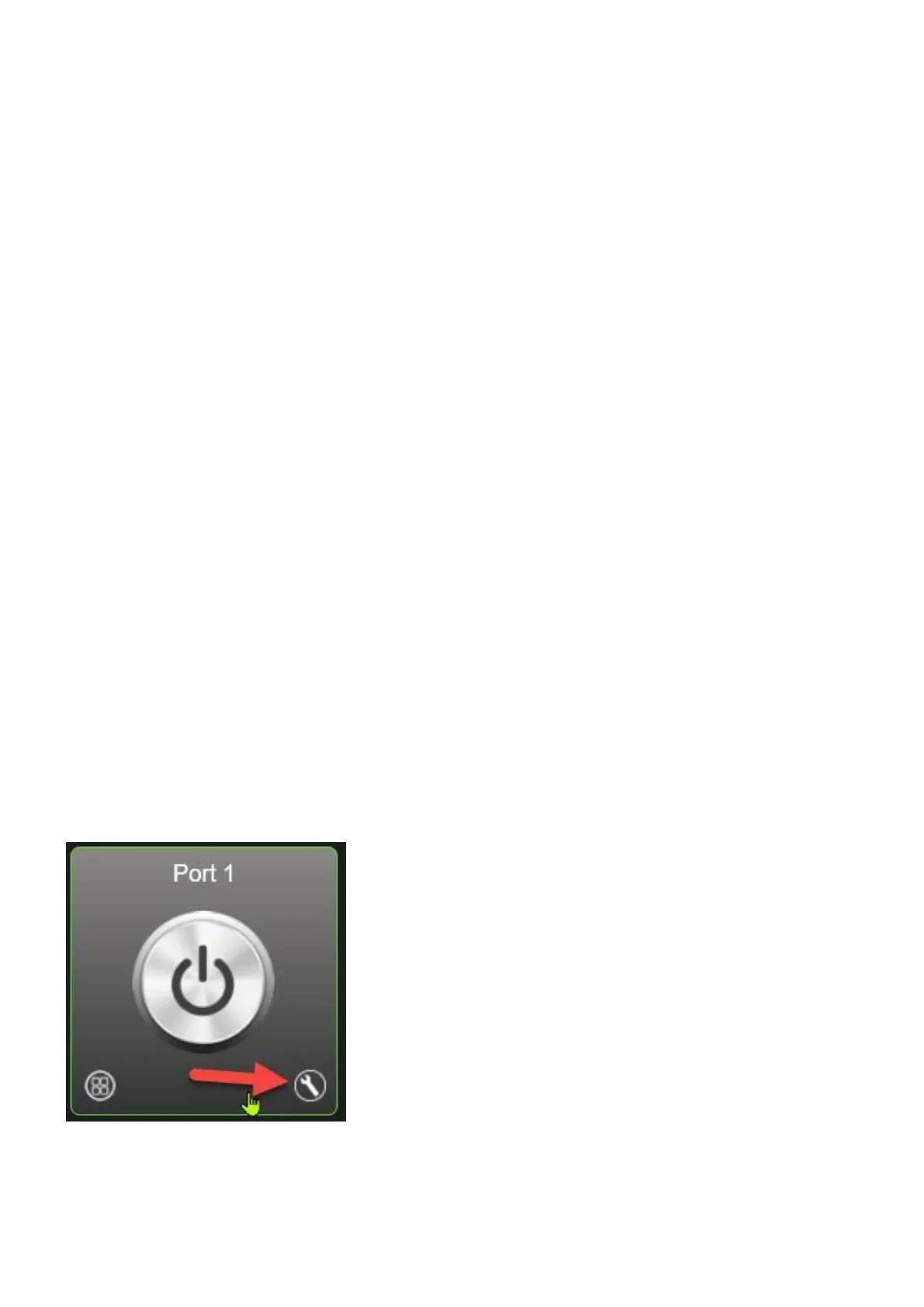
Configure actuator
Click the tool icon to configure a sensor.
"Actor" tab



 To Next Page