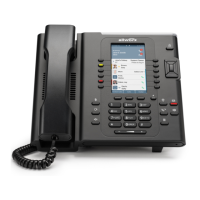
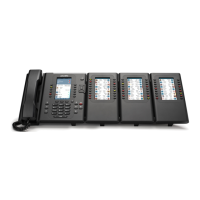
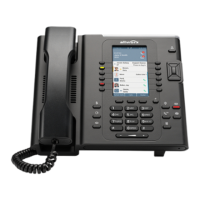
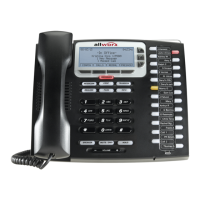
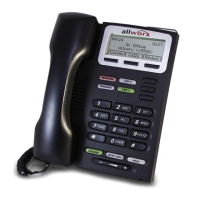
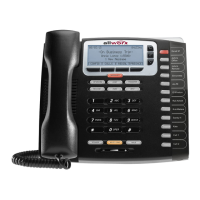
Allworx Verge IP Phone Series User Guide
866.ALLWORX * +1 585 421 3850 Page 65
www.allworx.com
Version: T Revised: February 14, 2019
2. Select one of the following options.
Key Option
1 To manage the Auto Attendant
• Enter the Auto Attendant number (The number of Auto Attendants supported: 6x12 and Connect 300
series - 9, 6x and Connect 500 series - 16, 48x and Connect 731 - 32).
Example 1 = Auto Attendant 431 and 32 = Auto Attendant 4332.
• Select the recording type:
• Select the recording type:
Key Option
1 To manage the <Auto Attendant> greeting. Enter the greeting number to manage after
selecting the option.
2 To manage the <Auto Attendant> status message.
3 To manage the <Auto Attendant> schedule
A message plays: “The Auto Attendant is using schedule <number>. To select a different
schedule, enter the schedule number followed by #.”
Enter the schedule number, and then enter the # sign. After successfully selecting a different
schedule, the user hears, “The Auto Attendant has been changed to use schedule <number>.”
The Message Center returns to the Manage Auto Attendant Menu.
If selecting a different schedule is unsuccessful, the user hears, “You must enter a valid schedule
number.” The Message Center returns to the Manage Auto Attendant Schedule Menu.
# Return to previous menu.
* Listen to these choices again.
Key Option
1 To manage the <Auto Attendant> greeting. Enter the greeting number to manage after
selecting the option.
2 To manage the <Auto Attendant> status message.
3 To manage the <Auto Attendant> schedule
A message plays: “The Auto Attendant is using schedule <number>. To select a different
schedule, enter the schedule number followed by #.”
Enter the schedule number, and then enter the # sign. After successfully selecting a different
schedule, the user hears, “The Auto Attendant has been changed to use schedule <number>.”
The Message Center returns to the Manage Auto Attendant Menu.
If selecting a different schedule is unsuccessful, the user hears, “You must enter a valid schedule
number.” The Message Center returns to the Manage Auto Attendant Schedule Menu.
# Return to previous menu.
* Listen to these choices again.



 To Next Page