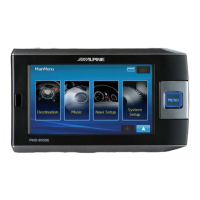
NVE-M300P Navigation Module Owner’s Manual
14
6.1 Buttons and other controls on the screen
When you are using Alpine Navigation Software, you usually tap buttons on the touch screen.
You only need to confirm selections or changes in Alpine Navigation Software if the application needs
to restart, it needs to perform a major reconfiguration, or you are about to lose some of your data or
settings. Otherwise, Alpine Navigation Software saves your selections and applies the new settings
without confirmation as soon as you use the controls.
Type Example Description How to use it
Button
Tap it to initiate a function, to
open a new screen, or to set a
parameter.
Tap it once.
Icon
Shows status information.
Some icons also function
as a button. Tap them
once.
List
When you need to select from
several options, they appear in a
list.
Move between pages with
the
and
buttons and tap the value
that you want.
Slider
When a feature has several
different unnamed values,
Alpine Navigation Software
ows an indicator on a gauge
that displays and sets a value
from a range.
• Drag the handle to
move the slider to its
new position.
• Tap the slider where
you want the handle
choices, a checkmark shows
whether the feature is enabled.
Tap it to turn the switch on
or off.
Virtual
keyboard
Alphabetic and alphanumeric
keyboards to enter text and
numbers.
Each key is a touch screen
button.


 To Next Page
 Loading...