Notes
• Depending on the Bluetooth version, a Bluetooth compatible device may not be able to communicate with this unit.
• Proper function of this unit with all Bluetooth compatible devices is not guaranteed. For handling of the BT compatible device, consult
your ALPINE dealer or ALPINE website.
• Depending on the surroundings, Bluetooth wireless connection may be unstable.
• When you place a call or perform setup operations, be sure to stop your car in a safe place.
• Depending on the connected Bluetooth compatible device(s), the function may differ. Also refer to the Owner’s Manual of the connected
device(s).
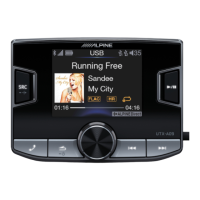
• When you search for this unit using the Bluetooth compatible phone, the unit name is displayed as “UTX-A09”.
Before using the Bluetooth function, the following settings need to be made.
Set Bluetooth Setup to ON when you want to use Hands-Free phone or BT Audio function. Refer to “Setting the Bluetooth
Connection”.
Note
• Before using Bluetooth function, it must be paired with this unit. Refer to “How to connect to a Bluetooth compatible device (Pairing)”.
For details on the control from a Bluetooth compatible device, refer to the Owner’s Manual of the Bluetooth compatible device.
1 Using your Bluetooth compatible device, select “UTX-A09” for pairing.
For Bluetooth compatible device with SSP (Secure Simple Pairing)
2-1 Turn the Rotary encoder when the pairing prompt appears on screen.
Press the button if you want to refuse pairing.
For Bluetooth compatible device without SSP (Secure Simple Pairing)
2-2 Input the PIN code (“0000”) in a Bluetooth compatible device.
Note
• The PIN code is fixed as “0000”.
3 If the pairing was successful, “Connected” is displayed for a few seconds. The head unit then returns to its previous state.
Notes
• If the connection is unsuccessful, “Failed” is displayed.
• After a successful pairing, the two devices should re-pair automatically whenever the vehicle's ignition is turned ON. If the auto re-pairing
fails, try to pair manually.
• Set "Visible Mode" to ON to enable this unit to be recognized by a BLUETOOTH compatible device. Refer to "Setting the Visible Mode".
• You can also manually pair the BLUETOOTH devices from this unit. For details, refer to "Pairing a BLUETOOTH Device from the unit".
Bluetooth SETUP
The following steps 1 to 5 are applicable to various Bluetooth functions. For details, refer to each individual function.
Note
• Set Bluetooth SETUP to ON, and then perform Bluetooth SETUP operation. Refer to “Setting the Bluetooth Connection”.
1 Press and hold the Rotary encoder for at least 2 seconds to activate the SETUP mode.
2 Turn the Rotary encoder to select “BLUETOOTH”, and then press the Rotary encoder.
The Bluetooth Setup mode is activated.
3 Turn the Rotary encoder to select the desired items, and then press the Rotary encoder.
BLUETOOTH:
Bluetooth Setup
*1
Setting Bluetooth Device
*2
Visual Mode
*1/*2
Call Volume
*2
Phone Book Synchronization
*1/*2


 To Next Page