Emailing Reports
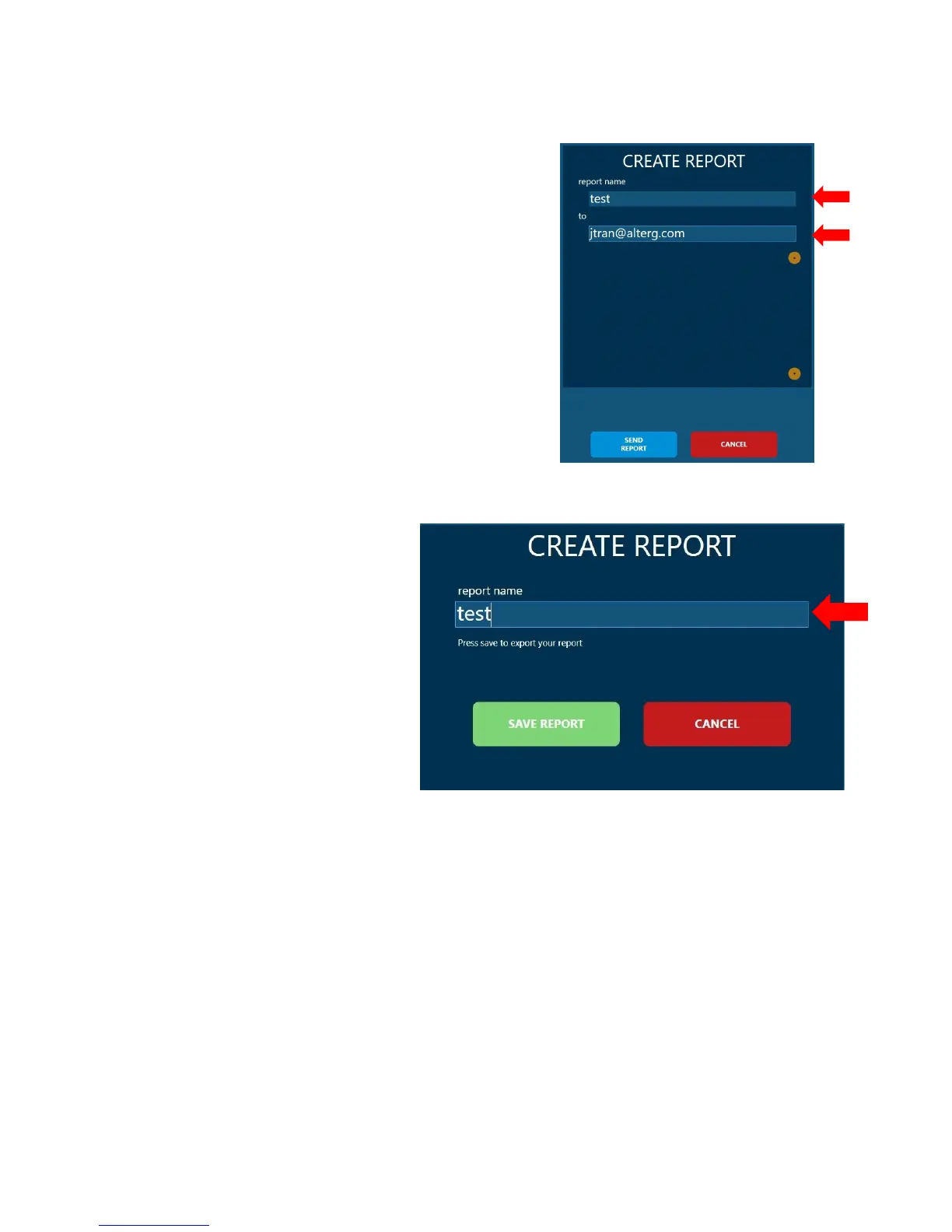
Add a Report Name before sending (Figure 30). We
recommend a non-identifiable patient ID (ex:
12345), or the session time and date (ex: YYMMDD
HH:MM). This will help you identify whose data this
is. We recommend emailing the information to
yourself and later attaching it to the patient’s EMR.
Type your email address into the white text box and
press send.
'
'
'
Extracting with USB
If you do not have Wi-Fi and end of
session report on a USB key, you
can do so by clicking on the
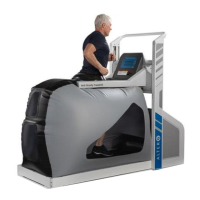
“Export to USB” button (Figure 31).
Add a Report Name before sending
(Figure x). We recommend a non-
identifiable patient ID (ex: 12345),
or the session time and date (ex:
YYMMDD HH:MM). This will help
you identify whose data this is.
Once you have added a Report Name click “Save Report.”
You can save as many reports as you would like, as long as there is enough space on
your thumb drive.
The end of session report is a summary of your session details. It will automatically be
sent to you along with the selected items in PDF format. It will also include all of the
pain data recorded. There will be no patient or athlete name on the report.


 To Next Page