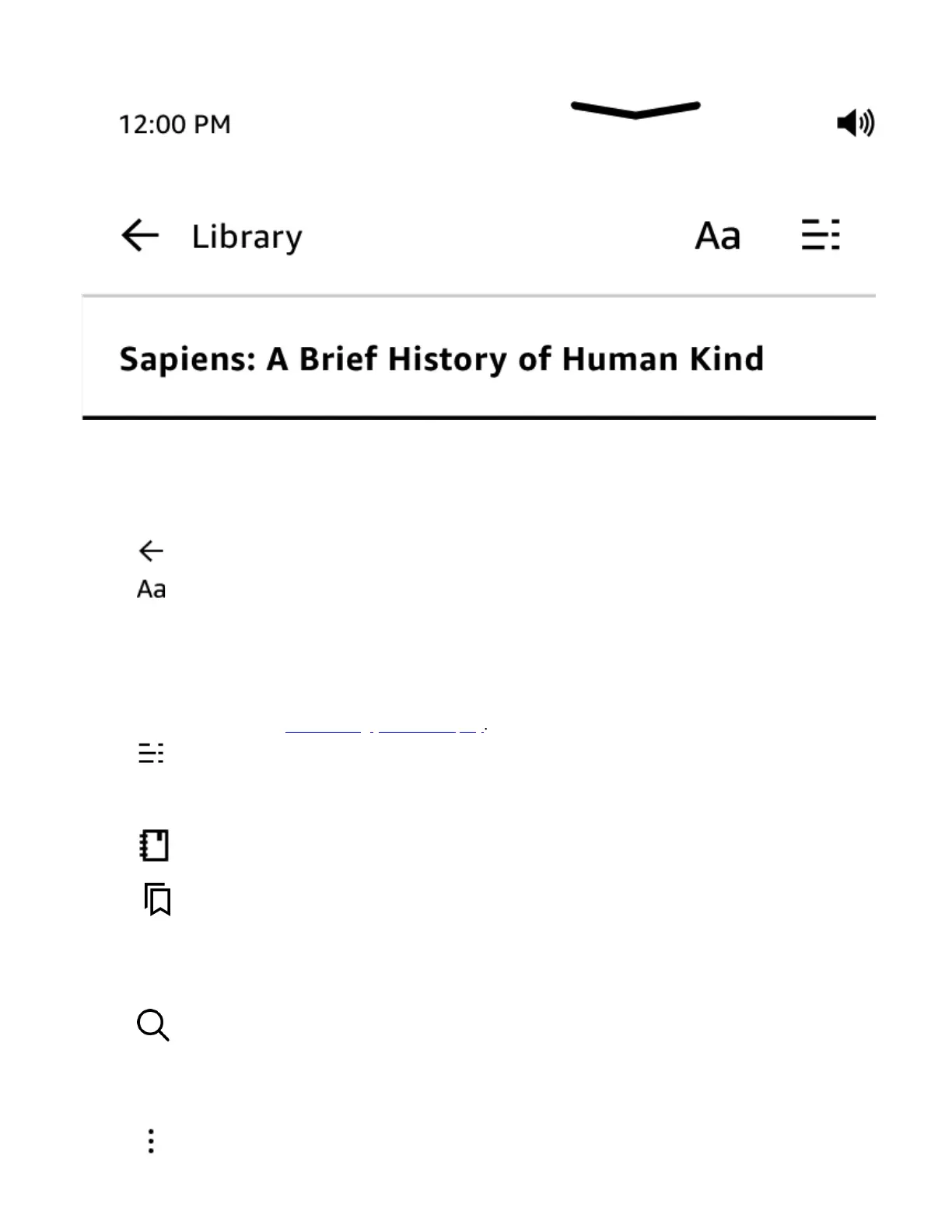
When reading, tap the top of the screen to display the In-book, and Reading Navigation toolbar. Toolbar icons vary by
Tap to close the current open item and return to your previous location.
!: Tap to choose from different reading personalization settings to customize your page display. These
settings make it easy to customize your book for your reading preference and situations - such as font, line
spacing and more into a simple choice. For example, if you like to use a larger font and wider line spacing
while reading on the treadmill and a smaller font when reading in bed, you can now quickly switch between
your preferred settings. You can also create and save your own custom reading personalization setting. For
Customizing your text display
: The Contents tab displays the book’s contents, including Beginning and chapter titles. Use the
Page or Location option to further navigate your book. The options displayed will vary depending on the
: Tap the Notes icon to access your notes and highlights.!
: Tap to add or delete a bookmark on the current page, and view previously added
bookmarks. The Bookmark icon on the toolbar changes from white to black on bookmarked pages. A preview
pane displays when you tap a bookmark in the list. To go to the selected location, tap the preview pane. To
exit the bookmark feature, tap outside of the bookmark dropdown.
Search for content by tapping the magnifying glass. To search within a book or document when
reading, tap the top of the screen to bring up the toolbars, then tap the Search icon and enter the text you want
to search for. The results will include matches from the book or document, as well as text notes and highlights
!Menu options here may include About This Book, Show/Hide Writing Toolbar, X-Ray,
https://d1ergij2b6wmg5.cloudfront.net/kug/kindle_scribe/v1/en-US/htm...














 To Next Page