Your Ki n d l e p h o n e app will automatically de t e c t your Amazon account an d a n y previously saved Wi-Fi passwords to
To set up a Bluetooth audio device when using VoiceView, visit
Vo i c e Vi e w s c r e e n r e a d e r
If you aren't signed in, select Register your Kindle from the Home screen, and follow the onscreen prompts. To verify,
go to Settings and check the registered user's name under Your Account. If you don't see the intended account,!tap
Your Account, t h e n Register/Dere g i s t e r Device. If y o u have enabled S i g n in A p p r o v a l , you will n e e d to enter y o u r
passcode followed by the security code sent to your phone when you register the device.
If you have difficulty connecting to your wireless network or need more information, see
you have completed the setup process, Set Up Your Kindle will no longer appear on your Home screen.
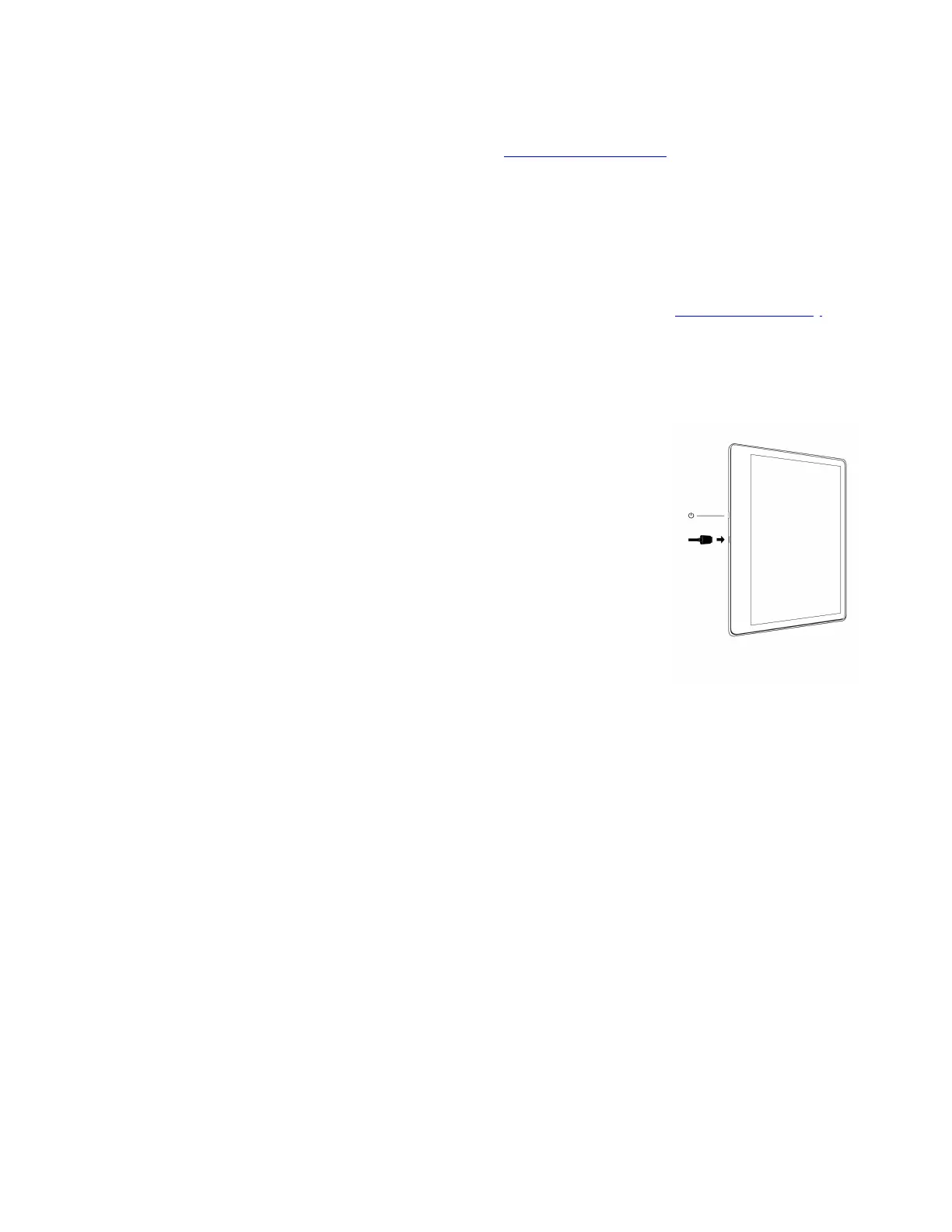
: To turn your Kindle on, press the Power button located on the same edge
as the charging port. If you need to turn off your Kindle screen, press and hold the Power
button for 9 seconds until the Power dialog box displays and then tap Screen Off.
Your Kindle will automatically go i n t o s l e e p mode after a few minutes o f i n a c t i v i t y a n d a
screensaver displays. This static screensaver uses no battery power. To put your Kindle
in sleep mode, press and release the Power button. To wake up your Kindle, press and
release the Power button.
If your Kindle does not power on or is unresponsive during use and you need to restart it,
press and hold the Power button for 9 seconds until the Power dialog box displays and
then tap Restart. If the Power dialog box does not display, press and hold the Power button for 15 seconds or until the
LED near the charging port stops blinking.
: You can use the supplied USB-C cable to connect your Kindle to a computer for charging the
battery. You can also use the USB-C cable to transfer files to your Kindle. To charge your Kindle from a power outlet,
you will need the Amazon 5W charger (sold separately) for the USB-C cable.
When charging, a lightning bolt appears on the battery status indicator at the top of the Home screen. The charge
indicator light will turn amber while the battery is charging and green when it is fully charged. Charging should take
less than two hours using the Amazon 5W charger (sold separately). Charging using third-party adapters or from a
computer's USB port should take less than three hours, but may take longer depending on the capability of the
hardware. Please view Safety & Compliance in the More > Legal section for information regarding use with other
USB-C cables and power adapters.
Your Kindle is not usable as a r e ading d e v i c e w h i l e i n U S B d r i v e mode. To read a b o o k w h i l e c h a rging the battery, y o u
must eject the Kindle from your computer's desktop. To do so, click the Disconnect button on your Kindle.
Your Kindle will then e x i t U S B drive mode, but will c o n t i n u e t o charge. I f t h e charge i n d i cator l i g h t d o e s not come on,
make sure that the USB-C cable is fully inserted into your Kindle and into the USB port of the computer. If your
Kindle is still not charging, try another USB port or power outlet.
https://d1ergij2b6wmg5.cloudfront.net/kug/kindle_scribe/v1/en-US/htm...














 To Next Page