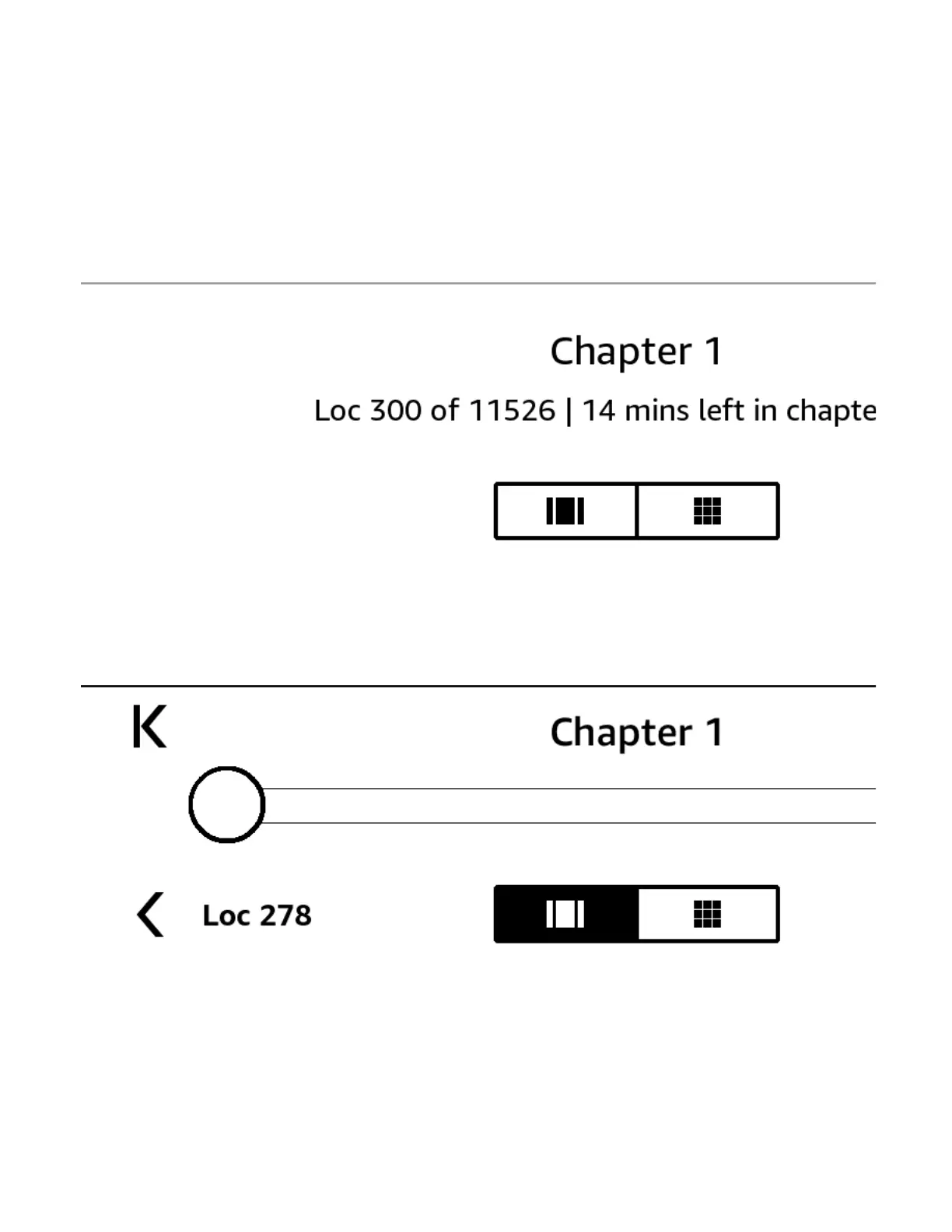
Page Flip lets you preview other pages in a book without leaving your current page or losing your place. To open Page
Flip, tap the top of the screen to display the Reading Navigation toolbar, then tap one of the Page Flip icons at the
The first icon allows you to preview one page at a time. The second icon lets you preview nine pages at a time (only
available in select books). You can also swipe from the bottom of the screen while reading to jump right into Page
Once in Page Flip, press, hold, and drag the circle forward or back, or tap on the progress bar to preview a new page or
location in the book. Use the arrows or swipe within the preview pane to flip through your book page by page.
To skim through chapters, tap the arrows.
To return to your original location, tap the X on the preview pane.
https://d1ergij2b6wmg5.cloudfront.net/kug/kindle_scribe/v1/en-US/htm...














 To Next Page